
Windows のセキュリティを最新に保つための Windows Update。しかし、その後に PIN でのサインインができなくなったり、保存していたパスワード(資格情報)が消えてしまったりするトラブルが報告されています。
この記事では、その現象の具体的な内容から、技術的な背景、そして私たちが取るべき対処法までを詳しく掘り下げていきます。
発生する具体的な現象
Windows Update を適用し、PC を再起動した後に、以下のような現象が発生することがあります。
- Windows Hello の PIN が使えなくなる
- サインイン画面で「問題が発生したため、PIN を使用できません。クリックして暗証番号 (PIN) をもう一度設定してください。」というエラーメッセージが表示される。
- 保存した資格情報が消える
- 資格情報マネージャーに保存していた Web サイトやアプリのパスワードが消え、毎回手動で入力が必要になる。
この問題は、必ずしもすべての Windows 環境で発生するわけではありません。ただし、既に一部のユーザーからは発生が報告されており、Microsoft もこの状況を把握しています。
発生が確認されている環境:
- Copilot+ PC など、拡張サインイン セキュリティ (ESS) が有効化されている環境
- Credential Guard が有効化されている環境
なぜこんなことが起きるのか?その原因と対処法を解説
原因
結論から言うと、この問題は「PC のセキュリティに関する 2つの重要な更新が、偶然同時に行われてしまった」ことが原因です。
少し専門的になりますが、分かりやすいように「金庫」と「合言葉」で例えてみましょう。
- 金庫 (TPM/VSM): あなたの PIN やパスワードは、PC 内部にある「TPM」というセキュリティチップによって守られた、非常に頑丈な金庫の中に保管されています。
- 合言葉 (PCR値): この金庫は、PC が正常な状態であることを確認するための複数の「合言葉」が揃わないと開きません。
この「合言葉」は、PC の様々な状態を反映しています。今回の問題に関連するのは、主に以下の 2つです。
- 合言葉A:セキュリティルールの状態 これは「セキュアブートDBX」という、危険なプログラムをブロックするための禁止リストの状態を反映しています。Windows Update でこのリストが更新されると、合言葉Aが変わります。
- 合言葉B:PC の土台の状態 これは PC の最も基本的なプログラムである BIOS/UEFI ファームウェアの状態を反映しています。BIOS が更新されると、合言葉B が変わります。
通常、これらの合言葉は一つずつ更新されるため、金庫も問題なく開けられます。
しかし、Windows Update のタイミングで、PC メーカーが提供する BIOS 更新(合言葉Bの変更)と、Microsoft が提供する DBX 更新(合言葉A の変更)が同時に行われてしまうことがあります。
すると、金庫の番人であるセキュリティシステムは、「複数の合言葉が一度に変わった!これは誰かに無理やり改造されたか、攻撃を受けている危険な兆候だ!」と判断します。そして、あなたの情報を守るために、金庫を完全にロックしてしまうのです。
これが、PIN やパスワードの情報が取り出せなくなり、「使えない」「消えた」という形で現れる現象の正体です。
対処法:もし問題が起きてしまったら
残念ながら、一度この現象が発生してしまうと、ロックされた金庫を元に戻す簡単な方法はありません。
対処法は「PINと資格情報を再設定する」ことです。
なぜ再設定が必要かというと、この現象が発生すると、パスワードを暗号化していた「鍵」がセキュリティ機能によって意図的に破棄されてしまうためです。暗号化されたパスワードのデータ自体は PC 内に残っていますが、鍵が失われたことで二度と元に戻せなくなります。
そのため、ユーザーが再度パスワードを手動で入力し、システムに新しいパスワードデータと新しい暗号鍵を改めて作らせる必要があるのです。
- PIN の再設定: サインイン画面でエラーメッセージが出たら、「サインイン オプション」をクリックし、パスワードでサインインします。その後、「設定」>「アカウント」>「サインイン オプション」から、一度 PIN を削除し、再度設定し直してください。
- 資格情報の再入力: 消えてしまった Web サイトやアプリのパスワードは、お手数ですが再度手動で入力し、ブラウザやアプリに保存し直す必要があります。
一部の環境では、Microsoft アカウントのパスワードでサインインをするオプションが表示されない場合があります。
予防策・回避策はあるの?
では、この問題を未然に防ぐ方法はあるのでしょうか。
自動での予防策について
残念ながら、2025年10月現在、Windows OS には「セキュアブート DBX の更新」と「BIOS/UEFI ファームウェアの更新」が同時に行われるのを自動的に防ぐ機能はありません。
Microsoft もこの問題を認識しており、開発部門へのフィードバックは行われているため、将来の Windows Update で改善される可能性はあります。
【上級者向け】手動で同時更新を回避する方法
PC の操作に詳しい方向けに、手動で問題の発生を回避できる可能性のある方法をご紹介します。
これは、「セキュアブート DBX の更新(合言葉A の変更)」の兆候を事前に察知し、そのタイミングでの「BIOS 更新(合言葉B の変更)」を避けるという考え方です。
DBX 更新が適用されると、システムのイベントログにその記録が残ります。
▼イベントログの確認方法
- スタートボタンを右クリックし、「イベント ビューアー」ををクリックします。
- 左側のツリーから「Windows ログ」>「システム」を選択します。
- 中央の一覧から、以下の情報を探します。
- ログ名: システム
- ソース: TPM-WMI
- イベント ID: 1034
- レベル: 情報
- 説明に「セキュア ブート Dbx 更新プログラムが通常に適用されました」と含まれる
もしこのログを見つけたら、それは「次回の再起動で、合言葉A(セキュリティルール)が変わりますよ」というサインです。

このサインが出ている間は、Windows Updateの「オプションの更新プログラム」などから BIOS/UEFI ファームウェアの更新(合言葉B の変更)を行うのは避けましょう。
つまり、先に一度 PC を再起動して DBX 更新を完全に適用させてから、改めて BIOS の更新を行うことで、問題の発生を防げる可能性が高まります。
注意: 最近では、2025/09/29 にプレビューリリースされた KB5065789 でセキュア ブート DBX が更新されています。そのため、現在 KB5065789 をインストールしていない環境でも、次の月例更新プログラムで自動的に更新されます。
追記:Microsoft アカウントのパスワードでサインインをするオプションが表示されない場合の対処法
Windows 11 の起動後に「問題が発生したため、PIN を使用できません。クリックして暗証番号 (PIN) をもう一度設定してください。」と表示され、 Windows Hello (PIN や 生体認証) によるサインインができなくなってしまい、Microsoft アカウントのパスワードでサインインをするオプションが表示されない場合は、下記の方法で解決できる可能性があります。
ステップ1.Windows 11 のインストール用 USBメモリを作成
下記のページを参考に Windows 11 のインストール用 USBメモリを作成してください。
Windows 11 メディア作成ツールの使い方|エラー解決法も解説
※他にサインインできるユーザーアカウント(管理者)がない場合は、ご友人やご家族の PC などを借りて作成してください。
ステップ2.USBメモリから起動(ブート)する
作成した USBメモリを問題の PC に接続し、PC の電源を入れ、すぐに特定のキー(例:F12, ESC, F2など、メーカーにより異なる)を押してブートメニューを呼び出し、「USB Drive」や「UEFI: (USBメモリ名)」などを選択して USB から起動します。
ステップ3.「PC を修復する」を選択
1.Windows 11 セットアップ画面(言語選択)が表示されたら、「次へ」をクリックします。

2.キーボード選択画面も同じように「次へ」をクリックします。

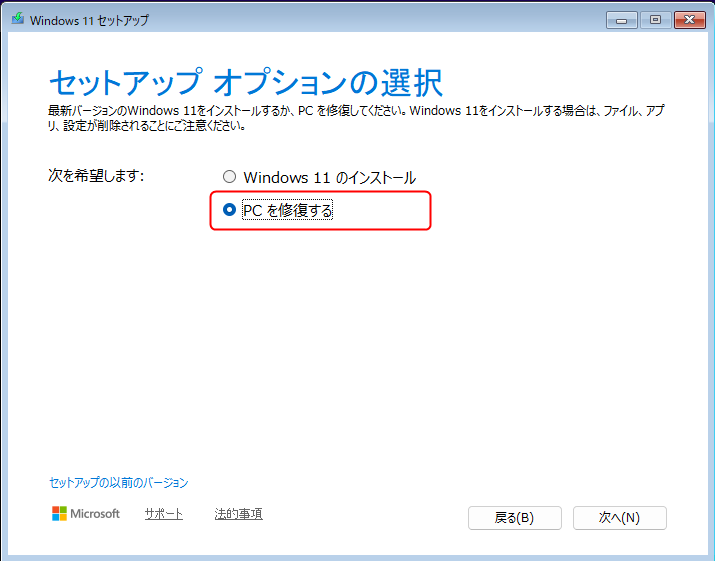
3.セットアップオプションの画面で「PC を修復する」をクリックします。
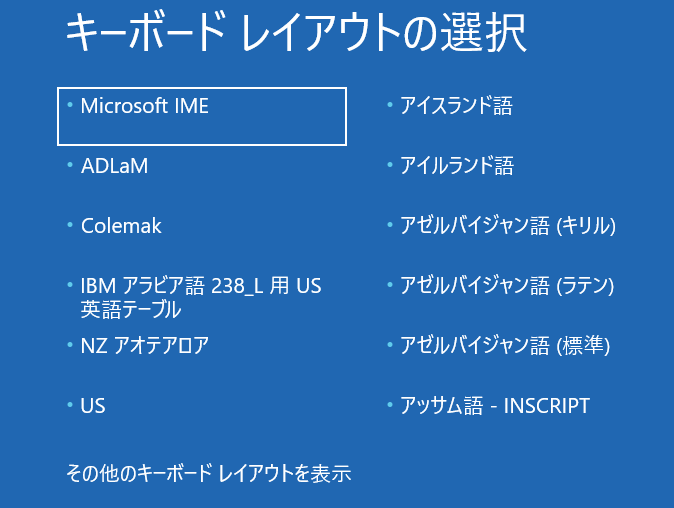
4.キーボードレイアウトは「Microsoft IME」を選択します。
ステップ4.コマンドプロンプトを開く
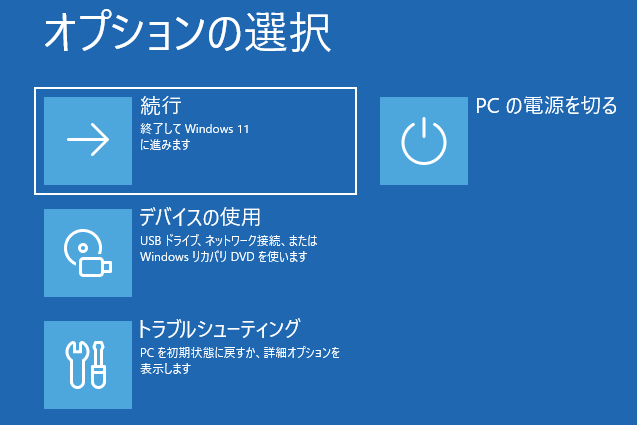
5.「オプションの選択」が表示されたら「トラブルシューティング」を選択します。
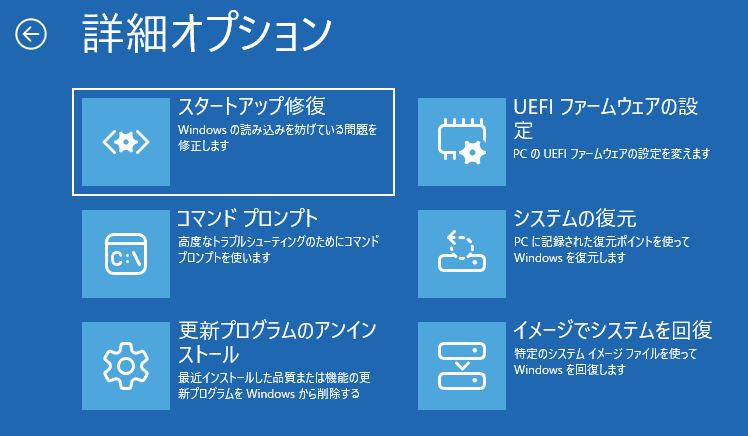
6.「詳細オプション」が表示されますので、「コマンドプロンプト」を選択します。
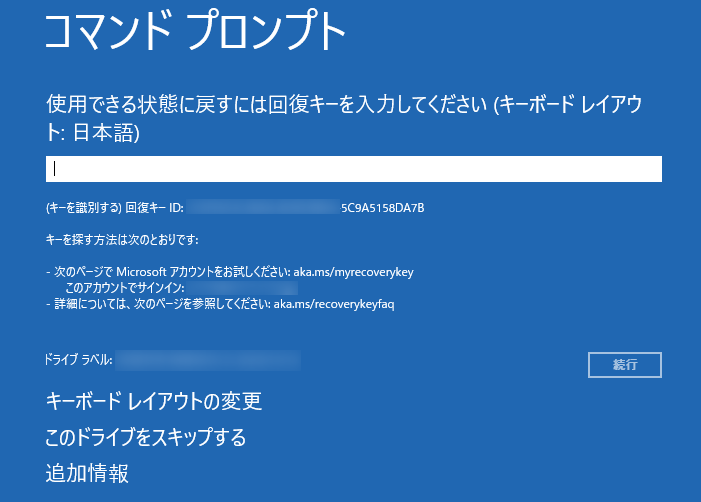
7.デバイス暗号化または BitLocker ドライブ暗号化が有効な場合、回復キーの入力が求められますので、回復キーを入力して解除してください。
ステップ5.レジストリエディターを開く
レジストリの操作を間違えると、システムが起動できなくなるなどの不具合が起きる可能性があります。事前にシステムの復元などでバックアップを取り、自己責任で行うようお願いします。
- システムの復元ポイント作成方法及び復元方法
- レジストリエディターの開き方及びバックアップ方法
- Windows 11/10 レジストリの予備知識|概念・開き方・内部構成
- Windows 11レジストリの所有権を取得し、アクセス許可を変更する方法

 ポチップ
ポチップ
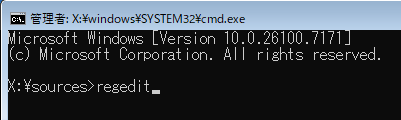
8.すると、コマンドプロンプトが表示されますので、regeditと入力して Enter を押します。
ステップ6.現在使用している Windows 11 のレジストリ値を変更するための準備
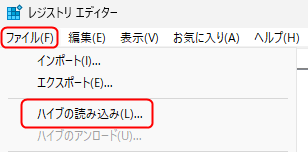
9.レジストリエディターが開きますので、「HKEY_LOCAL_MACHINE」キーを選択した状態でメニューの「ファイル」>「ハイブの読み込み…」をクリックします。
10.「ファイルの場所」ダイアログが開くので、PC 本体の Windows がインストールされているドライブを探します。
11.見つかったら、Windows がインストールされているドライブ>Windows>System32>config フォルダーを開いてください。
12.「SOFTWARE」 (拡張子はありません)というファイルを選択して「開く」をクリックします。
13.「キー名」を聞かれるので、「SOFTWARE2」と入力して OK をクリックします。
ステップ7.レジストリ値の変更
14.次のキーを開きます。
HKEY_LOCAL_MACHINE\SOFTWARE2\Microsoft\Windows NT\CurrentVersion\PasswordLess\Device15.右側の欄の「DevicepasswordLessBuildVersion」の上で右クリック>「修正」をクリックします。
16.値のデータを「0」に変更し、OK をクリックします。
17.レジストリエディタを × ボタンで閉じます。
18.コマンドプロンプトを × ボタンで閉じます。
19.「続行」をクリックします。
BitLocker ドライブ暗号化が有効である場合(先ほど解除していても)は、Windows 11 のインストール用 USBメモリを取り外してから「続行」をクリックしてください。取り外さずに「続行」をクリックすると、「BitLocker回復」が表示される場合があります。
理由には、「セキュア ブートポリシーが予期せずに変更されたため、BitLockerでドライブのロックを解除するには回復キーが必要です。」と表示されます。
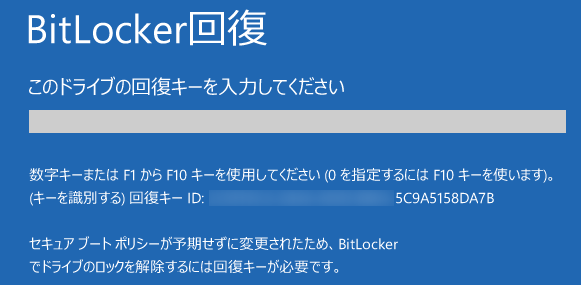
もし BitLocker回復が表示されてしまったら、
1.ESCキーを一度押してください。
2.Windows 11 のインストール用 USBメモリを取り外します。
3.下の方にある「このドライブをスキップする」をクリックします。
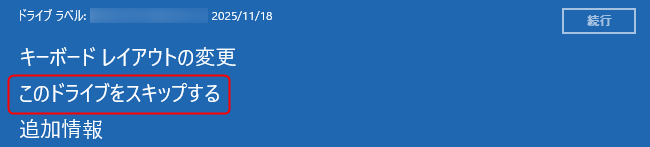
4.「続行」をクリックします。
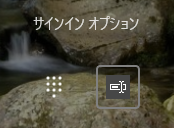
20.すると、サインイン画面が開きますので、「PIN を忘れた場合」の下に「サインインオプション」が表示されますので、クリックします。
21.「サインインオプション」の下に 2つアイコンが表示されますので、右側を選択すると、Microsoft アカウントのパスワードでサインインをすることができます。
まとめ
Windows Update 後に PIN やパスワードが使えなくなる問題は、PC の故障ではなく、複数の重要なセキュリティ更新が同時に行われた結果、システムがユーザーの情報を守るために過敏に反応した結果と言えます。
Microsoft は既にこの問題を認識していますので、今後改善される可能性はあります。
そして、もしこの問題に遭遇しても、それはお使いの PC のセキュリティ機能がしっかりと働いている証拠でもあります。慌てずに PIN やパスワードを再設定して、安全な PC 環境を維持しましょう。
- 【Windows 11】無料でOSを丸ごとバックアップ!自分だけの「カスタムインストールメディア」でPCを完全復元
- Windows 11 のサインイン画面で PIN を入力してもサインインできない原因と対処法
- 【警鐘】BIOS操作でPCが起動不能に?セキュアブート更新に備える「3つの対策」
ポチップ

コメント