Win11 Solved! Can't take screenshot of right-click menu

This time, we will introduce a trick to change the settings for the Snipping Tool so that the menu does not disappear when you take a picture of the right-click menu of a file, etc.

In Windows 11,Windows key Pressing + Shift + S simultaneously or pressing the Print Screen key will launch the Snipping Tool, allowing you to select a mode and take a screenshot.

However, when I try to take a screenshot of the right-click menu of a file or other item in Windows 11, or when I try to select a mode, the menu disappears and I am unable to take a screenshot.

Specifically, you can no longer take a picture of the new right-click menu in Windows 11.

When I try to take a screenshot of the right-click menu, it disappears.

I checked it, butRight-click menu in previous versionsI was able to take the picture without it disappearing.

The old right-click menu remains available.

The Snipping Tool does not appear in the right-click menu, nor in full-screen games (as confirmed in Epic Games' Fortnite). (It may appear if you press it several times.)

This is not a bug, but a change in the specifications of the new Snipping Tool in Windows 11.

table of contents

How to revert the Windows 11 Snipping Tool to an older version

By reverting the Windows 11 Snipping Tool to an older version, you will be able to take screenshots of the right-click menu and full-screen games.

If you operate the registry incorrectly, it may cause problems such as the system being unable to start. Please make a backup in advance using system restore or similar, and proceed at your own risk.

To avoid panicking if your PC suddenly breaks down, it's a good idea to have a standard backup software to protect your important photos and data.

2025/11/15 postscript:

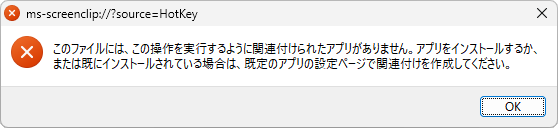
The specifications have been changed in version 11.2508.29.0 (2025/10/14), and if you make the following edits, the Snipping Tool will no longer be able to be launched.

ms-screenclip://?source=HotKey

The issue of not being able to take a screenshot of the right-click menu has been resolved and no further action is required.

1. Press Windows key + R to open Run, type "regedit" and press Enter.

2. Open the following key:

HKEY_CURRENT_USER\Software\Classes\AppXfeq5vwnakrw6cy02kzhq8ekhhsremh62\Shell\open

3. With the "open" key selected, double-click the string value "PackageRelativeExecutable" in the right column to open it.

レジストリエディター
レジストリエディター

4. The value data is "SnippingTool\SnippingTool.exe", so change it to "SnippingTool\SnippingTool.exe_" and click OK.

Before editing a string value

After editing the string value

5. Exit Registry Editor, right-click to bring up the menu, and press Windows key + Shift + S simultaneously.

This will open the older version of the Snipping Tool, allowing you to select a mode and take a screenshot.

Old version of the Snipping Tool

Here is a video of someone actually taking a screenshot of the right-click menu.

Video of taking a screenshot of the right-click menu

Windows Update may revert the changed registry values. If this happens, please set them again.

I want to read it together
Change the save location of screenshots (Snipping Tool) in Win11 This time, we will show you how to change the save location of screenshots (Snipping Tool) in Windows 11. By default, when you take a screenshot with the Snipping Tool, the screenshot is saved...
If you found this article helpful, please share it on social media.

Person who wrote this article

Driven by questions arising from my daily PC use and the desire to "do more," I have been pursuing self-study in Windows since around 2008. I am sharing the "aha!" techniques and solutions I discovered through trial and error with the sole purpose of helping you in your PC life.

View profile

Comment:

To comment

[About submissions]
We welcome any questions or information regarding the content of the article.
However, please note that content unrelated to the purpose of the article, criticism of specific individuals or organizations, offensive language,Inappropriate wordsComments containing the above may be deleted or made private without notice at the discretion of the administrator.
Please note that spam may be automatically deleted by anti-spam measures.

CAPTCHA


table of contents