Solved! After installing KB5058502 and KB5058499, the issue of garbled text appears in the CLIP STUDIO PAINT menu.

After installing the Windows 11 version 23H2 update KB5058502 and version 24H2 update KB5058499, which were previewed on May 28-29, 2025, some apps, such as CLIP STUDIO PAINT, will display garbled characters.

2025/06/01 - 2025/06/06: The apps that I have confirmed to be experiencing garbled characters are listed below.

Verified Apps

  • "CLIP STUDIO"
  • "CLIP STUDIO PAINT"
  • iTunes

Unverified apps

  • Adobe Illustrator
  • "Tax Accounting Software Magic Circle"
  • "Menus and Toolbars for WinForms"

Normally, the characters are not garbled as shown below,

CLIP STUDIO PAINT
CLIP STUDIO PAINT

In this case, the characters in the () after each menu name in "CLIP STUDIO PAINT" are garbled.

CLIP STUDIO PAINT
CLIP STUDIO PAINT

The CLIP STUDIO official website has already confirmed the issue of garbled characters, and has provided feedback to Microsoft, who are currently investigating the issue.

I was also concerned about this issue, and after some investigation I discovered the cause.

table of contents

Cause and solution for garbled menus after installing KB5058502 and KB5058499

Cause

The reason why garbled characters appear on the CLIP STUDIO PAINT menu after installing KB5058502 and KB5058499 is due to the font "Yu Gothic UI Standard" used in Windows.

I have confirmed that there is a problem with this font, not "CLIP STUDIO PAINT".

There is no evidence that the "Yu Gothic UI Standard" font has been updated in this update, and when comparing the "Yu Gothic UI Standard" font in the font file of the previous version, the hash value was exactly the same.

Therefore, the cause of the garbled characters is thought to be a corrupted "Yu Gothic UI Standard" font included in KB5058502 and KB5058499.

Addendum: I downloaded and checked the file information for KB5058499 from the official Microsoft website, but it does not include the "Yu Gothic UI Standard" font. It seems that the root cause lies elsewhere.

However, there is no doubt that the font has been corrupted (cannot be loaded properly?) by the update.

How to fix garbled text in "CLIP STUDIO" and "CLIP STUDIO PAINT"

Please try running the program after closing "CLIP STUDIO" and "CLIP STUDIO PAINT." If you run the program while both applications are open, the problem may not be resolved.

I want to read it together
KB5060999, KB5060842 - The issue of garbled text on the menus of some apps has been fixed. On June 10, 2025, Microsoft released update KB5060999 for Windows 11 version 23H2 and update KB5060842 for version 24H2. This...

2025/06/11: Added "How to remove (restore) installed fonts." *There is no need to restore them.

1. Open the "C:\Windows\Fonts" folder and double-click "Yu Gothic UI" to open it.

"C:\Windows\Fonts" folder

2. Right-click on "Yu Gothic UI Standard" and click "Copy".

"C:\Windows\Fonts\Yu Gothic UI" folder

3. Paste it into any folder (such as the download folder).

When you paste "Yu Gothic UI Standard", the name will change to "YuGothM.ttc".

The ".ttc" part isextensionIf you do not display it, it will not be displayed.

Explorer
Explorer

4. Right-click on "YuGothM.ttc" and click "Install".

5. If you are asked "The Yu Gothic Medium & Yu Gothic UI Regular font is already installed. Do you want to replace this font?", click "Yes".

Installing fonts
Installing fonts

Once the font installation screen closes, the repair of "Yu Gothic UI Standard" is complete.

Open "CLIP STUDIO PAINT" and check if the garbled text in the menu has been resolved.

If the problem persists, try reinstalling all fonts used by "CLIP STUDIO" and "CLIP STUDIO PAINT." If this does not resolve the issue, try uninstalling the update program.

Fonts used in "CLIP STUDIO PAINT":

The ".ttc" part isextensionIf you do not display it, it will not be displayed.

Font Namefile name
MS Gothic Standardmsgothic.ttc
Yu Gothic UI StandardYuGothM.ttc

Fonts used by "CLIP STUDIO":

Font Namefile name
Yu Gothic UI StandardYuGothM.ttc
Yu Gothic UI BoldYuGothB.ttc

[Solved] Can't uninstall Windows updates? A detailed explanation of the causes and solutions

Addendum: In environments where installing fonts does not resolve the issue,Addendum: The root cause and solution for garbled text in iTunesI think the problem can be largely solved by deleting and installing "Yu Gothic UI Standard" in the same way as "Yu Gothic UI Standard".

Addendum: What to do if "iTunes" is garbled

iTunes
iTunes

If a problem occurs, the characters in parentheses after each menu name will be garbled.

Sometimes only some of the characters are garbled, and other times all of them are garbled.

iTunes
iTunes
iTunes
iTunes

I have tried the following steps in several environments, and sometimes they completely resolve the issue, and sometimes they don't. We are currently investigating the cause. 2025/06/02: The cause has been identified.

Addendum: The root cause and solution for garbled text in iTunes

Close iTunes and follow the steps.

1. Please refer to the above steps to install "Yu Gothic UI Standard".

2. Return to the "C:\Windows\Fonts" folder and double-click "Meiryo" to open it.

"C:\Windows\Fonts" folder

3. Right-click on "Meiryo Regular" and click "Copy."

"C:\Windows\Fonts\Meiryo" folder

4. Paste it into any folder and install it.

5. Return to the "C:\Windows\Fonts" folder and double-click "Segoe UI" to open it.

"C:\Windows\Fonts" folder

6. Right-click on "Segoe UI Standard" and click "Copy."

"C:\Windows\Fonts\Segoe UI" folder

7. Paste it into any folder and install it.

8. Once the installation is complete, launch iTunes and check.

If the problem persists, try reinstalling all fonts used by iTunes, and if that doesn't solve the problem, try uninstalling the updates.

Fonts used by iTunes:

The ".ttc" and ".ttf" parts areextensionIf you do not display it, it will not be displayed.Fonts with a green underline are always not loaded, but I have confirmed that they are loaded occasionally.

Font Namefile name
Yu Gothic UI StandardYuGothM.ttc
Yu Gothic UI BoldYuGothB.ttc
Meiryo Regularmeiryo.ttc
Segoe UI Standardsegoeui.ttf
Segoe UI Boldsegoeuib.ttf
Segoe UI Medium Thinsegoeuisl.ttf
Segoe UI Italicsegoeuii.ttf
Meiryo Boldmeiryob.ttc
Tahoma standardtahoma.ttf
Tahoma Boldtahomabd.ttf

[Solved] Can't uninstall Windows updates? A detailed explanation of the causes and solutions

Addendum: There was an environment where the garbled text in "iTunes" did not improve. After testing in that environment, the garbled text issue was resolved without uninstalling KB5058502 and KB5058499. We are currently checking this in multiple environments, and will update if there are no problems.

Addendum: The root cause and solution for garbled text in iTunes

Cause

After some investigation, we discovered the root cause of the garbled text in "iTunes."

The culprit causing the garbled text in the iTunes menu was"Segoe UI Standard" font

The fonts used in the iTunes menu are Meiryo Regular and Segoe UI Standard, and the "()" part uses Segoe UI Standard.

The KB5058502 and KB5058499 updates may have corrupted the font or prevented it from loading properly.

The solution is a little difficult, but if you follow the steps you should be able to do it without any problems.

If you're concerned, you can uninstall KB5058502 and KB5058499 or wait until Microsoft fixes them.

Additional note: Regarding the garbled text in "iTunes"

Solution

This must be run under a user account with administrator privileges.

Simply put, remove the "Segoe UI Standard" font and then reinstall it.

However, the "Segoe UI Standard" font is used by the Windows 11 system and many apps, so it cannot be easily removed.

Therefore, you need to change the ownership of the "Segoe UI Standard" font, change the permissions, and then delete the "Segoe UI Standard" font while Windows 11 is not running.

Before executing, be sure toSegoe UI Standard"Font (segoeui.ttf)" Copy it directly to the C drivePlease keep

The ".ttf" part isextensionIf you do not display it, it will not be displayed.

Change ownership and permissions for "Segoe UI Standard" font

1. Open Command Prompt as administrator, copy and paste the following command and press Enter:

Learn how to open a command prompt

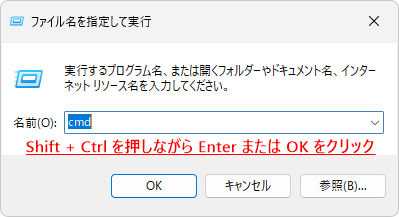
1. Press Windows key + R to open Run.

2. Type "cmd".

Run
Run

3.Shift + Ctrl + Enter Please press.

Keyboard
Keyboard

If you do not need administrator privileges, just press Enter.

4. When the "User Account Control" message appears, click "Yes".

ユーザーアカウント制御
ユーザーアカウント制御
takeown /F C:\windows\Fonts\segoeui.ttf

The above command will change the owner of the "Segoe UI Standard" font to the current user.

command prompt
command prompt

"Success: File (or folder): "C:\Windows\Fonts\segoeui.ttf" is currently owned by user "***-username"
If you see the message "This file is owned by...", proceed to the next step.

2. Copy and paste the following command and press Enter:

icacls C:\Windows\Fonts\segoeui.ttf /grant Everyone:F

The above command grants full access to the "Segoe UI Standard" font for all users, allowing you to remove the "Segoe UI Standard" font.

command prompt
command prompt

If you see the message "1 file(s) processed successfully. 0 files could not be processed," proceed to the next step.

3. Press Windows Key + R to open Run, type the following command and press Enter:

ms-settings:recovery

4. Go to "Settings" > "System" > "Recovery" and click "Restart now" to the right of "Advanced startup".

Settings > System > Recovery

5. You will be prompted to "Saving your work to restart your device." If you have any unsaved work, save it and then click "Restart now."

Save your work to restart your device

6. 「Windows Recovery Environment (WinRE)" will open, click "Troubleshooting".

Windows Recovery Environment (WinRE)

7. Click "Advanced options".

Windows Recovery Environment (WinRE) - Troubleshooting
Windows Recovery Environment (WinRE) – Troubleshooting

8. Click Command Prompt.

Windows Recovery Environment (WinRE) - Troubleshooting - Advanced Options
Windows Recovery Environment (WinRE) – Troubleshooting – Advanced Options

9. A command prompt will open, so enter the following command and press Enter.

del C:\Windows\Fonts\segoeui.ttf

There is a half-width space after "del".

The above command will delete the "Segoe UI Standard" font located in the "C:\Windows\Fonts" folder.

Windows Recovery Environment (WinRE) - Command Prompt
Windows Recovery Environment (WinRE) – Command Prompt

10. When you close the command prompt with the × button, the first screen of the "Windows Recovery Environment (WinRE)" will appear. Click "Continue".

Windows Recovery Environment (WinRE)

11. Once your PC has started up, right-click on the "segoeui.ttf" file you saved directly under the C: drive and click "Install."

After starting your PC, some apps that start automatically (using "segoeui.ttf") may encounter errors, but you can safely ignore them.

12. Once the font installation screen closes, restart your PC.

Once your PC starts up, the garbled text for "iTunes" will be resolved.

About unverified apps

Regarding "Menus and Toolbars for WinForms," ​​the garbled characters are the same as those in "CLIP STUDIO PAINT," so it is thought that the "Yu Gothic UI Standard" is the cause.

Regarding "Adobe Illustrator" and "Tax Accounting Software Magic Circle," both appear to be experiencing the same garbled characters, such as "(府)."

I don't have these two apps so I haven't tested them, but when I installed the trial versions of "Tax Accounting Software Magic Circle" and checked the fonts used, I found that the following seven fonts were used.

There was no garbled text in the trial version.

Font Namefile name
Yu Gothic UI StandardYuGothM.ttc
Yu Gothic UI BoldYuGothB.ttc
Meiryo Regularmeiryo.ttc
Meiryo Boldmeiryob.ttc
Tahoma standardtahoma.ttf
Tahoma Boldtahomabd.ttf

Looking at the font, I think it's either Meiryo or Tahoma.

If you are experiencing garbled characters, try installing the font that you think is causing the problem.

Will this be fixed in the update on 2025/06/11?

Even if you do not currently have KB5058502 or KB5058499 installed, the updates released on June 11, 2025 will be applied automatically as long as you have Windows Update enabled.

Regarding the garbled characters, we reported the problem to Microsoft on 2025/05/30, stating that it was a font issue.

I have provided a link to this page to Microsoft, and they have said they will be keeping an eye on this, so I believe they are currently investigating.

However, I feel that Microsoft has been taking a long time to fix issues recently. For example, it took about five months to fix the issue where the "See more" menu in File Explorer was displayed at the top.

I want to read it together
Solved! Win11 24H2 Explorer "See more" menu appears at the top As mentioned previously, there is a bug in Windows 11 version 24H2 where the menu that appears when you click "More (...)" on the Explorer toolbar is...

If the issue was not resolved by the update on 2025/06/11, try installing the font that you suspect is causing the problem by following the steps on this page.

Additional note: Regarding the garbled text in "iTunes"

While creating a tool to change the font used by the system (menus, etc.), I noticed that the garbled characters in "iTunes" could be resolved by changing the font from the default one.

Once that was resolved, I put it back and it never happened again.

For "CLIP STUDIO" and "CLIP STUDIO PAINT," changing the font will solve the garbled text problem, but changing it back will cause the garbled text to reoccur.

Therefore, you can either install the font using the method in the article, uninstall the update, or wait for a fix.

We would like to release the font changing tool as soon as we have completed testing it.

Fonts you can change:

  • Explorer icon name
  • Menus and selections
  • The text displayed in the message box
  • The text that pops up when you hover the mouse over a file or folder
  • The text that pops up when you hover the mouse over the app's toolbar icon

*The fonts of some windows and apps cannot be changed due to the mechanisms of Windows and apps.

2025/06/10: The tool is complete.

I want to read it together
Tool to change the font used by the Windows 11 system This time, I would like to introduce a tool I created called "Change System Font" that changes the font used by the Windows 11 system.

Additional note: How to remove (restore) installed fonts

There is no need to revert them, but if you want to revert the fonts you installed using the method above, follow the steps below.

Regarding the fonts installed using the solution in this article

A user asked, "Can I leave the fonts I installed using the solution in this article as they are?"

There is no problem with the fonts installed using the solution in this article.

When you install a font, the font is copied to the user's folder and a value is added to the registry.

Windows will then use this folder in preference to the "C:\Windows\Fonts" folder.

Both are the same normal font files, so there is no need to revert them.

If you find it difficult to manipulate the registry, we can also create a tool to automatically perform the following steps, so please feel free to comment.

If you operate the registry incorrectly, it may cause problems such as the system being unable to start. Please make a backup in advance using system restore or similar, and proceed at your own risk.

To avoid panicking if your PC suddenly breaks down, it's a good idea to have a standard backup software to protect your important photos and data.

1. Press Windows key + R to open Run, type "regedit" and press Enter.

2. Open the following key:

HKEY_CURRENT_USER\Software\Microsoft\Windows NT\CurrentVersion\Fonts

3. With the "Fonts" key selected, look at the column on the right. For example, if you installed "Yu Gothic UI Standard", "Yu Gothic Medium & Yu Gothic UI Regular (TrueType)" should be displayed.

レジストリエディター
レジストリエディター

Right-click on "Yu Gothic Medium & Yu Gothic UI Regular (TrueType)" and click "Delete."

4. Press Windows Key + R to open Run, type the following command and press Enter:

%userprofile%\AppData\Local\Microsoft\Windows\Fonts

5. The "C:\Users\User Name\AppData\Local\Microsoft\Windows\Fonts" folder will open, so delete the relevant font file (for example, "YuGothM.ttc" for "Yu Gothic UI Standard").

"C:\Users\Username\AppData\Local\Microsoft\Windows\Fonts" folder

This will return the installed font files to the state they were in before installation.

If you found this article helpful, please share it on social media.

Person who wrote this article

Driven by questions arising from my daily PC use and the desire to "do more," I have been pursuing self-study in Windows since around 2008. I am sharing the "aha!" techniques and solutions I discovered through trial and error with the sole purpose of helping you in your PC life.

View profile

Comment:

Comment list (2)

To comment

[About submissions]
We welcome any questions or information regarding the content of the article.
However, please note that content unrelated to the purpose of the article, criticism of specific individuals or organizations, offensive language,Inappropriate wordsComments containing the above may be deleted or made private without notice at the discretion of the administrator.
Please note that spam may be automatically deleted by anti-spam measures.

CAPTCHA


table of contents