What to do if "Translate with DeepL" doesn't disappear from the right-click menu

This time,"DeepL TranslatorHere's what to do if "Translate with DeepL" doesn't disappear from the right-click menu even after uninstalling "DeepL".

Right-click menu for PDF files

When you install DeepL Translation, it writes information about the right-click menu to the registry.

Additionally, the necessary files will be copied to a folder on the C: drive.

This registry information and file location will change depending on whether you install using the normal "Install" or "All Users" button.

Installing DeepL Translation

Generally, when you uninstall software, registry values ​​and files are also deleted, but there is software, such as "DeepL Translation," that does not delete some information.

table of contents

What to do if "Translate with DeepL" doesn't disappear from the right-click menu

If you operate the registry incorrectly, it may cause problems such as the system being unable to start. Please make a backup in advance using system restore or similar, and proceed at your own risk.

To avoid panicking if your PC suddenly breaks down, it's a good idea to have a standard backup software to protect your important photos and data.

This will involve editing the registry, so if you are not comfortable with this, please use the simple tool introduced later.

Editing the registry

1. Press Windows key + R to open Run, type "regedit" and press Enter.

2. The Registry Editor will open, so open the following key:

If you did a standard installation:

HKEY_CURRENT_USER\Software\Classes\*\shell

If you installed from the "All Users" button:

HKEY_CLASSES_ROOT\*\shell

3. Click the ">" on the left of the "shell" key to display the subkeys, then right-click on the "ZeroInstall.DeepL" key and click "Delete."

"ZeroInstall.DeepL" key

4. A confirmation screen for deleting the key will appear. Click "Yes".

Confirm key deletion

The "Translate with DeepL" option will now disappear from the right-click menu.

Tool to remove "Translate with DeepL" from the right-click menu

This tool does the same thing as the registry operation above with just one button.

You can easily remove "Translate with DeepL" from the right-click menu without any complicated operations or mistakes.

* Regarding use of the software (please read carefully)

Target file: "Remove 'Translate with DeepL' from the right-click menu.exe" (Ver 1.0.0.0)
ハッシュ値(SHA256):24d79690f08bcc971fc0f58e650a43c7f87f2f4bd45e309ff0508975066688e2

Remove "Translate with DeepL" from the right-click menu.zip

How to use a tool to remove "Translate with DeepL" from the right-click menu

1. Download the "Remove 'DeepL Translate' from the right-click menu.zip"UnzipThen run the "Remove 'Translate with DeepL' from the right-click menu.exe" file inside.

2. When the User Account Control screen appears, click "Yes".

3. Click the "Remove 'Translate with DeepL' from the right-click menu" button.

Remove "Translate with DeepL" from the right-click menu
Right-click menu removal complete

4. When the message "Translate with DeepL has been removed from the right-click menu" appears, click OK to close the tool.

At this point, "Translate with DeepL" will disappear from the right-click menu.

Delete files remaining after uninstalling "DeepL Translation"

Files remaining after uninstallation are located in the following folder:

If you did a standard installation:

C:\Users\ユーザー名\AppData\Local

If you installed from the "All Users" button:

C:\ProgramData

Within each folder there will be a folder called "0install.net".

This "0install.net" folder is the folder that remains after uninstalling "DeepL Translation".

There are several folders and files inside, but they are all unnecessary, so you can delete the entire "0install.net" folder.

Also, the file size is very small, about 350KB, so there is no problem even if you do not delete it.

If you can't delete a folder

*Please be sure to uninstall "DeepL Translation" before proceeding. If you try to delete it without uninstalling it, it will say that the file is in use and you will not be able to delete it.

Open a command prompt as an administrator, type the following command, and press Enter:

Learn how to open a command prompt

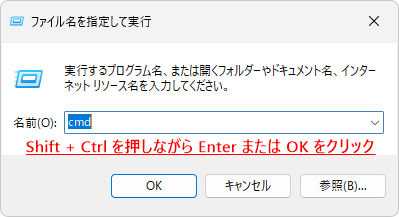
1. Press Windows key + R to open Run.

2. Type "cmd".

Run
Run

3.Shift + Ctrl + Enter Please press.

Keyboard
Keyboard

If you do not need administrator privileges, just press Enter.

4. When the "User Account Control" message appears, click "Yes".

ユーザーアカウント制御
ユーザーアカウント制御

If you did a standard installation:

icacls %userprofile%\AppData\Local\0install.net\implementations /t /q /c /reset

If you installed from the "All Users" button:

icacls C:\ProgramData\0install.net\implementations /t /q /c /reset

When you see the message "* files processed successfully. 0 files could not be processed" as shown in the image below, close the command prompt.

command prompt
command prompt

The "0install.net" folder can now be deleted, so try deleting it again.

*If you are unable to delete the file after executing the command, please restart your PC and then try deleting it.

The reason it could not be deleted was because the "implementations" folder in the "0install.net" folder is an implementation cache, and the files in this folder had their permissions changed to read-only.

If you found this article helpful, please share it on social media.

Person who wrote this article

Driven by questions arising from my daily PC use and the desire to "do more," I have been pursuing self-study in Windows since around 2008. I am sharing the "aha!" techniques and solutions I discovered through trial and error with the sole purpose of helping you in your PC life.

View profile

Comment:

To comment

[About submissions]
We welcome any questions or information regarding the content of the article.
However, please note that content unrelated to the purpose of the article, criticism of specific individuals or organizations, offensive language,Inappropriate wordsComments containing the above may be deleted or made private without notice at the discretion of the administrator.
Please note that spam may be automatically deleted by anti-spam measures.

CAPTCHA


table of contents