
Windows 11 を使い続ける上で、システムが正常に動作しなかったり、動作が異常に重いと感じた場合などに「初期化」は非常に有効な手段です。
しかし、いざ初期化しようとするとエラーが発生し、先に進めないという状況に直面することも少なくありません。
本記事では、Windows 11 の初期化ができない主な原因および対処法を紹介します。

初期化エラーの主な原因と対処法
初期化に失敗する原因は 1つではありません。下記のすべてに目を通しておくことをおすすめします。
ブルースクリーンと初期化の関係
初期化の途中で突然画面が青くなり、エラーメッセージが表示される「ブルースクリーン(BSoD: Blue Screen of Death)」は、初期化失敗の代表的な症状の一つです。
ブルースクリーンは、Windows のシステムに深刻なエラーが発生した際に表示され、ハードウェアの故障やドライバーの不具合、システムファイルの破損などが主な原因として考えられます。
初期化処理はシステムの根幹に触れるため、不安定な要素があるとブルースクリーンを引き起こしやすくなります。
多くの場合はエラーコードが表示されるので、そのコードにより具体的な原因を特定できる可能性があります。
初期化中にエラーが発生した場合、以下の対策を試してみてください。
- エラーコードの確認
- エラーメッセージに表示されるコード(例:0x80070002)をメモし、Microsoft のサポートページやインターネットで検索します。多くの場合、そのコードに関連する具体的な解決策が見つかります。
- セーフモードでの起動
- セーフモードで起動し、初期化を試すことで問題が解決する場合があります。
- セーフモードでも起動できない場合
- 「Windows 回復環境(WinRE)」の「トラブルシューティング」から「この PC を初期状態に戻す」を実行することで、初期化が問題なく進められる可能性があります。
Win11 セーフモードなどが選択できる「回復環境(WinRE)」の開き方
Windows が起動しない場合は、PC の電源を入れた後に停止した画面で、電源ボタンを長押しして強制終了することを 2~3回繰り返すと、「Windows 回復環境(WinRE)」が表示されます。
システムファイルの破損が引き起こす初期化の失敗
Windows のシステムファイルが破損している場合、あらゆる不具合が発生します。必要なファイルを使用する際に、正常に実行できなければ初期化は失敗してしまいます。
Windows が起動できる場合はセーフモードで起動し、「コマンドプロンプト」を開きます。
起動できない場合は、「Windows 回復環境(WinRE)」の「トラブルシューティング」>「詳細オプション」から「コマンドプロンプト」を開いてください。
Win11 セーフモードなどが選択できる「回復環境(WinRE)」の開き方
Windows が起動しない場合は、PC の電源を入れた後に停止した画面で、電源ボタンを長押しして強制終了することを 2~3回繰り返すと、「Windows 回復環境(WinRE)」が表示されます。
1.コマンドプロンプトを開いたら、次のコマンドを入力して Enter を押します。
cd /d c:\windows\system322.続けて次のコマンド(システムファイルの修復)を入力して Enter を押します。
sfc /scannowWin10/Win11 システムファイルの修復「システムファイルチェッカー」
システムスキャンが開始され、破損したファイルが見つかった場合は修復されます。
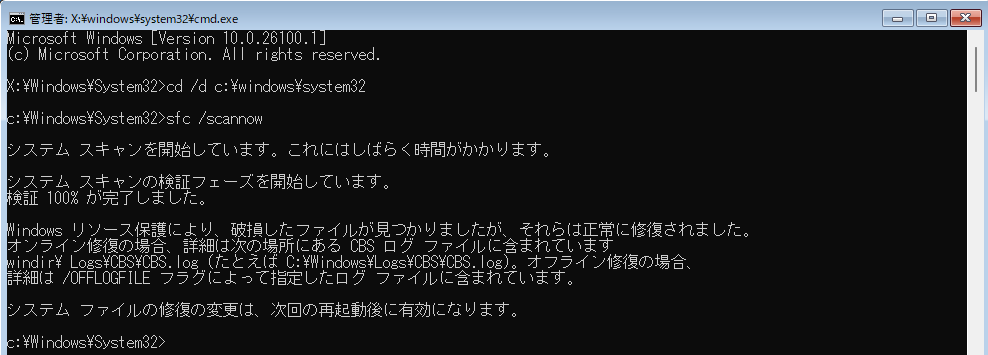
3.システムファイルの修復が完了したら、右上の × ボタンをクリックすると、「Windows 回復環境(WinRE)」の「トラブルシューティング」>「詳細オプション」の画面に戻りますので、ここからシステムの復元を実行してみてください。
システムの復元を実行する前に、必ずシステムファイルの修復を行うこと。
OS の破損により初期化できない場合
例えば初期化の途中で電源が切れてしまった場合など、予期せぬ中断が起きると Windows OS 自体が破損して修復不可能になる場合があります。
このような場合は、システムファイルの修復等では解決できませんので、Windows 11 の再インストールが必要になります。
別の PC があれば、メディア作成ツールを使用して Windows 11 のインストールメディアを作成し、再インストールをしてみてください。
別の PC がない場合は、知人の PC やネットカフェなどを利用しましょう。
Windows 11 メディア作成ツールの使い方|エラー解決法も解説
周辺機器が原因で初期化できない
接続している周辺機器が原因で初期化が失敗したり、途中で反応が停止してしまうことがあります。
Windows の初期化を行う際は、必要のない周辺機器はすべて外してから行ってください。
空き容量不足による初期化の失敗
Windows 11 の初期化を行う際は、ある程度の空き領域が必要になります。
一時的にファイルを保存するスペースがなければ、そこで作業が止まってしまいます。
初期化に限らず、一定の空き領域を確保しておくことは、とても大事なことです。
Windows 11 Cドライブの空き領域はどれくらいが最適?
初期化の失敗後に Windows が起動できるようであれば、不要なファイルを削除して空き領域を確保してから再度初期化を行ってみてください。
起動ができないようであれば、上記の「OS の破損により初期化できない場合」を参考にしてみてください。
どうしても初期化ができない場合
上記の方法で解決できない場合、ハードディスクや SSD に問題がある可能性があります。
Windows が起動できるようであれば、一度エラーチェックを行ってみましょう。
Win10/Win11 定期的に HDD,SSD のエラーチェックをしよう
どうしても初期化ができない場合は、専門家や業者に相談することをおすすめします。

コメント