Causes and Fixes for Windows 11 Windows Update Error 0x80190001

This page explains the cause and how to fix the "0x80190001" error that occurs when running Windows Update in a Windows 11 environment.

table of contents

Causes and Fixes for Error 0x80190001

The "0x80190001" error usually occurs while downloading and installing updates and may also cause your system to slow down or freeze.

Cause

There are three common causes for this issue:

  • Incorrect time and date are set
  • Corrupted system files
  • Incompatible third-party security software installed

Repair method

Try pausing your security software

Before running Windows Update, try pausing any security software.

Some security software may interfere with Windows Update and cause the update to fail.

Try restarting your PC

If you haven't restarted your PC for a long time, your system may become unstable.

Sometimes a simple restart can fix the issue, so try restarting your device first.

A normal restart may not solve the problem, so if this happens, try the following:

How to restart

FirstHow to disable fast startupRefer to the article to disable "Fast Startup" and perform a shutdown from the Start button.

Once the PC is turned off, unplug the power cord from the power outlet, wait at least 30 seconds, then plug it back in and turn it on.

For laptops, unplug the power cord, remove the battery, leave it for at least 30 seconds, then reinsert the battery and plug it back in and turn it on.

Removing the battery from your laptop may reset the BIOS settings.

Windows Update

Please refer to the following article to troubleshoot Windows Update:

Fix Windows 10/11 problems with the Troubleshooter

Check the date and time

If the date and time are set incorrectly, Windows Update may fail with the error "0x80190001".

Press Windows Key + R to open Run, enter the following code and press Enter:

ms-settings:dateandtime

"Date and Time" will open, so please check that the date and time are correct and that "Set time automatically" is turned on.

Date and time
Date and time

If it's set to On but the date and time are incorrect, set it to Off, scroll down, click "Change" to the right of "Set date and time manually," and enter the date and time manually.

Set the date and time manually
Change the date and time

Check the date and time regularly.

If the date and time are out of sync, Windows Update may ignore them when checking for updates.

I want to read it together
What to do if the time on Windows 11 is out of sync (delayed) Are you having trouble with the time displayed in the notification area (task tray) at the bottom right of your Windows 11 PC being off by a few minutes? Go to Settings and turn "Set time automatically" on or off...

Repair system files

If the above method does not solve the problem, the system files may be corrupted, so perform a repair.

Please refer to the following article to repair your system files:

Repairing system files in Win10/Win11 with "System File Checker"

If repairing system files does not resolve the issue, try repairing your Windows image.

Open a command prompt as an administrator, enter the following code and press Enter: (Image Check)

Learn how to open a command prompt

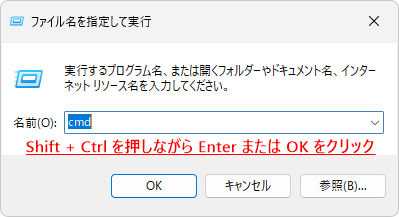
1. Press Windows key + R to open Run.

2. Type "cmd".

Run
Run

3.Shift + Ctrl + Enter Please press.

Keyboard
Keyboard

If you do not need administrator privileges, just press Enter.

4. When the "User Account Control" message appears, click "Yes".

ユーザーアカウント制御
ユーザーアカウント制御

DISM.exe /Online /Cleanup-image /Scanhealth

The system will begin checking whether the image can be repaired, so just wait until it is finished.

command prompt
command prompt

If you see the message "The component store can be repaired. The operation completed successfully."

command prompt
command prompt

Just enter the following code and press Enter:

DISM.exe /Online /Cleanup-image /Restorehealth

The image restoration will begin, so please wait until the restoration is complete (this may take a while).

command prompt
command prompt

Once you see the message "The restore operation completed successfully," close the command prompt and try running Windows Update again.

Clean up the SoftwareDistribution folder

Solutions for Windows 11 version 23H2 update failurePlease refer to this article to clean up the SoftwareDistribution folder and then run Windows Update.

Perform a clean boot

1. Press Windows Key + R to open Run, enter the following code and press Enter:

msconfig

2. "System Configuration" will open. In the "Selective Startup" section of the General tab, "Normal Startup" is usually selected, but click "Selective startup" and uncheck "Load startup items."

System configuration

3. Open the Services tab, check "Hide all Microsoft services" in the bottom left, and click "Apply."

System configuration

4. Click OK to close System Configuration.

5. NextTask managerOpen it and disable any unnecessary items in the Startup tab (if you're not sure, leave them as they are).

6. Restart your PC and then try running Windows Update.

These methods should solve most problems, but if not, you may need to reset your device.

I want to read it together
How to reset your PC and back up drivers in Windows 11 This article explains how to initialize (reset) Windows 11, as well as important points to note, how to back up drivers, and how to install backed-up drivers.
If you found this article helpful, please share it on social media.

Person who wrote this article

Driven by questions arising from my daily PC use and the desire to "do more," I have been pursuing self-study in Windows since around 2008. I am sharing the "aha!" techniques and solutions I discovered through trial and error with the sole purpose of helping you in your PC life.

View profile

Comment:

To comment

[About submissions]
We welcome any questions or information regarding the content of the article.
However, please note that content unrelated to the purpose of the article, criticism of specific individuals or organizations, offensive language,Inappropriate wordsComments containing the above may be deleted or made private without notice at the discretion of the administrator.
Please note that spam may be automatically deleted by anti-spam measures.

CAPTCHA


table of contents