What to do if Windows 10/Win11 keeps restarting and won't start

This time, we will introduce what to do if Windows 10 or Windows 11 keeps restarting and cannot start.

This issue is most likely caused by a device driver that was automatically updated by Windows Update, and is likely related to an incompatible driver.

If an error occurs during startup, the system is set to restart by default when an error occurs, so you may not be able to start Windows and may end up having to restart repeatedly.

table of contents

If you cannot start the machine after repeated restarts

1. If you are unable to start the computer after repeated restarts, please refer to the following page to open "Startup Settings".

How to open the Recovery Environment (WinRE) in Windows 11

2. Once "Startup Settings" opens, press the number key "9" on your keyboard.

Windows Recovery Environment (WinRE) - Startup Settings
Windows Recovery Environment (WinRE) – Startup Settings

It will reboot immediately and if there are no problems, you will be able to start it up normally.

*Advanced Boot Options", navigate using the arrow keys on your keyboard on the next black screen to select "Disable automatic restart on system failure" and press Enter.

Advanced Boot Options

How to undo "Disable automatic restart on system failure":

1. Press Windows key + R to open Run, type "sysdm.cpl" and press Enter.

2. "System Properties" will appear, so open the "Advanced" tab.

3. Click "Settings" under "Startup and Recovery."

System Properties
System Properties

4. Check "Automatically restart" under "System failure" and click OK.

Startup and Recovery

5. Close System Properties.

Preventing system errors

In some environments, the driver may be installed automatically during Windows Update.

Sometimes automatically installed drivers can cause system errors due to compatibility issues with your PC.

Disable automatic device driver updates in Windows Update to prevent system errors.

1. Press Windows key + R to open Run, type "sysdm.cpl" and press Enter.

2. "System Properties" will appear, so open the "Hardware" tab.

3. Click the "Device Installation Settings" button at the bottom.

System Properties
System Properties

4. Check "No (device may not function properly)" and click "Save Changes."

デバイスのインストール設定
デバイスのインストール設定

5. Click OK to exit System Properties.

If your new device is not recognized when you connect it, try resetting the settings.

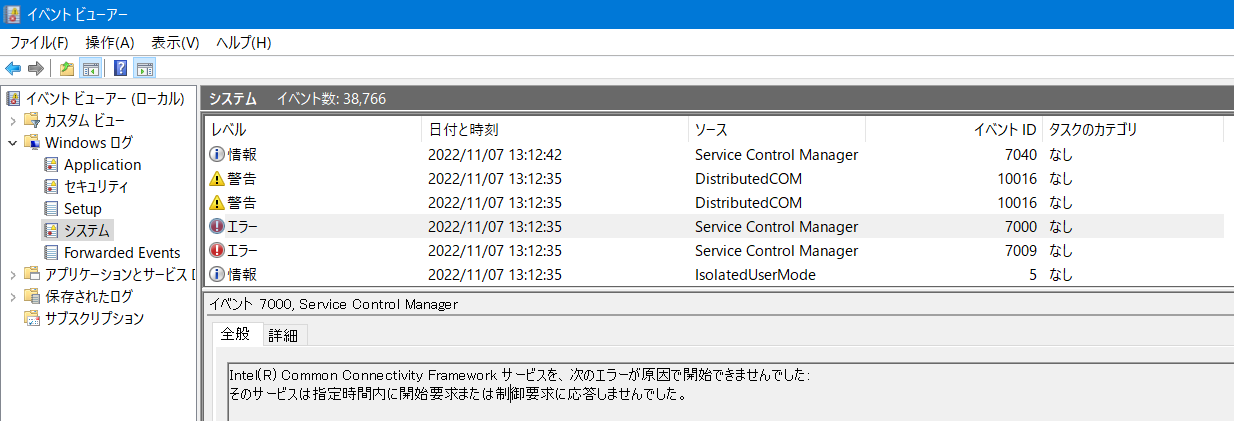
Find the cause of a system error in Event Viewer

1. Press Windows key + R to open Run, type eventvwr.msc and press Enter.

2. The Event Viewer will open, so open Windows Logs > System.

Please be patient as it may take a few moments for the events to appear after selecting "System".

3. When the event is displayed, check the error items with a red exclamation mark.

Event viewer
Event viewer

Check the error message displayed in the "General" tab below, and if you find any that seem relevant (e.g. driver-related), try deleting, updating, or reinstalling the problematic application or driver.System restoreLet's try doing the following:

If you found this article helpful, please share it on social media.

Person who wrote this article

Driven by questions arising from my daily PC use and the desire to "do more," I have been pursuing self-study in Windows since around 2008. I am sharing the "aha!" techniques and solutions I discovered through trial and error with the sole purpose of helping you in your PC life.

View profile

Comment:

To comment

[About submissions]
We welcome any questions or information regarding the content of the article.
However, please note that content unrelated to the purpose of the article, criticism of specific individuals or organizations, offensive language,Inappropriate wordsComments containing the above may be deleted or made private without notice at the discretion of the administrator.
Please note that spam may be automatically deleted by anti-spam measures.

CAPTCHA


table of contents