Win10 Solved! KB5033372 Update Failed - Error 0x800700d

When updating to Windows 10 version 22H2, released on December 12, 2023, an error message appears: "This update could not be installed. Please try again. 0x800700d."

Similar errors occurred in the September and October updates, but Microsoft had already resolved them.

However, it seems that the error has recurred with this KB5033372.

0x800700d means "ERROR_INVALID_DATA" (indicating that invalid data was downloaded or corruption occurred).

table of contents

How to fix the 0x800700d error

Solution 1

Open a command prompt as an administrator, type the following command, and press Enter:

Dism /online /cleanup-image /RestoreHealth
Learn how to open a command prompt

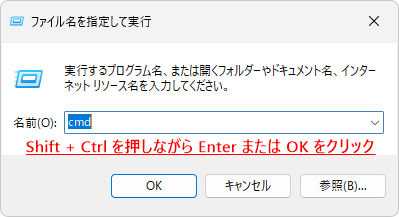
1. Press Windows key + R to open Run.

2. Type "cmd".

Run
Run

3.Shift + Ctrl + Enter Please press.

Keyboard
Keyboard

If you do not need administrator privileges, just press Enter.

4. When the "User Account Control" message appears, click "Yes".

ユーザーアカウント制御
ユーザーアカウント制御

Once you execute the command, the process will begin, so please wait for a while.

command prompt
command prompt

Once the process is complete Windows Update Let's try running it.

If this does not resolve the issue, please try Solution 2.

Solution 2

To resolve the 0x800700d error, use the Local Group Policy Editor.

The Local Group Policy Editor is not available in Windows 10 Home.

1. Press Windows key + R to open Run, type "gpedit.msc" and press Enter.

2. The Local Group Policy Editor will open, so open Local Computer Policy > Computer Configuration > Administrative Templates > All Settings.

Local Computer Policy\Computer Configuration\Administrative Templates\All Settings

3. Double-click "Specify settings for optional component installation and component repair" in the right column to open it.

Local Computer Policy\Computer Configuration\Administrative Templates\All Settings

4. This feature is "Disabled" by default, so select "Enable" and check "Download repair content and optional features directly from Windows Update instead of Windows Server Update Services (WSUS)" in the lower left corner, then click OK.

Specify settings for optional component installation and component repair

5. Once you have confirmed that "Specify settings for optional component installation and component repair" is enabled, close the Local Group Policy Editor.

Local Computer Policy\Computer Configuration\Administrative Templates\All Settings

Now that the settings are complete,Windows Update Display the screen and try checking for updates (retrying).

*The "Specify settings for optional component installation and component repair" setting configured in the Local Group Policy Editor will revert to "Disabled" once the update is complete and you restart your PC.

Windows 10 KB5033372 issues and solutions

If you found this article helpful, please share it on social media.

Person who wrote this article

Driven by questions arising from my daily PC use and the desire to "do more," I have been pursuing self-study in Windows since around 2008. I am sharing the "aha!" techniques and solutions I discovered through trial and error with the sole purpose of helping you in your PC life.

View profile

Comment:

To comment

[About submissions]
We welcome any questions or information regarding the content of the article.
However, please note that content unrelated to the purpose of the article, criticism of specific individuals or organizations, offensive language,Inappropriate wordsComments containing the above may be deleted or made private without notice at the discretion of the administrator.
Please note that spam may be automatically deleted by anti-spam measures.

CAPTCHA


table of contents