Windows 11 won't boot? "Secure Boot 2023 Signature" issue and how to create a repair tool

The Windows 11 preview update KB5074105, released on January 29, 2026, and subsequent official updates, mark a significant turning point in the transition from the preparatory phase to the "regular rollout" of Secure Boot updates.

In order to accurately convey the impact and countermeasures, we have used actual devices to intentionally recreate a situation where the device will not boot due to a Secure Boot violation, and have actually verified full recovery from that point.

Not only for KB5074105, but for all Windows 11 users (version 24H2/25H2) who apply updates from this point onwards, the PC's startup process will be physically rewritten, so it is important to understand the details correctly and prepare for any eventuality.

table of contents

What happens with KB5074105 (preview) and future official versions?

With this update (and all future updates, including the preview version), the boot manager will be replaced gradually for devices that already have the "Windows UEFI CA 2023" certificate in their BIOS (DB).

  • Signature renewal and pre-check: The "2011 Signature" that has been used until nowbootmgfw.efiHowever, the new "2023 Signature"bootmgfw.efiHowever, depending on your environment, the file may have already been replaced with a new one before installing this update. You can easily check which signature your PC is currently using by manually checking, or by using the tool published on the following page.
  • Transitioning to normal deployment: Until now, this has been a manual setup and gradual preparation phase, but with this patch and the next official release, the system will enter an automatic "execution phase," which will forcibly raise the security level of Secure Boot.
Windows Secure Boot Certificate Checker - Before and After Boot Manager Update
Windows Secure Boot Certificate Checker – Before and After Boot Manager Update

⚠️ Risk of "Secure Boot Violation"

Here, we will clarify the specific operations that Microsoft is warning about and explain why they are dangerous.

After this update is applied, the PC's boot system (boot manager) will not function without the 2023 key. The biggest risk here is thatDB (certificate database) and Secure Boot settings operations.

  • trigger: Reset the DB (certificate database), ま た は Toggle Secure Boot on or off * Depending on the model, when you perform "Initializing BIOS settings (Load Default)", the DB may also be reset.
  • result: If these operations cause the "2023 version certificate" information to be lost, the BIOS will mistakenly identify the new boot manager as an "invalid file." As a result, errors such as "Secure Boot Violation" or "Boot failure" will be displayed, and Windows will not be able to start. (Secure Boot Violation)

Boot failure : a proper digital signature was not found. One of the files on the selected boot device was rejected by the Secure Boot feature.

Japanese translation:

Boot failure: No proper digital signature was found. One of the files on the selected boot device was rejected by the Secure Boot feature.

Boot failure : a proper digital signature was not found.

[Proven] Why does simply turning Secure Boot on and off cause the device to become unbootable?

Regarding the sentence in the official documentation that "turning settings on or off will result in violations,"We contacted Microsoft's technical support directly to confirm the detailed mechanism.

Secure Boot In this release of Windows 11, version 24H2, devices that already have the Windows UEFI CA 2023 certificate in the Secure Boot signature database (DB) will perform an update in Boot Manager, which will replace the 2011-signed bootmgfw.efi with the 2023-signed bootmgfw.efi. There is no need to reset the DB orTurning Secure Boot on or off can cause a "Secure Boot Violation" issue.In these rare cases, the solution is to create Secure Boot recovery media. 

ecosystem

The cause was discovered to be not a malfunction of the OS itself, but a "trust mismatch" with the BIOS (firmware).

  • Windows Update behavior: At the moment the update is performed, Windows correctly verifies that the BIOS has the "2023 certificate," and therefore the 2023-signed boot manager is installed successfully.
  • Why "on and off" is a trigger: The problem comes after that. When you turn off Secure Boot or change the setting, some BIOS behavior is as follows:The newly added "2023 Certificate" is dropped (deleted/forgotten) from the list.You may.
  • Error when re-enabling: If you turn Secure Boot back on in this "certificate forgotten" state, the BIOS will determine that "the latest boot manager is present, but the certificate recognizing it is not on hand (because it has been deleted)," and will block booting (Secure Boot violation).

In other words, the problem was that "Windows Update checks were performed correctly, but subsequent user operations caused the BIOS to subsequently lose trust."

If you frequently switch settings, such as dual booting with Linux, there is a risk that this "certificate drop by BIOS" will occur, so please install "Secure Boot Recovery MediaIt is extremely important to have this ready.

This site provides easy-to-understand explanations on how to create this "Secure Boot Recovery Media" so that even beginners can easily understand it.

[MS recommended measures]

To avoid the worst-case scenario of the device becoming unable to boot, we strongly recommend that you first complete the creation of this media for devices that already have the "Windows UEFI CA 2023" certificate in the BIOS (DB).

[Important] For those using older environments where BIOS updates are not provided

If you are using an "older PC" for which the manufacturer does not provide a BIOS (UEFI) that is compatible with the 2023 version of the certificate, and the certificate has been updated via Windows Update, please pay close attention to the following points.

The difference between "OS overwrite" and "motherboard memory"

The official documentation is full of difficult language, but to summarize it:

"In environments where certificates are updated through Windows Update, the Secure Boot active variable is enforced through the OS. The Secure Boot firmware defaults are maintained by the OEM..."

ecosystem

To break this down in an easy-to-understand way, it means this:

  • Windows Update is a "makeshift coloring book"After the OS (Windows) starts up, the "latest key" is forcibly overwritten on top of the certificate in the motherboard's memory (application of the active variable).
  • I only have an "old sketch" of the motherboard: The "factory default values" that the PC itself (motherboard) originally has can only be overwritten by a BIOS update provided by the manufacturer (OEM).
  • "Reset" is the act of erasing a coloring book: If you load the default values ​​in the BIOS menu, all of the "latest key" coloring that the OS has carefully overwritten will be erased, and the "old sketch (old key from 2011)" remaining on the motherboard will be exposed.

Microsoft's advice: Don't touch it unless there's a manufacturer update

There is a very important "nail-biting sentence" in the official Microsoft documentation:

"We recommend that you do not change or update your Secure Boot configuration unless your OEM has released an update that changes your firmware defaults to the new certificates."

ecosystem

When we apply this to our current situation, a frightening truth emerges.

  • OS updates are a tightrope walk: Windows Update only keeps the "latest key" active in memory while the OS is running (application of the active variable).
  • Motherboard "default" settings are still from 2011: The "factory defaults" stored in the PC itself (motherboard) will not be replaced unless the manufacturer (OEM) provides a BIOS update.
  • Changing settings can lead to breakdownsIf you try to "update" or "reset" the Secure Boot settings from the BIOS screen without the manufacturer's update, the BIOS will try to use the old default settings it has. As a result, there is a risk that the latest protection settings implemented by the OS will conflict with the system, making it unable to boot, so Microsoft warns you not to touch it lightly.

The risk of "resetting to defaults" being fatal

Even if the certificate has been updated to the latest version by Windows Update from the OS side (active variable applied), The moment you run "Load Optimized Defaults" the certificates will be forced back to their old state.

Incompatibility with the latest WindowsIf the manufacturer has not updated the BIOS, this "reset" will erase the 2023 signature data from the motherboard, making it incompatible with the latest security features of Windows. Checkmate situation to happen.

Events that occurIf the OS boot manager is set to require the "2023 new key," the motherboard will only be able to provide the "2011 old key."This will be considered a "Secure Boot Violation" and Windows will not be able to start.

The only way to avoid a "checkmate"

Since manufacturers do not update BIOS, the default values ​​in the "deep root" of the PC remain old. If you reset the BIOS and the OS cannot start,"Secure Boot Recovery MediaWithout it, you will never be able to boot with Secure Boot turned on again.

[Proven] Solution for when your computer fails to boot due to a "Secure Boot Violation" before creating recovery media

If the manufacturer does not update the BIOS, the default settings deep inside the PC will remain outdated. If the BIOS is reset (restored to factory settings) due to a dead CMOS battery or an accidental operation, and the OS cannot be started, it is usually impossible to start the PC with Secure Boot enabled again without Secure Boot recovery media.

But,I actually demonstrated that it is possible to recover from a "stuck" state (where the certificates in the database were manually deleted, rendering the system unable to start) by following the steps below.

If you encounter problems before you can create recovery media, don't give up. Try the following steps:

[Rescue flow: Recovery procedure when you do not have Secure Boot recovery media]

  1. Symptoms: Due to a BIOS reset or update problem, the message "Secure Boot Violation" appears during startup and Windows will not start.
  2. first aid: Enter the BIOS settings and temporarily enable "Secure Boot" Disabled to save the settings.
    • *This will temporarily skip the security check and allow Windows to start.
  3. work: On the booted Windows, click "Secure Boot Recovery Media" to create a
    • *This is the key point. As long as you can start the OS, you can create a "key" later.
  4. repair: Boot your PC from the created USB memory.How to use and operate Secure Boot recovery media
    • *This process will re-inject (append) the lost 2023 certificate into the DB.
  5. completion: Go into the BIOS settings again and enable "Secure Boot" Enabled Return to → Windows starts successfully with Secure Boot ON international success.

Does your PC have the "Key to 2023"?

Updates from KB5074105 onwards will only replace the boot manager on devices that already have the "Windows UEFI CA 2023" certificate in their BIOS (DB).Those with a key need to be careful when resetting the BIOS after updating.

Follow the steps below to check if your PC is eligible.

Method 1: Easily check with a dedicated tool (recommended) You can determine this with just one click by using the check tool provided on this website. Download the Windows Secure Boot Certificate Checker

Method 2: Check with PowerShell command If you want to check without using a tool, follow the steps below.

  1. Start buttonRight-click > Terminal (Administrator).
  2. Copy and paste the following command and run it:
[System.Text.Encoding]::ASCII.GetString((Get-SecureBootUEFI db).bytes) -match 'Windows UEFI CA 2023'

Judgment result:

  • If it's True (or the tool displays "[Windows UEFI CA 2023] - Expiration Date: June 2035"):
    • Your PC is eligible. When you apply the update, the boot manager will be updated to the latest signature version at the same time as the update task is executed.Secure Boot Recovery MediaPlease create a
  • If False (or not detected):
    • This "forced replacement" does not apply. The risk at this time is low, but we recommend that you understand the mechanism in preparation for future full deployment.
Windows PowerShell
Windows PowerShell

For more information about the "Update Task", please refer to the following page.

[Advanced] How to Manually Update Secure Boot Certificates Immediately

Solution: Create Secure Boot recovery media

Microsoft strongly recommends creating dedicated "recovery media" to resolve this rare case of boot failure.

Previously, procedures based on the OS's standard "recovery drive" were sometimes provided, but in current UEFI environments, large system files are no longer necessary. An empty USB flash drive formatted in FAT32 format.By simply placing a single repair program file on it, it functions perfectly as a dedicated repair medium.

[Update: March 20, 2026] Regarding the significant simplification of the procedure Initially, we provided instructions based on the OS's "recovery drive," but subsequent testing revealed that for simple repair purposes, it's sufficient to copy just one necessary file to an empty USB flash drive. While repair is still possible with media created using the previous procedure, those creating new media should follow the simpler procedure below.

Prerequisites: Please use a PC that meets the following conditions:

  • Updates from July 9, 2024 onwards will be applied.C:\windows\boot\efi\insidesecurebootrecovery.efiThe file must exist.
  • FAT32 Prepare a USB flash drive formatted in the specified format (a very small capacity is sufficient).

[Proven] Solution for when your computer fails to boot due to a "Secure Boot Violation" before creating recovery media

[Update March 20, 2026: Warning] Regarding devices for which repair tools cannot be used

Currently, Microsoft's official documentation warns against using this repair application on devices and environments that fall under the following "Known Issues."

  • Certain HP devices (models with Sure Start Security)
  • Arm64-based devices (models with Qualcomm firmware)
  • Apple Macs (including Boot Camp on models with the T2 security chip)
  • VMware environment (Windows on a virtual machine)
  • Windows Server 2012 / 2012 R2 (TPM 2.0-based system)
  • Systems with Symantec Endpoint Encryption installed

In the above environment, there have been reports of known issues where the repair tool may not function correctly or the system may become unbootable due to firmware limitations. If you are using a PC that falls into this category, please refrain from performing this procedure and wait for an official firmware update from your PC manufacturer (OEM).

For detailed conditions, please refer to the "Known Issues" section in the following official Microsoft documentation. ▶ Microsoft official documentation (page on mitigating Secure Boot issues)

STEP 1: Create the necessary folders on the USB flash drive.

*important:The drive letter of the USB memory stick is as follows:D:I will explain assuming this.

Open Command Prompt (as administrator), confirm the drive letter, and then execute the following command.D:Please change the part to suit your environment.

Learn how to open a command prompt

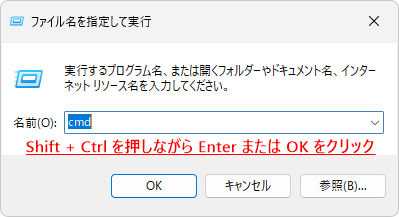
1. Press Windows key + R to open Run.

2. Type "cmd".

Run
Run

3.Shift + Ctrl + Enter Please press.

Keyboard
Keyboard

If you do not need administrator privileges, just press Enter.

4. When the "User Account Control" message appears, click "Yes".

ユーザーアカウント制御
ユーザーアカウント制御

md D:\EFI\BOOT
  • [Explanation] Create the "standard startup folder (\EFI\BOOT)" that will be read first when the USB memory starts up. (If you get an error message saying that it already exists, just ignore it and proceed to the next step.)
Subdirectory or file D:\EFI\BOOT already exists.

STEP 2: Copy the "dedicated app" for fixing the lock.

Next, execute the following command.

copy C:\windows\boot\efi\securebootrecovery.efi D:\efi\boot\bootx64.efi

boot¥bootx64.efi を上書きしますか?(Yes/No/All):If asked,yand press Enter.

  • [Explanation]The original repair tool located on your PC (securebootrecovery.efi) to the boot file name of the USB memory (bootx64.efiChange it to this and place it. UEFI is thisbootx64.efiIt's designed to automatically find and execute the necessary actions.
  • After pressing the Enter key, please confirm that the message "1 file copied." is displayed on the screen.
1 file copied.
1 file copied.

Now, "Secure Boot Recovery Media" is now complete. You can close the command prompt.

【Related Links】

[Independent verification] Is it possible to repair on a different PC or an unsupported PC?

Is the Secure Boot recovery media only usable on the PC it was created on? Or is it a panacea that can be used on other PCs? To answer this question, which is not covered in the official documentation, we conducted a test on a real PC on this website.

Actual machine test: Transferring media created on a current BTO PC to a laptop

First, to check the "media versatility," we conducted tests in the following environment.

  • Creation environment: A working BTO desktop PC (Windows 11)
  • Repair target: A laptop that cannot boot (Windows 11)

Normally, a Windows "recovery drive" contains drivers specific to the PC it was created on, so it is not recommended to use it on another machine. However, with regard to this "Secure Boot recovery media,"I was able to confirm that it worked without any problems even when created on a different PC.

Recovery process for non-supported PCs (2015 models)

To further test the system under more demanding conditions, we also tested a 2015 model laptop that is not compatible with Windows 11 (which had been upgraded using a workaround).

  • Intentionally creating a non-bootable state: We manually cleared the certificates in the DB from the BIOS (UEFI) which had an old design from 2015. We intentionally recreated the "Secure Boot Violation" condition that the official warning states.
  • To perform a repair: Connect the Secure Boot recovery media created on a current BTO PC to the laptop and launch the repair program.
  • result: Despite a generational gap of about 10 yearsThe certificate was successfully injected and the non-compliant PC was able to boot as Windows 11 again.

Verification results: This media is a "relief measure that transcends generations and models"

After this actual testing, we have concluded that this media is an extremely versatile tool, similar to a "master key to recovering the 2023 signature."

Confidence gained from testing

  • Reinjecting trust: The essence of this medium is to re-teach the common trust of "Windows UEFI CA 2023" that BIOS has forgotten from the outside.
  • Possible to take reactive measures: Even if you only have one PC and it becomes unbootable, you can create a media on another PC and bring it with you.The chances of salvation are greatly increased.
  • A lifeline for older PC users: For users with non-compatible PCs or older motherboards who cannot expect a BIOS update from the manufacturer, this media is an extremely powerful way to avoid being stuck.

How to use and operate Secure Boot recovery media

Here are the steps to use the recovery media you created to repair a PC that will no longer boot. We will explain the actual behavior based on the verification on this site.

1. Insert the recovery media into your PC and boot from it

Insert the created USB memory into your PC and turn it on. Immediately enter the manufacturer's designated key (F12,F11,F8 ) to bring up the "Boot Menu" or go to the BIOS setting screen (F2,From ) and change the boot order (Boot Priority),Specify that you want to boot from the USB memory.

* The name of the USB memory is often displayed as "UEFI: (manufacturer name) USB".

Reference: Shortcut Key List by Manufacturer (BIOS/Boot Menu)

MakeBoot Menu (Recommended)BIOS setting screen
HPF9 (or Esc)F10
DellF12F2
LenovoF12F2 (or Fn+F2)
NEC / FujitsuF12F2
Dynabook (Toshiba)F12F2 (or Esc+F1)
ASUSF8 (or Esc)F2 / Delete
MSIF11Delete
Surface(Volume down + power)(Volume up + Power)
Self-built PC / BTOF11/F12Delete

2. Automatic repair will be performed (no action required)

This tool is fully automatic. There is no need for you to click or type anything. All you see is a black background with white text like this:

Microsoft Secure Boot Recovery Version 1.0

Visit https://aka.ms/securebootrecovery to learn more about this application.

Checking Secure Boot Certificate Configuration…

Updating the Secure Boot Certificate database with the Microsoft UEFI 2023 certificate…

Secure Boot Certificate database successfully updated.

System will reboot in 10 seconds.

Translation

Microsoft Secure Boot Recovery Version 1.0

For more information about this application, visit https://aka.ms/securebootrecovery.

Verifying Secure Boot certificate configuration...

Updating Secure Boot certificate database with Microsoft UEFI 2023 certificate…

The Secure Boot certificate database was successfully updated.

The system will reboot after 10 seconds.

3. Automatically restarts and recovery is complete

After the message "Database updated successfully" is displayed, the PC will automatically restart in 10 seconds. The BIOS keyhole (DB) will now be updated with the "2023 version." When you remove the USB memory, Windows will start normally as before.

4. Remove the USB memory (Important) When the screen goes black and the reboot begins,Immediately remove the USB memory from your computer.

  • If you use the boot menu (e.g. F12): Just unplug the USB. Since the setting is temporary, it will automatically boot from your regular Windows (HDD/SSD).
  • If you change the "Boot order" in the BIOS settings: After removing the USB, if necessary, enter the BIOS settings screen and restore the boot priority.

If you can now successfully see the Windows sign-in screen, the repair is complete.

Summary: What users who have confirmed a "2023 signature" using the checking tool should do

This change in specifications means that operations such as "resetting the DB (certificate database)" and "changing Secure Boot settings (on/off)," which Microsoft warns against, can cause Secure Boot violations, creating a risk of serious problems such as "Windows 11 never booting again."

Distributed by this site Windows セキュアブート証明書チェッカーso,"[Windows UEFI CA 2023] – Expiration date: June 2035If you see this message, you are at risk of encountering problems at any time, regardless of whether you have applied KB5074105 or not.

Better safe than sorry, but now is the time toSecure Boot Recovery MediaIt is especially recommended for PC builders and those who have the opportunity to manipulate BIOS settings (related to Secure Boot) to keep one of these USB memory sticks on hand as a physical first aid kit (spare key).

If you found this article helpful, please share it on social media.

Person who wrote this article

Driven by questions arising from my daily PC use and the desire to "do more," I have been pursuing self-study in Windows since around 2008. I am sharing the "aha!" techniques and solutions I discovered through trial and error with the sole purpose of helping you in your PC life.

View profile

Comment:

Comment list (25)

  • Hello, this is elenore (https://elenore.stars.ne.jp/).
    PCs with old certificates and boot managers and no plans to update UEFI
    (Core i3 10110U) with "Secure Boot Recovery Media"
    There has been a change in the environment where the certificate was installed

    After the monthly update of 2026-03, both Win10/11 have the new
    I was able to see that the boot manager has been updated. This is the new
    Is it a good idea to install the certificate?

    For now, the Secure Boot issue seems to have been resolved, so I'm relieved.
    I'm grateful for your help with my consultation. Thank you very much.

    • Dear Elenore,

      Hi, thanks for letting us know. I'm really glad to hear that you were able to successfully update to the new boot manager and resolve the Secure Boot issue.

      Regarding your question, "Would it have been a good idea to install the new certificate?", the answer is that even if you had not manually installed the certificate beforehand, it is highly likely that it would have been automatically updated eventually.
      The following blog post explains the mechanism behind it:

      This article explains the step-by-step update process using tasks in the section "Added 11/03/2025: [For advanced users] How to manually update Secure Boot certificates immediately."

      On personal computers, the series of tasks from adding the certificate to finally replacing the boot manager with the new one are executed automatically in order in the system background, without the user having to perform any manual steps.
      Therefore, even if elenore had not been installed in advance using recovery media, the system would have automatically performed the same process.

      However, we are relieved that you proceeded with the testing despite your concerns and were able to successfully reach the latest, safe state. We are very grateful for your valuable reports and inquiries about your environment. We look forward to working with you in the future.

  • Hello admin. Thank you for your always useful articles.

    I have a question about this certificate recovery drive.
    I understand that the certificate recovery drive can be used on a different PC and regardless of the OS version it was created on, but is that correct? Since it applies to UEFI, I thought it wouldn't matter what OS version it was created on, but I wanted to check just to be sure.
    For example, is it possible to create Secure Boot recovery media on my PC (24h2) and then use it to deal with the loss of Secure Boot certificates on another PC (25h2)?

    I apologize for bothering you during your busy schedule, but I would appreciate a reply.

    • Thank you for your comment, Celi.

      Yes, that understanding (created in 24H2 → repaired in 25H2) is fine.

      Secure Boot recovery media affects the UEFI (NVRAM) on the motherboard, not the file system of the installed Windows OS.
      Therefore, repairs are basically possible regardless of the OS version, but since the 24H2 and 25H2 mentioned in your question share the same system base, they will work without any problems.

      (Note: We have not tested this with very old versions or environments prior to 23H2, which have different system requirements. However, compatibility is maintained between environments running 24H2 or later, so please use it with confidence.)

      By the way, today's article said,[Proven] Solution for when your computer won't boot before creating recovery media" section has been added.
      If you encounter a problem and do not have recovery media on hand, we have compiled a list of steps you can take to recover the PC on its own (how to temporarily disable Secure Boot and create media).
      We hope you will also take a look at this as an insurance policy in case of an emergency.

      • Thank you for your reply, admin.

        I was relieved to hear that the certificate recovery drive is not dependent on the PC version (especially in the case of 24h2 and 25h2).
        I would also like to refer to additional essays.

        • Dear Celi,

          Thank you for your kind reply.
          I'm glad that your doubts were resolved and that you felt at ease.

          We hope you will also keep the section on relief measures we have added in the back of your mind as a ``talisman'' in case of an emergency.
          If you have any questions or concerns about using your computer in the future, please feel free to leave a comment.

          Thank you in the future.

  • Hello, this is elenore (https://elenore.stars.ne.jp/).

    I was able to create a Secure Boot recovery media, so I'm planning to update the BIOS.
    I bought a laptop from PC Koubou, Core i3 10110U/Win10, which I was told would not work.
    I tried using recovery media. The problem environment is certificate,
    Both the boot loader and the Secure Boot provided by wenbang are still old.
    This is the environment confirmed by the certificate checker.

    First, boot from the Secure Boot recovery media to install the new certificate.
    I added it and there is no problem with booting the OS (Win10) after adding it.
    When I checked it with the Secure Boot certificate checker, it was beautiful.
    I was able to confirm that the new certificate exists.

    So, I thought that if you change the BIOS (UEFI) settings, the certificate will be
    I checked to see if it would disappear. I changed the default settings of the BIOS (UEFI)
    Select Load and then Save & Exit to save the settings. After booting the OS
    I checked the Secure Boot certificate checker and the new certificate is
    It was left as it was without being deleted.

    For further verification, from the BIOS (UEFI) Secure Boot item
    Select Restore Secure Boot to factory settings and save the settings.
    After the OS started, the Secure Boot Certificate Checker
    When I checked, it seemed that the new certificate had been deleted and only the old certificate remained.
    The result was no. Well, I guess this is a natural result.

    So, I installed a new certificate on a PC that does not plan to update the BIOS (UEFI).
    Check if there are any updates to the boot manager in the installed environment.
    I would like to see it. Thank you very much.

    • Dear Elenore,

      Thank you so much for the detailed testing report.

      In particular, the verification result that "certificates added with recovery media were maintained even when the BIOS default settings were loaded" is extremely valuable.
      This proves that the updated Secure Boot environment is protected even if an unexpected setting reset occurs, such as when the CMOS is cleared. This is a great source of peace of mind.

      Also, the fact that the old certificate is reverted when "restoring to factory settings" is normal behavior as the firmware is correctly reset to its original state, so this proves that a rollback method has been established in case of an emergency.

      This is a valuable success story in an environment where manufacturer support has ended (Core i3 10110U), and I believe it will provide great hope for users in similar situations.
      Thank you for the excellent validation.

      • Good evening, this is Elenore

        As was discussed, turning secure boot on and off from the BIOS (UEFI)
        There was no verification that the Secure Boot certificate could be deleted.
        I retested it in a Core i3 10110U/Win10 22H2 environment.

        In conclusion, there is no particular problem, and the certificate is on and off with Secure Boot.
        It never disappeared.

        As a side note, the manufacturer of the BIOS (UEFI) is (minor?) Insyde.
        It's about things.

        Also, check if a new boot manager has replaced it.
        I replaced it with an SSD that has Win11 24H2 installed.
        I tried doing a Windows Update and rebooting.
        The boot manager was not replaced.
        I think I'll wait and see.

        Aside: Although there is a new Secure Boot certificate
        In a relatively new Win11 24H2 environment with an old boot manager:
        2026-02 Monthly update KB5077181 to new boot manager
        It seems to have been replaced.

        • Good evening, Elenore.

          Thank you for the detailed verification.

          The behavior of Secure Boot on and off in an Insyde BIOS (UEFI) environment is extremely valuable. This data will provide peace of mind to many laptop users.

          Regarding the boot manager update in KB5077181, the official update history actually contained the following statement:

          "Devices will only receive new certificates after they have successfully signaled enough updates. This ensures a safe and gradual rollout."

          We can assume that the reason why the update did not occur immediately after elenore replaced the SSD is because Microsoft did not receive a "safety confirmation (signal)."
          Conversely, the fact that an update has been released in an existing environment is also proof that the PC has been certified as "safe" by Microsoft.

          Thank you very much for your verification and report.

          • Good evening, this is Elenore
            Both the Secure Boot certificate and the Boot Manager are out of date.
            iiyama PC STYLE-15FH050-i3-UCEX-D/Core i3 10110U/Win10 22H2
            I installed a new certificate using the Secure Boot recovery media.
            There has been a change.

            "Error event 1802, TPM-WMI" is recorded in the Event Viewer.
            The message seems to indicate that a UEFI update is required.
            Since there are no plans for updates, I have a feeling it will be cut off.
            I would be grateful to hear your thoughts. Thank you.

            > Error event 1802, TPM-WMI
            > Secure Boot update DBX is available for known devices.
            > Blocked due to firmware issue.
            > Contact the vendor to request a firmware update that addresses the issue.
            > Check for updates. This device signature information
            > Included in:
            > DeviceAttributes:
            > BucketId:
            > BucketConfidenceLevel:
            > SkipReason: KI_4.

          • Dear Elenore,

            Thank you for the detailed report.

            About Event ID 1802
            This error occurs because Microsoft has determined that applying the latest DBX (blacklist) to the firmware on this PC has a known issue that can cause it to become unbootable, and has intentionally blocked the update as a safety measure.

            First of all, please rest assured that your PC has been spared from becoming a brick.

            Regarding future measures, we strongly recommend that you do not try to change settings or force updates at this time, but rather continue to "keep Windows Update up to date" as you have done in the past.

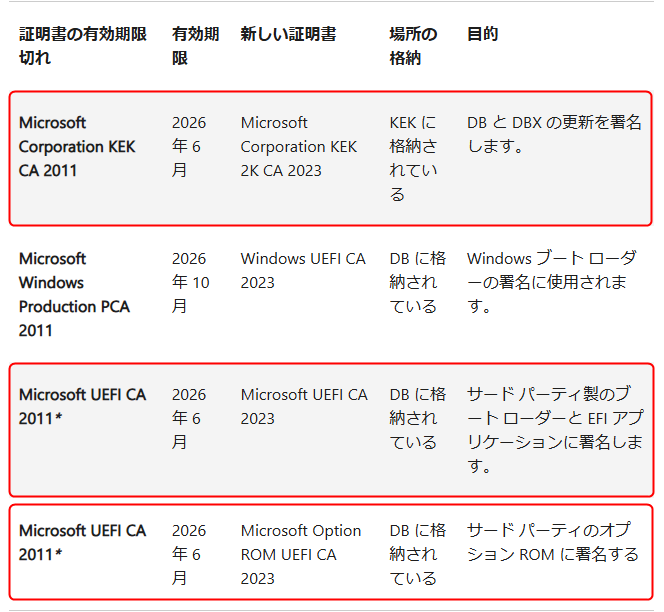
            Microsoft is currently in the process of gradually transitioning to new 2023 version certificates (e.g., KEK and DB) as older 2011 version certificates expire.
            Even in environments where BIOS updates are not provided directly by the manufacturer (iiyama), these certificates are distributed through Windows Update and are processed appropriately once safety is confirmed.

            It is likely that on elenore's PC, even though the certificates required to start Windows itself have been updated, the "certificates (Option ROM, etc.) for initializing PC parts (video card, etc.)" and the "master key that allows updates (KEK)" remain old.
            Secure Boot certificate expiration date

            This error was the result of the "safety check to avoid damaging your PC" working correctly. The most reliable route forward is to wait for Microsoft to release an update that can be safely applied.
            Thank you very much for sharing your valuable verification data with us.

  • Good evening. I read your article.

    I have a simple question. If I reset the BIOS (UEFI), will a new certificate be installed?
    It disappears, so I can understand that it can be a problem.
    Why does turning Secure Boot on or off cause problems?
    I sometimes use MX Linux, but MX Linux does not support secure boot.
    It is not supported, so you need to turn it off.
    I'm a little worried that this could mean there's a possibility of trouble.

    I would be grateful if you could explain it to me. Thank you.

    • Thank you for your comment Eleanor.

      The question you raised was such an important point that I chatted directly with Microsoft support (technical staff) today to confirm the detailed mechanism.

      To put it simply, the cause was not the OS itself, but the behavior of some BIOS (firmware).

      [What is happening?] When Secure Boot is turned on or off or the settings are changed, some BIOSes may automatically drop (delete) the "2023 certificate" from the list, even though it should have kept it.

      [Why does it become unable to boot?] Windows Update itself checks that the certificate is present and runs correctly, but subsequent changes to the settings cause the BIOS to "forget" the certificate, so the next time you turn it on, a "trust mismatch" occurs - "the file is there, but there is no certificate to recognize," and the system is blocked.

      Although officially described as a "rare case," for users who frequently change settings in conjunction with Linux, this "certificate drop by BIOS" poses the greatest risk.

      Following this official response, the article states:[Proven] Why does simply turning Secure Boot on and off cause the computer to become unbootable?We have added an explanatory column titled "

      Thanks to your very astute comments, we were able to obtain official evidence and update the article to make it more reliable. Thank you very much.

      • Thank you for your explanation

        Certificates disappear just by turning Secure Boot on and off
        I think having BISO (UEFI) is a poor design.
        I hope the manufacturer will update it beforehand.
        It's a good idea to create recovery media in case of a worst case scenario.

        As an aside, in this case, we used the certificate checker provided by wenbang.
        A slightly outdated environment with outdated boot managers and certificates
        (Core i3 10110U/Win10) so I wonder if there is no BIOS (UEFI) update?
        When I contacted the manufacturer, they said they had no plans to update it.
        So, if the certificate expires, can it still be used normally?
        When I asked a question, there was no answer and it was left unanswered.

        The specific manufacturer is iiyama notebook PC from PC Koubou.
        Some manufacturers may choose to round down the amount.
        I predict that in the worst case scenario, you will need to turn off Secure Boot.
        I think it will be

        • Dear Elenore,

          As elenore said, the fact that even important certificates can be lost with just a small change in settings makes it seem like a rather unfriendly (or careless) piece of hardware design. I strongly agree that the functionality that is supposed to protect users has instead become a trap that makes recovery difficult.

          If you are using a 10th generation Core i3 system, the hardware should still be in good working order, but the manufacturer's response of "no plans for updates and ignoring questions" is very disappointing.

          In response to the valuable feedback we received, we have added the following to this article:[Important] For those using older environments where BIOS updates are not providedI have quickly added a section titled "How to Use the SSH Protocol in a Network Environment," which explains in detail the following two points:

          1. Creating Secure Boot recovery media is a must
          Since simply switching Secure Boot on or off can cause a "Secure Boot Violation" and put your computer at risk of becoming unable to boot, you should definitely create recovery media now.

          2. Consider upgrading to Windows 11
          The Core i3 10110U meets the requirements for Windows 11. You are currently using Windows 10, but standard support has already ended.ESU (Extended Update Program)Even if you are subscribed to Windows 10, it is a good idea to switch to Windows 11, which is a free upgrade, considering the cost and future security.

          • Thanks for the detailed explanation and answer

            The PC mentioned in the story is a Core i3 10110U with Win11 24H2 installed on a separate SSD.
            The installed version is ready to be switched at any time.
            Therefore, the manufacturer (PC Koubou) has
            I would like to see an update, but the response is...

            I have a few questions about creating Secure Boot recovery media.
            I apologize for asking so many questions, but thank you in advance.

            Create a recovery drive, which is the first step to creating Secure Boot recovery media.
            The environment is in a state where both the boot manager and certificates have been updated.
            Do I need to create a recovery drive in this environment?

            That is, although new certificates have been added,
            I have a Win11 24H2 environment with an old boot manager.
            Could you please let me know if it is okay to create a Secure Boot recovery media?
            I'm happy. Thank you in advance.

            Aside: The recovery drive can also be a 16GB USB 2.0 flash drive.
            It was created without any problems. Used space: 9.53GB

          • Dear Elenore,

            thank you for your comment.
            Due to a misjudgment by the system, your message ended up in the spam folder, which delayed my approval and reply. I apologize for the delay.

            Regarding your question
            To put it simply, there is absolutely no problem with creating it in your current environment (with the old boot manager).

            reason:
            Microsoft's official requirements state that the two conditions necessary to create a recovery drive are as follows:

            • Updates dated July 8, 2025 or later must be applied.
            • The Secure Boot DB update (first mitigation step) has been applied.

            In elenore's environment, "new certificates have been added (DB updated)", so this required condition is met.
            Even if the currently running boot manager itself is old, as long as the OS and DB updates have been completed, you can create the correct recovery media.

            Thank you for reporting on creating with USB 2.0 memory! 2.0 is also stable in terms of compatibility, so this is very helpful.

  • It is said that support for Windows 11 will end around 2031 at the earliest.
    After support for Windows 11 ends, if I continue to use an old standalone PC that cannot be updated to Windows 12, does that mean I will only be able to start up the PC until June 2035, when the Secure Boot key expires?

    • Dear Arom,

      thank you for your comment.
      Due to a misjudgment by the system, your message ended up in the spam folder, which delayed my approval and reply. I apologize for the delay.

      About the 2035 problem
      To put it simply, if you are using it as a standalone system (not connected to the Internet), you don't have to worry about your PC not starting up.

      The reason is as follows.

      Secure Boot can be turned off
      Even if the Secure Boot check fails after 2035 due to the expiration of the certificate, Windows will boot without any problems if you disable Secure Boot in the BIOS settings, as the signature check itself will be skipped. In environments without an internet connection, the security risk is also limited.

  • Also, what is the best memory for the recovery drive? I'm currently using 32GB of 2.0.
    I've heard that things don't always work well with versions above 3.0.

    • Thank you for your comment, siden. I will answer all of your questions together.

      1. How to exit the boot menu
      Did you enter it using the ESC key? Some manufacturers, such as ASUS, often use the ESC key to call up the boot menu. You can turn off the power by holding down the power button until the screen goes blank. Since no access (writing) to the HDD/SSD occurs when the boot menu is displayed, forcing a power cut at this point carries an extremely low risk of disk failure or data corruption, making it a safe procedure. *On an old laptop I own, pressing the power button once while the boot menu is displayed will turn off the power (not by holding it down).

      The recovery procedure is as shown in the image.

      1. Insert the created USB
      2. Turn on the power and press the ESC key repeatedly
      3. When the menu appears, select USB

      This will automatically start the repair and restart the computer after 10 seconds.

      2. Future creation frequency and BIOS initialization
      You don't need to keep creating this "Secure Boot Recovery Media" forever. It's a one-time special task.

      Regarding "BIOS initialization (Load Optimized Defaults)," on many models, only the settings are reset, leaving the "key" behind. However, as noted in the article's warning, there are rare cases where the BIOS specifications link "initialization = DB (key) reset" to the BIOS specifications. Therefore, while we cannot guarantee that the data will never be lost, as long as you do not manually perform the obviously dangerous "Clear Keys" operation, it should generally be fine. Even if the key is reset due to a BIOS initialization or other such operation, there is no need to worry as long as you perform the USB procedure introduced here beforehand.

      3. About the recovery drive USB memory
      The "32GB USB 2.0" you're currently using is the best option. As you mentioned, USB 3.0/3.1 can sometimes be difficult to recognize on older PCs or in certain environments. For emergency tools like recovery drives, "mature technology (USB 2.0)" is more reliable and less likely to cause problems than speed. We recommend continuing to use the USB as is.

      If you have any concerns, please feel free to comment anytime.

      • On the ASUS global page, there was a section called "Windows Secure Boot Certificate Expiration and Renewal."
        https://www.asus.com/support/faq/1055903/

        I'm translating and reading it,
        (Method 1) Via Windows Automatic Updates
        If Windows Update is enabled and Secure Boot is enabled on your system (see How to enable Secure Boot), supported Windows devices will automatically download and apply the new Secure Boot certificate and the new Boot Manager when appropriate.

        The new Secure Boot database update will be gradually rolled out to devices with Secure Boot enabled starting in 2024, with devices automatically completing the update before the certificate expires in June 2026.

        Users with the default settings typically do not need any additional manual intervention.

        (Method II) Manually update your UEFI BIOS
        For laptops
        You can also download and update your UEFI BIOS to the latest version from the official ASUS website to get updated Secure Boot certificates.
        This method is suitable for advanced users who are familiar with the UEFI BIOS update process.
        1. Download and update the UEFI BIOS to the latest version from the official ASUS website. How to update BIOS in Windows
        Please refer to.
        2. Reset to setup mode
        2.1 After updating the BIOS, reboot the system and enter the BIOS setup again. Go to "Advanced\Boot > Secure Boot". 2.2 Click "Key Management".

        2.3 Perform a "Reset to Setup Mode".

        2.4 Click Yes.

        2.5 Verify that all UEFI Secure Boot keys (PK, KEK, DB, DBX) were successfully cleared

        3. Factory Key Recovery
        3.1 Perform a "Factory Key Restore".

        3.2 Click Yes.

        3.3 Ensure that the key size/number of PK/KEK/DB/DBX is not 0. UEFI
        The Secure Boot key update process is now complete

        Q&A
        Question 1: How do I check the status of my UEFI Secure Boot keys?
        Answer: Please follow the steps below
        1. In the BIOS page, go to "Advanced\Boot > Secure Boot > Key Management". 2
        Select each of the following items and click "Details":
        Key Exchange Key (KEK)
        ➢ Approved Signature (db)

        3. Verify that the Key Exchange Key (KEK) contains "Microsoft Corporation KEK 2K CA 2023".

        4. Verify that the Authorized Signatures (db) contains both "Microsoft UEFI CA 2023" and "Windows UEFI CA 2023".

        So I wondered what it was like.
        Basically, if the certificate is updated by Windows Update, is it okay to load optimized defaults? I'm planning to try creating a modified recovery drive though.

        • Thank you, siden, for sharing this valuable official ASUS information.

          This is a very important point. As you can see from this document, if you have updated to the latest BIOS, even if you load optimized defaults or perform a factory key restore, the 2023 key will be set correctly, so you should not experience any boot problems (or you should be able to restore it easily).

          However, from my understanding, there are two points to be aware of:

          If your BIOS is not up to date: Performing a "factory restore" will revert to the old key (2011 version), and there is a risk that you will not be able to boot the latest Windows (with the boot manager updated to the 2023 version).
          BIOS behavior: I just confirmed with an MS representative that some BIOS settings may "drop (forget) newly added certificates" when the settings are changed.

          [Proven] Why does simply turning Secure Boot on and off cause the device to become unbootable?

          Therefore, there is no problem for those who are using the latest BIOS and understand key management, but for many general users, we believe that the most reliable insurance is a "Secure Boot Recovery Media" that can force "trust" from the OS side in the event that the BIOS forgets the key.

          Please give creating a recovery drive a try. You will feel a great sense of security.

  • It seems that the certificate has not been updated yet.
    I didn't know where to get to the boot menu, so I tried pressing ESC and it worked.
    I didn't know what to do in the menu, so I pressed the power button, but the message "Enter Setup" appeared.

    When actually doing it, you insert the modified memory and select it from the boot menu (?). Even after reading the article, it seems difficult, so I'm not sure if I can do it. A regular recovery drive has already been created, but will a modified version be created in parallel with each major update in the future?
    Until now, I have been resetting the BIOS periodically, but should I stop doing this in the future?
    I don't know if it will actually rewind. I have contacted the manufacturer, ASUS, but since it is a gaming notebook from 2020, I wonder if they are willing to update the BIOS.

To comment

[About submissions]
We welcome any questions or information regarding the content of the article.
However, please note that content unrelated to the purpose of the article, criticism of specific individuals or organizations, offensive language,Inappropriate wordsComments containing the above may be deleted or made private without notice at the discretion of the administrator.
Please note that spam may be automatically deleted by anti-spam measures.

CAPTCHA


table of contents