
今回は、Windows 10 または Windows 11 で Windows ストアアプリが起動できない場合の対処法を紹介します。
今回対象となる症状は、アプリの修復、リセット、再インストールを行っても解決できない場合です。
例えば、何らかの原因で WindowsApps フォルダー内にあるアプリのファイルの一部が削除されてしまった場合、アプリがアンインストールできなくなったり、起動できなくなる場合があります。
WindowsApps フォルダー内にあるファイルはむやみに削除してはいけません。特に Windows 11 ではシステムがアプリに依存している場合があります。もしも削除してしまった場合、システムが正常に動作しなくなります。
そして、再度インストールをするためにコマンドでアプリを削除してから Microsoft Store で入手をしても起動できないことがあります。
Windows ストアアプリが起動できない場合の対処法
- Windows セキュリティなど重要なアプリでは実行しないでください。
- 対象のアプリを閉じた状態で行ってください。
※ここでは「フォト」アプリを例に紹介します。
まずはアプリの名前と必要なキー名を知るためにリストを表示します。
1.スタートボタンを右クリックし、「ターミナル(管理者)」をクリックします。
2.「Windows PowerShell」が開きますので、ウィンドウを最大化しておきます。
3.次のコマンドを入力して Enter を押します。
Get-AppxPackage -allusers | Select Name, PackageFullName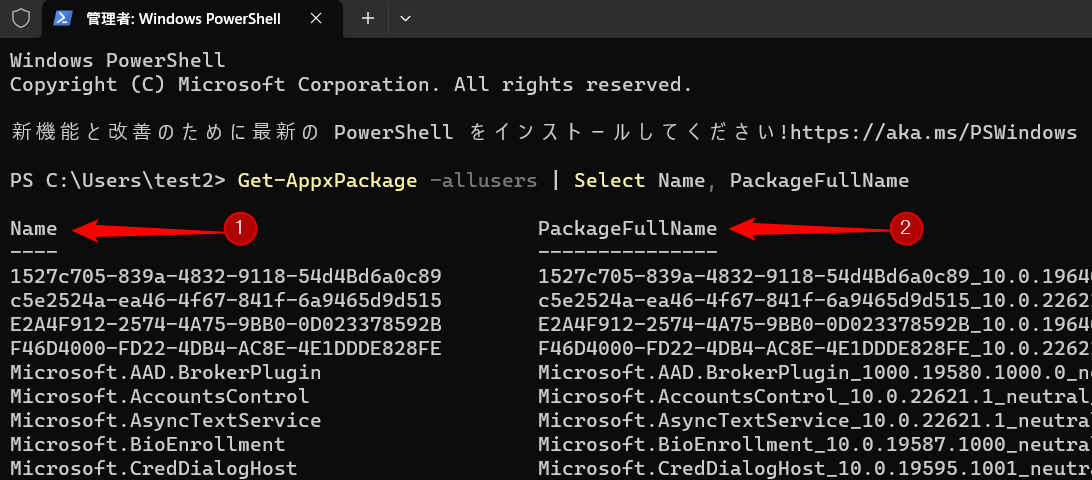
- Name の下にはアプリの名称が表示されます。
- PackageFullName の下にはアプリのパッケージのフルネームが表示されます。
アプリの名称「Microsoft.Windows.Photos」の右側にあるのが「フォト」アプリのパッケージのフルネームになります。

Microsoft.Windows.Photos_2023.11010.17009.0_x64__8wekyb3d8bbwe4.エクスプローラーを開き、アドレスバーに次のコードを入力して Enter を押します。
C:\Program Files\WindowsApps\パッケージのフルネーム※環境によりパッケージのフルネームは変わります。
筆者の環境では次のようになります。
C:\Program Files\WindowsApps\Microsoft.Windows.Photos_2023.11010.17009.0_x64__8wekyb3d8bbwe
フォルダーが開いたらアクセス権を取得します。
フォルダーのアクセス権の取得とファイルの削除
1.エクスプローラーの上の「・・・」をクリックし、「プロパティ」をクリックします。
またはフォルダー内の右側の何もない所で右クリック>「プロパティ」をクリックします。
※ここでは Windows 11 での操作方法を紹介しますが、Windows 10 の場合、エクスプローラーの仕様の違い以外操作方法は変わりません。

2.フォルダーのプロパティが開きますので、「セキュリティ」タブを開き、下にある「詳細設定」をクリックします。

3.「所有者」の右側にある「変更(C)」をクリックします。

4.「詳細設定」をクリックします。

5.「検索」をクリックします。

6.現在サインインしているユーザー名を選択し、OK をクリックします。

7.OK をクリックします。

8.「サブコンテナーとオブジェクトの所有権を置き換える」にチェックを入れ、OK をクリックします。

9.もう一度「詳細設定」をクリックします。
10.「アクセス許可の変更」をクリックします。

11.「追加」ボタンが表示されますのでクリックします。

12.「プリンシパルの選択」をクリックします。
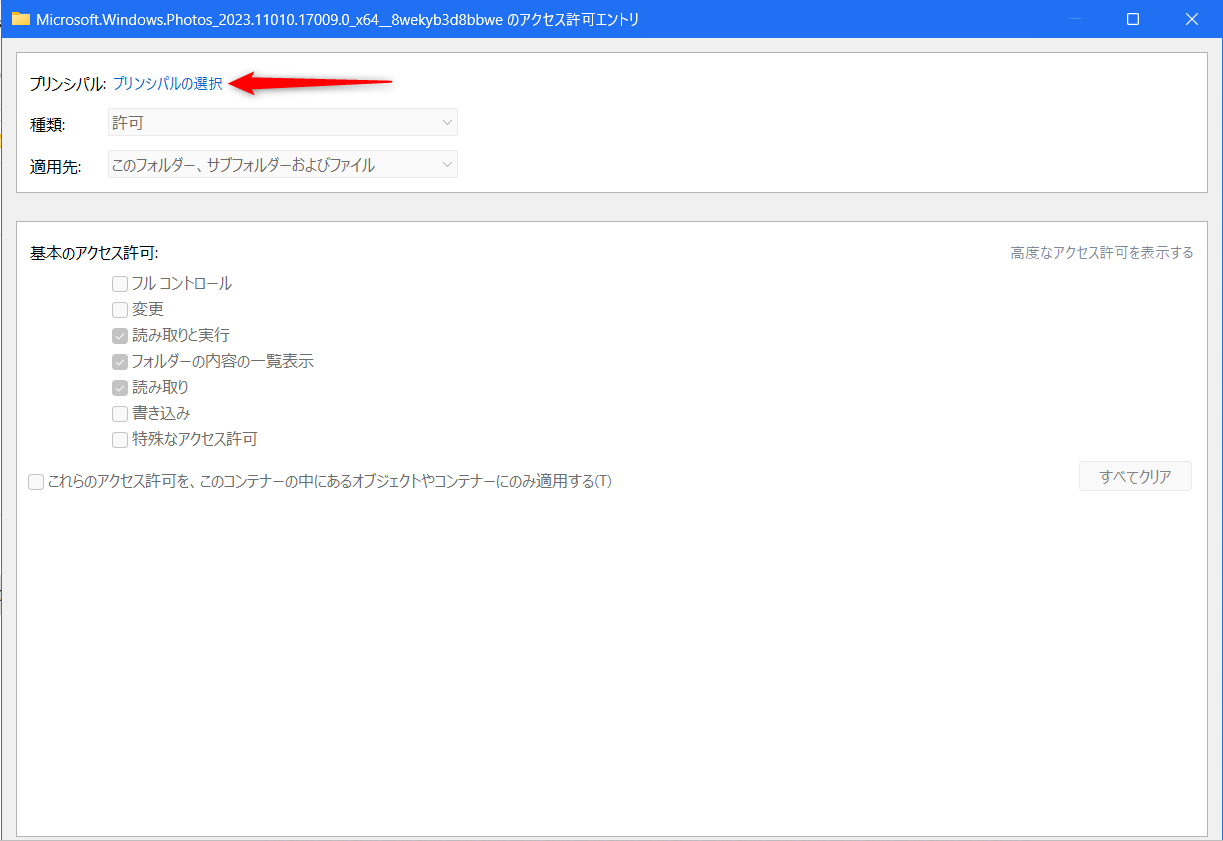
13.「詳細設定」をクリックします。
14.「検索」をクリックします。
15.先ほどと同じように、現在サインインしているユーザー名を選択し、OK をクリックします。
16.OK をクリックします。
17.「フルコントロール」にチェックを入れ、OK をクリックします。
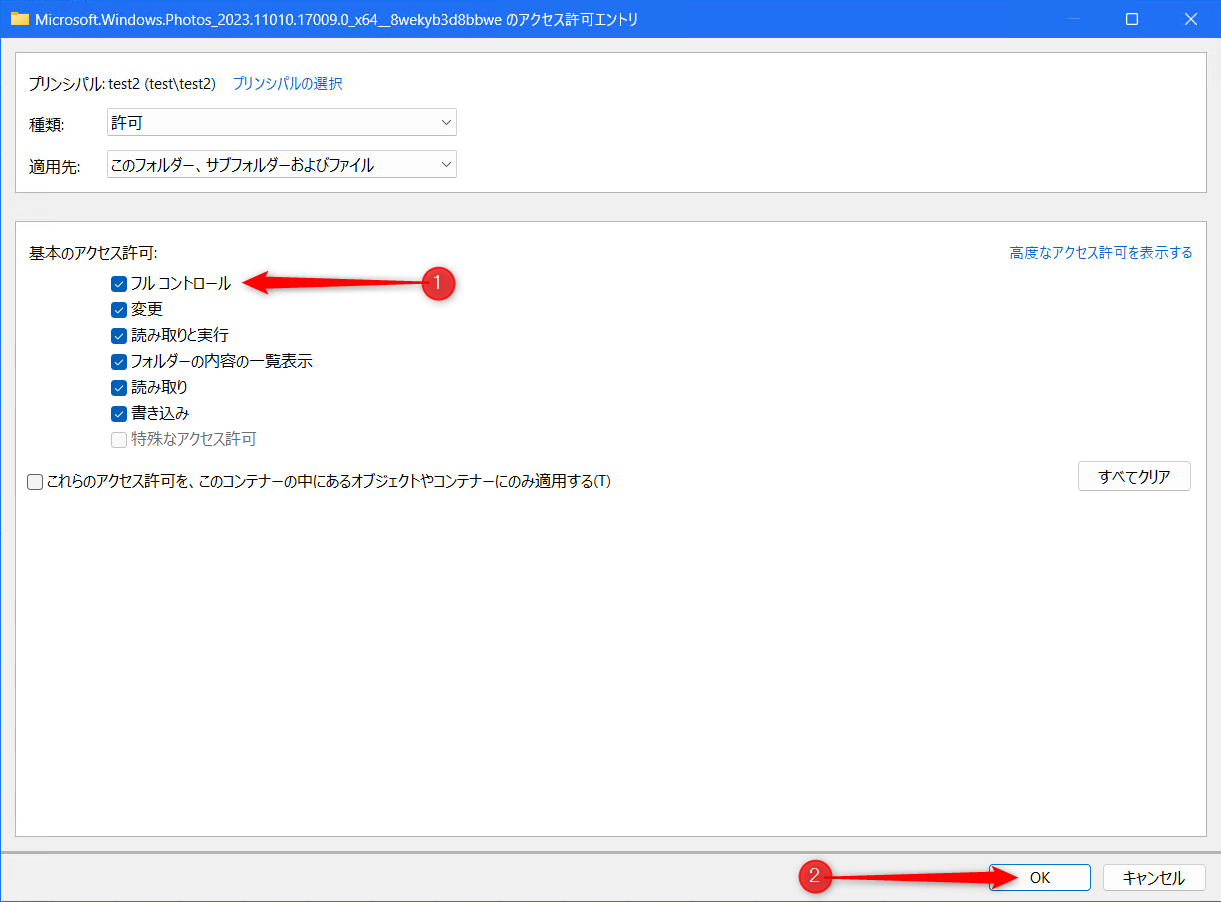
18.一番下の「子オブジェクトのアクセス許可エントリすべてを、このオブジェクトからの継承可能なアクセス許可エントリで置き換える」にチェックをしてください。
19.OK をクリックします。

20.もう一度 OK をクリックします。

21.フォルダー内のすべてのファイルを削除します。(念のため、どこかに保存しておきましょう)

アプリをアンインストールする
ファイルを削除しただけではアプリは完全にはアンインストールされません。
1.スタートボタンを右クリックし、「ターミナル(管理者)」をクリックします。
2.「Windows PowerShell」が開きますので、次のコマンドを入力して Enter を押します。
Get-AppxPackage Microsoft.Windows.Photos | Remove-AppxPackage※フォトアプリを削除するコマンドです。
削除が完了したら Microsoft Store からフォトアプリを入手します。
Microsoft Store からフォトアプリを入手
1.スタートボタンをクリックし、スタートメニューから Microsoft Store を開きます。

2.検索ボックスに「フォト」と入力して検索し、「Microsoft フォト」をクリックします。

Windows 10の場合、検索ボックスに「フォト」と入力した際に表示される「Microsoft フォト」をクリックしてください。
そのまま Enter を押すと表示されません。

3.「入手」をクリックします。

Windows 10 の場合は「インストール」をクリックします。

Microsoft のサインイン画面が表示されたら「×」ボタンで閉じるとインストールが開始します。

4.フォトアプリのダウンロードが開始され、先ほど削除したファイルが足りなかったファイルを含め、すべてが揃います。

5.ダウンロードが完了すると、フォトは開けるようになっています。

2024/01 以降に「ファイルシステムのエラーです(-2147219196)」エラーが出る場合
2024/02/03:
Microsoft の Visual C++ チームは、最近多くの環境で発生している「ファイルシステムのエラーです(-2147219196)」エラーの原因がフォト アプリやその他のアプリが依存する vclibs フレームワーク パッケージの回帰であると特定したようです。
この問題は、古いハードウェア (SSE 4.2 命令をサポートしていない) を搭載したコンピュータに影響します。
Microsoft は現在問題解決に取り組んでおり、影響を受ける環境に間もなく展開される予定だということです。
2024/02/06:
この問題は既に解決しました。

コメント