
Windows Update を行った後や Windows 10 から Windows 11 にアップグレードした後、または何かのアプリケーションをインストールした後などに Microsoft Store アプリが開かなくなることがあるようです。
このページでは、Microsoft Store アプリが開かなくなった場合の対処法を紹介します。

目次
Microsoft Store のキャッシュをリセットする方法
Microsoft Store のキャッシュをリセットすると、アプリが開かない問題が解決する場合があります。
1.コマンドプロンプトを管理者として実行します。
コマンドプロンプトの開き方を見る
1.Windowsキー + R を押して「ファイル名を指定して実行」を開きます。
2.「cmd」と入力します。
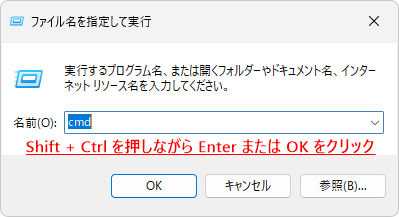
3.Shiftキー + Ctrlキーを押しながら Enter を押してください。

4.「ユーザーアカウント制御」が表示されたら「はい」をクリックします。

2.コマンドプロンプトが開いたら、次のコードを入力して Enter を押します。
wsreset.exe3.しばらくすると Microsoft Store アプリのキャッシュがリセットされ、問題がなければ Microsoft Store アプリが自動的に開きます。
解決できない場合は次の記事をご覧ください。

コメント