
Windows 11 では、最近の更新によりファイルエクスプローラーでファイルやフォルダーを選択すると黒い枠が表示されるようになりました。
また、右側に表示されている更新日時等の文字色も濃くなっています。

これは、2024/6/25 にプレビューリリースされた更新プログラム KB5039302 に含まれる新機能です。
KB5039302 のインストール前は、次のようにファイルやフォルダーを選択しても黒枠は表示されません。

KB5039302 以降の更新プログラムをインストールすると機能が追加されます。
これにより、ファイルやフォルダーを選択したときに、どのファイルが選択されているのかがわかりやすくなりました。
しかし、以前の状態に戻したいというユーザーもいるようです。
そこで、今回 KB5039302 のインストール前とインストール後の違いを比較し、元に戻すことにも成功しました。
ファイルやフォルダーを選択すると黒い枠が表示される仕組み
エクスプローラーでファイルやフォルダーを選択すると黒い枠が表示されるのは、ライトテーマの場合のみです。
ダークテーマでは違いはわかりません。
KB5039302 のインストール後には、次のフォルダーの中にある「aero.msstyles」という、テーマに関するファイルが更新されています。
C:\Windows\Resources\Themes\aero※更新前は、ファイルの更新日時が「2023/11/10」になっています。


この「aero.msstyles」が更新されたことにより、黒い枠が表示されるようになっています。
実際に「aero.msstyles」を以前のバージョンに戻すことで前の状態に戻すことができました。
「aero.msstyles」はシステムファイルであり、通常の方法では変更ができなくなっていますので、次の手順を行う必要があります。
以前のバージョンに戻す手順
- ファイルのアクセス許可が変更できる方のみ行ってください。
- 管理者権限のあるアカウントで行う必要があります。
- 手順を間違えるとデスクトップが表示されなくなります。画面が真っ暗になり、操作不能になりますので、実行する場合は十分に注意しながら行ってください。
2025/03/25 以降の更新プログラムをインストール後、下記の方法を実行するとフォルダーが開けなくなることを確認しました。
当ページの方法は、2025/03/25 以前の更新まで有効となります。
既に実行してフォルダーが開けなくなった場合は、
「2025/03/25 以降の更新プログラムをインストール後、フォルダーが開けなくなった場合の対処法」
を実行してください。
1.既に KB5039302 をインストールしている場合は、まず KB5039302 をアンインストールしてください。
2.KB5039302 をアンインストールすると「aero.msstyles」が以前のバージョンに戻ります。
3.次のフォルダーを開きます。
C:\Windows\Resources\Themes\aero4.「aero.msstyles」をコピーしてダウンロードフォルダーなどに保存しておきます。
※旧aero という名前のフォルダーを作成し、その中に保存しておくとわかりやすいと思います。
5.KB5039302 をインストールします。
6.次のフォルダーを開きます。
C:\Windows\Resources\Themes\aero7.「aero.msstyles」のアクセス許可を変更します。
ファイルの所有者を Administrators に、Administrators のアクセス許可を「フル コントロール」に変更してください。
8.「aero.msstyles」の名前を「aero.msstyles.bak」などに変更します。
9.名前の変更時に警告画面が表示されますので、「はい」をクリックします。

10.「ファイル アクセスの拒否」が表示されたら「続行」をクリックします。

11.「ユーザーアカウント制御」の画面が表示されたら「はい」をクリックします。

12.先ほど保存しておいた以前のバージョンの「aero.msstyles」を「aero」フォルダーにコピーしてください。
この状態になっていれば OK です。

13.これで以前のバージョンに戻す操作は完了しましたので、設定を反映させるために PC を再起動してください。
※必ず再起動してください。サインアウトやシャットダウンしてからの起動では反映されない場合があります。
更新プログラム KB5039302 はプレビューリリースですので、次にリリースされる正規の更新プログラムで「aero.msstyles」が新しいバージョンに置き換わると思います。
その場合は、同じ手順で以前のバージョンの「aero.msstyles」に置き換えてください。
2025/03/25 以降の更新プログラムをインストール後、フォルダーが開けなくなった場合の対処法
2025/03/25 以降の更新プログラムをインストール後に当ページの方法で「aero.msstyles」を置き換えると、すべてのフォルダーが開けなくなります。
エクスプローラー等を古いバージョンに戻してみましたが、効果はありませんでした。
おそらく、システムの更新により、「aero.msstyles」を置き換えるとエクスプローラーが正常に動作しなくなってしまったのでしょう。
既に「aero.msstyles」を置き換えてフォルダーが開けない場合は、次の手順で「aero.msstyles」を元に戻すことでフォルダーが開くようになります。
1.コマンドプロンプトを管理者として開き、次の各コマンドを入力して Enter を押します。
コマンドプロンプトの開き方を見る
1.Windowsキー + R を押して「ファイル名を指定して実行」を開きます。
2.「cmd」と入力します。
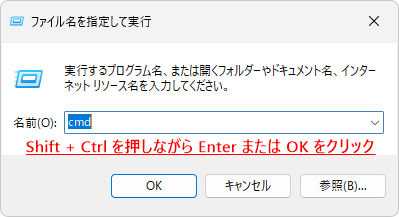
3.Shiftキー + Ctrlキーを押しながら Enter を押してください。

4.「ユーザーアカウント制御」が表示されたら「はい」をクリックします。

cd /d c:¥windows¥resources¥themes¥aero2.続けて次のコマンドを入力して Enter を押します。
ren aero.msstyles aero.msstyles.oldこのコマンドは、置き換えた「aero.msstyles」の名前を「aero.msstyles.old」に変更しています。
3.続けて次のコマンドを入力して Enter を押します。
ren aero.msstyles.bak aero.msstylesこのコマンドは、バックアップしておいた「aero.msstyles.bak」の名前を「aero.msstyles」に戻しています。

4.コマンドプロンプトを閉じ、PC を再起動してください。
PC が起動すると、エクスプローラーは正常な状態に戻り、フォルダーが開けるようになります。
