
Microsoft は、2025/05/28 に Windows 11 バージョン 24H2 の更新プログラム KB5059693 リリースしました。
この更新プログラムにより、Windows 11 バージョン 24H2 および Windows Server 2025 の Windows 回復環境が強化されます。
KB5059693 では、Windows回復環境の操作中にローカル セキュリティ機関サブシステム サービス (LSASS) に影響を与える問題が修正されています。

具体的には、アプリケーションが特定の関数を呼び出した際に、ローカル セキュリティ機関サブシステム サービス (LSASS) がクラッシュすることがあります。
サービスがクラッシュすると、システムが影響を受けて不安定になります。
KB5059693 は Windows Update を通して自動的にダウンロード&適用されますが、Microsoft Update カタログから更新プログラムをダウンロードし、手動で適用することもできます。
KB5059693 を手動で適用する手順
KB5059693 を適用すると、Windows RE イメージのバージョンは「10.0.26100.4187」になります。
現在のバージョンを確認したい場合は、次のページを参考に確認してみてください。
1.次のページからお使いの PC に合った更新プログラムの右側の「ダウンロード」ボタンをクリックしてください。
Microsoft Update カタログ(KB5059693)

2つのうちどちらをダウンロードしていいのかわからない場合は、システムの詳細情報(設定)からシステムの種類を確認してください。
「64 ビット オペレーティング システム」と表示されている場合は「2025-05 Safe OS Dynamic Update for Windows 11 Version 24H2 for x64-based Systems (KB5059693)」をダウンロードしてください。
「ダウンロード」ボタンをクリックすると、KB5059693 のダウンロードページが開きますので、下の画像を参考に赤枠の部分のリンクをクリックしてファイルをダウンロードしてください。

2.Cドライブ直下に「downloadedupdate」というフォルダーを作成し、ダウンロードしたファイル「windows11.0-kb5059693-x64_bb51f1eadbba9b776ef15eaf2b736018d9117110.cab」を移動してください。

3.コマンドプロンプトを管理者として開いてください。
コマンドプロンプトの開き方を見る
1.Windowsキー + R を押して「ファイル名を指定して実行」を開きます。
2.「cmd」と入力します。
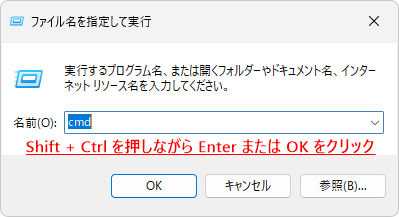
3.Shiftキー + Ctrlキーを押しながら Enter を押してください。

4.「ユーザーアカウント制御」が表示されたら「はい」をクリックします。

4.次のコマンドを入力して Enter を押します。
md c:\mount5.次のコマンドを入力して Enter を押します。
ReAgentC.exe /mountre /path c:\mount
※「mount」フォルダーにファイルがコピーされますので、少々時間がかかります。
「REAGENTC.EXE: 操作は成功しました。」と表示されたら次へ進んでください。
6.次のコマンドを入力して Enter を押します。
Dism /Add-Package /Image:C:\mount\ /PackagePath:"c:\downloadedupdate\windows11.0-kb5059693-x64_bb51f1eadbba9b776ef15eaf2b736018d9117110.cab"
「操作は正常に完了しました。」と表示されたら次へ進んでください。
7.次のコマンドを入力して Enter を押します。
dism /image:C:\mount /cleanup-image /StartComponentCleanup /ResetBase
「操作は正常に完了しました。」と表示されたら次へ進んでください。
8.次のコマンドを入力して Enter を押します。
ReAgentC.exe /unmountre /path c:\mount /commit
※「mount」フォルダー内のファイルを削除しますので、少々時間がかかります。
「REAGENTC.EXE: 操作は成功しました。」と表示されたら次へ進んでください。
9.「mount」フォルダー内は空になりますので、「mount」フォルダーを手動で削除するか、次のコマンドを入力して Enter を押します。
rd c:\mount10.ディスクを BitLocker またはデバイスの暗号化で保護している場合は、次のコマンドを入力して Enter を押します。
reagentc /disable
続けて次のコマンドを入力して Enter を押します。
reagentc /enable
これで Windows RE イメージは更新され、KB5059693 の適用は完了です。
再起動の必要はありませんが、
しっかりと更新されたかを確認したい場合は、次のページを参考に Windows RE イメージの「変更日時」を確認してみてください。


コメント