
Microsoft は、3D グラフィックを手軽に作成・編集できる画像編集アプリ「ペイント 3D」を非推奨とし、2024年11月4日に Microsoft Store からの提供を正式に終了しました。
そのため、現在 Microsoft Store からペイント 3D をダウンロードすることはできません。既に Windows 11 にインストール済みであれば引き続き機能するものの、万が一アンインストールしてしまったり、新しく PC をセットアップしたりした場合は、もうペイント 3D を使うことはできない…と諦めていませんか?
ご安心ください! この記事では、Microsoft が公式に提供している Windows 10 のディスクイメージ(ISOファイル)から、ペイント 3D に関するファイルを抽出し、Windows 11で 再び利用可能にする手順を、初心者の方にも分かりやすく解説します。
非公式サイトからのダウンロードには、マルウェア混入などのセキュリティリスクが伴います。このガイドを参考に、最も安全な方法でペイント 3D を復活させましょう。
Windows 11 のペイント 3D は、作業中に反応しなくなるバグを確認しています。そのため、バグがなく反応も良い Windows 10 のペイント 3D に切り替えることをおすすめします。
ペイント 3D が Microsoft Store から削除された背景
ペイント 3D は、Windows 10 Creators Update で登場し、誰でも簡単に 3D オブジェクトを作成・編集できるツールとして注目を集めました。しかし、Microsoft は 2024年8月にペイント 3D を非推奨と発表し、2024年11月4日をもって、Microsoft Store からの提供が正式に終了しました。
Microsoft は現在、ペイントアプリの強化に努めています。
なぜ非公式サイトからのダウンロードは危険なのか?
Microsoft Store から入手できなくなったとなると、インターネット上には非公式サイトが提供するペイント 3D のインストーラーが見つかることがあります。しかし、これらのダウンロードは決して推奨されません。その理由は以下の通りです。
- マルウェア・ウイルス混入のリスク: 非公式サイトで提供されているファイルは、改ざんされている可能性が非常に高く、悪意のあるプログラム(マルウェア、ウイルス、アドウェアなど)が仕込まれていることがあります。これらをインストールしてしまうと、PC が感染し、個人情報が漏洩したり、システムが破壊されたりする危険性があります。
- バンドルウェア(不要なソフト)の強制インストール: 正規のアプリに見せかけて、実際には不要なツールバーや広告ソフトなど、複数のソフトウェアを同時にインストールさせようとするケースが多々あります。
- 動作保証の欠如: 非公式のインストーラーは、公式のものではないため、Windows 11 の最新バージョンで正常に動作しない、あるいはシステムに予期せぬ不具合を引き起こす可能性があります。
- 著作権侵害の可能性: 非公式サイトでの再配布は、著作権を侵害している可能性があります。
安全にペイント 3D を利用するためには、Microsoft が公式に提供している Windows 10 の ISO イメージを利用するのが、唯一信頼できる方法です。
【公式・安全】Windows 10 ISO からペイント 3Dを抽出・インストールする手順
このセクションでは、Microsoft 公式の Windows 10 ディスクイメージ(ISOファイル)からペイント 3D に関するファイルを抽出し、インストールする具体的な手順を解説します。
本記事で紹介するこの方法は、筆者が独自に調査・検証を行い、Windows 11 環境でペイント 3D の復活に成功した方法です。非公式サイトに頼らず、最も安全かつ確実にペイント 3D を使い続けたい方は、ぜひこの手順を参考にしてください。
ペイント 3D をインストールするための準備
1.Windows 10 の ISO ファイルを入手する
※既に Windows 10 の ISO ファイルを所有している場合は次の手順に進んでください。
次のページを開き、 Windows 10 の ISO ファイルをダウンロードしてください。
Windows 10 のダウンロードページ(Microsoft 公式ページ)
Windows 11 でアクセスをした場合、直接 ISO ファイルをダウンロードすることができませんので、以下の方法を実行してください。
Windows 10 のダウンロードページでは、ユーザーがどの OS でアクセスしているかを自動的に判断しています。Microsoft は、ユーザーが Windows 11 でアクセスしている場合は ISO ファイルをダウンロードするページを表示しないようにしています。以下は、これを回避する方法です。
Microsoft Edge および Google Chrome での操作方法
1.Windows 10 のダウンロードページを開いたら、「F12」キーを押してください。
2.「Microsoft Edge 開発者ツールを開きますか?」と聞かれたら、「DevTools」をクリックします。
※Google Chrome では表示されません

3.次の画像の矢印の所にあるアイコン(デバイス エミュレーションの切り替え)を一度クリックしてください。

※Google Chrome の場合はアイコンと名称が少し違います。(デバイスのツールバーを切り替え)

すると、ページが縦長になります。
4.「F5」キーを押してページを最新の情報に更新してください。
5.すると、「Windows 10 2023 更新 | バージョン 22H2 エディションの選択」が表示されますので、「エディションの選択」をクリックします。

6.「Windows 10(マルチエディション ISO)」を選択します。

7.「確認」をクリックします。

8.「製品の言語の選択」が表示されますので、「いずれかを選択してください」をクリックします。

9.「日本語(ダウンロードしたい言語)」を選択して「確認」をクリックします。

10.すると、「ダウンロード」リンクが表示されますので、「64-bit Download」をクリックします。

Windows 10 の ISO ファイルがダウンロード出来たら「アクセス許可」進んでください。
2.アクセス許可
※まず隠しファイルを表示しておいてください。
1.次のフォルダーを開きます。
C:\Program Files2.「WindowsApps」フォルダーの上で右クリック>「プロパティ」をクリックします。

3.「WindowsApps のプロパティ」が開きますので、セキュリティタブを開き、「詳細設定」をクリックします。

4.「WindowsApps のセキュリティの詳細設定」が開きますので、所有者の右側にある「変更」をクリックします。

5.「ユーザーまたはグループの選択」が表示されますので、「詳細設定」をクリックします。

6.「ユーザーまたはグループの選択(詳細設定)」が表示されますので、「検索」をクリックします。

7.すると、検索結果にたくさんの名前が表示されますので、「Administrators」を選択して OK をクリックします。

8.「選択するオブジェクト名を入力してください」に「Administrators」が表示されていることを確認したら、OK をクリックします。
例:「DESKTOP-******\Administrators」

9.所有者が「Administrators」または現在サインインしているユーザーに変更されているのを確認したら、何もチェックせずに OK をクリックします。

「サブコンテナーとオブジェクトの所有者を置き換える」にはチェックを付けないでください。
チェックを付けて許可をしてしまうと、一部のアプリが起動できなくなる場合があります。
10.「WindowsApps のプロパティ」に戻りますので、OK をクリックします。

11.これで「WindowsApps」フォルダーを開くことができるようになりましたので、開いてください。
12.「このフォルダーにアクセスする許可がありません。」と表示されたら「続行」をクリックします。

すると、「WindowsApps」フォルダーが開きます。
3.7-zip のインストール
7-zip の公式サイトから 7-zip をダウンロードしてインストールしておきます。
※既にインストールしている場合は次の手順に進んでください。
※通常は「64ビット Windows x64」

4.必要なファイルを取り出し「WindowsApps」フォルダーにコピーする
1.ダウンロードした Windows 10 の ISO ファイルの上で右クリック>その他のオプションを確認>7-Zip>「開く」をクリックします。

2.「開いているファイル – セキュリティの警告」が表示されたら、「このファイルを開く前に常に確認する」のチェックを外して「開く」をクリックします。

3.ISO ファイルの中身が表示されますので、「sources」フォルダーを開きます。

4.「install.wim」をダブルクリックで開きます。

5.「1」フォルダーを開きます。

6.「Program Files」>「WindowsApps」と開いていきます。
「WindowsApps」フォルダーを開いたら、次の 2つのフォルダーをコピーしていきます。
- Microsoft.MSPaint_6.1907.29027.0_x64__8wekyb3d8bbwe
- Microsoft.UI.Xaml.2.0_2.1810.18004.0_x64__8wekyb3d8bbwe


7.各ファイルの上で左クリックして離さず、アクセス許可した「WindowsApps」フォルダー内に持って行き、左クリックを離します。(ドラッグ&ドロップ)

※「対象のフォルダへのアクセスは拒否されました」と表示され場合は、「すべての項目にこれを実行する」にチェックを入れてから「続行」をクリックします。

2つのフォルダーのコピーが終わったら、準備は完了です。
ペイント 3D のインストール
Windows 11 のペイント 3D が既にインストールされている場合は、アンインストールしてからコマンドを実行してください。
1.スタートボタンをクリック、または Windowsキーを押してスタートメニューを開きます。
2.右上の「すべて >」をクリックします。

3.アプリの一覧が表示されますので、下にスクロールし、「ペイント 3D」の上で右クリック>「アンインストール」をクリックします。
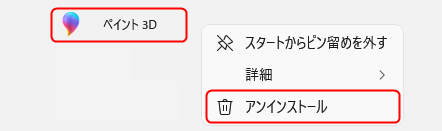
アンインストールを行わずに Windows 10 のペイント 3D をインストールするコマンドを実行すると、下記のエラーが表示されます。
Add-AppxPackage: Deployment failed with HRESULT: 0x80073CF3, パッケージの更新、依存関係、または競合の検証に失敗しました 。
エラー 0x80073CF3 が発生したため、 (appxmanifest.xml) からのパッケージ Microsoft.MSPaint_6.1907.29027.0_x64__8wekyb3d8bbwe に対する展開 Register 操作 (ターゲット ボリューム C:) に失敗しました。
1.スタートボタンを右クリックし、「ターミナル」をクリックします。
2.「Windows PowerShell」が開きますので、次のコマンドを入力して Enter を押します。
Add-appxpackage -register "C:\Program Files\WindowsApps\Microsoft.UI.Xaml.2.0_2.1810.18004.0_x64__8wekyb3d8bbwe\AppxManifest.xml" -disabledevelopmentmod
3.続けて次のコマンドを入力して Enter を押します。
Add-appxpackage -register "C:\Program Files\WindowsApps\Microsoft.MSPaint_6.1907.29027.0_x64__8wekyb3d8bbwe\AppxManifest.xml" -disabledevelopmentmod
この時点でペイント 3D のインストールは完了していますが、このままでは起動することができません。
4.Windows PowerShell を閉じ、スタートボタンをクリック、または Windowsキーを押してスタートメニューを開きます。
5.右上の「すべて >」をクリックします。

6.アプリの一覧が表示されますので、下にスクロールし、「ペイント 3D」の上で右クリック>「詳細」>「アプリの設定」をクリックします。

※スタートメニューのピン留めの下にペイント 3D が表示されている場合は、そのアイコンを右クリックしても構いません。
7.「設定」>「アプリ」>「インストールされているアプリ」>「ペイント 3D」が開きますので、「修復」をしてから「リセット」を行ってください。

8.「設定」を閉じ、スタートメニューからペイント 3D を起動してみましょう。
※初めて起動する際は、少々時間がかかる場合があります。
よくある質問 (FAQ)
- Windows 10 から Windows 11 にアップグレードした場合、ペイント 3D は消えてしまうのか?
-
今現在 Windows 10 を使用している方は、Windows 11 にアップグレードするとペイント 3D が消えてしまうのではないか?と心配だと思います。実際に Windows Update 経由で Windows 10 から Windows 11 にアップグレードしてみましたが、ペイント 3D は削除されずに残っていました。Windows 10 の ペイント 3D がそのまま残っている状態ですので安心してください。
- ペイント 3D はなぜ Microsoft Store から削除されたのですか?
-
ペイント 3D が Microsoft Store から削除されたのは、アプリが非推奨(サポート終了)となり、2024/11/04 に提供が終了したためです。
- 非公式サイトからダウンロードしたインストーラーを使っても大丈夫ですか?
-
いいえ、非公式サイトからのダウンロードは推奨されません。マルウェア感染やバンドルウェアの混入など、セキュリティ上の大きなリスクが伴います。公式の Windows 10 ISO イメージから抽出する方法を推奨します。
- この方法でインストールしたペイント 3Dは、今後の Windows アップデートで使えなくなりますか?
-
現時点では、Windows アップデートで強制的に機能しなくなるという報告はありません。(実際に使えています)ただし、将来的に Microsoft が完全に使えないように変更する可能性はゼロではありません。
まとめ:安全な方法で、もう一度ペイント 3Dを楽しもう
Microsoft Store からの提供が終了したことで、一度は諦めかけたペイント 3D。しかし、このガイドで紹介した「Windows 10 公式 ISO からの抽出・インストール」という安全な方法を使えば、再びあなたの Windows 11 環境でそのクリエイティブな機能を利用できます。
非公式サイトの危険性を避け、安心してペイント 3D を楽しんでください。
