How to fix Windows 11 volume changes automatically

In some environments running Windows 11, there seems to be an issue where the volume changes while playing games, videos, or certain apps.

If you have tried various methods but were unable to resolve the issue, please try the method introduced here.

table of contents

How to fix volume changes automatically in Windows 11

Disabling Exclusive Mode

Windows 11 has a feature called "Exclusive Mode" that is enabled by default.

If this function is enabled, the volume may change automatically when you run some applications (such as games).

The "Exclusive Mode" feature is designed to improve sound quality, but it can also change the volume without permission, which can be very annoying for some users.

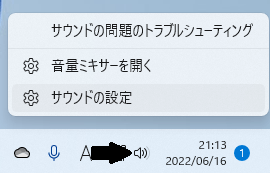
1. Right-click the volume icon in the bottom right corner of the screen > Click "Sound settings."

Volume icon right-click menu

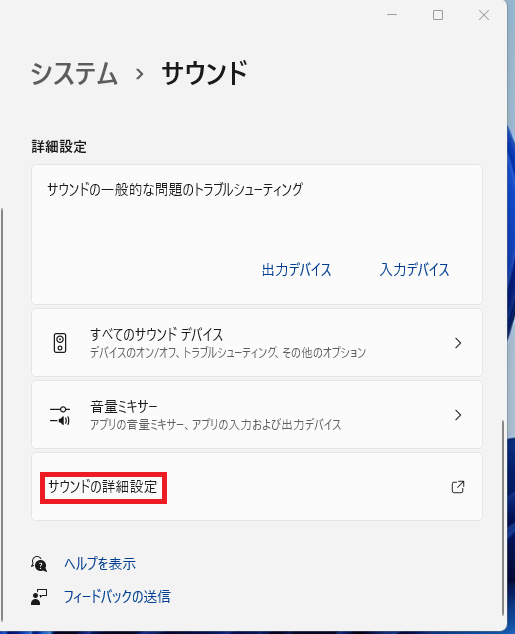
2. Scroll down the menu on the right and click "Advanced sound settings" to open it.

"Settings" > "System" > "Sound"

3. Double-click the speaker to open it.

*If multiple devices are displayed, open the device with a green check mark.

サウンドの詳細設定
サウンドの詳細設定

4. The Speaker Properties window will open, so click the "Advanced" tab.

Speakers Properties - Advanced Tab
Speakers Properties – Advanced Tab

5.Under "Exclusive Mode", uncheck "Allow applications to take exclusive control of this device" and click OK.

Speakers Properties - Advanced Tab
Speakers Properties – Advanced Tab

Once you have finished the setup, close any open windows and try playing a video or other content to see if the problem has been resolved.

サウンドの問題のトラブルシューティング

1.Start button, type "troubleshooting" in the top search box, and press Enter.

2.Task tray (notification area)Right-click the volume control icon and click "Troubleshoot sound problems."

Volume icon right-click menu

3. An "Inquiry" window will open, asking "Do you agree to run an automatic diagnosis to resolve audio issues?" Click "Yes."

Contact Us
Contact Us

4. The problem detection (scan) will begin and the following question will be displayed. Please answer the question to proceed.

Ultimately, if it's a problem that can be solved on the Windows side, it can be solved.

Reboot

If you use Windows 11 for a long time, unexpected problems may occasionally occur, depending on the environment.

If you haven't restarted your computer recently, please try restarting your computer as this may solve the problem.

If the volume changes when you open a specific app (Updated November 14, 2022)

Some manufacturers' computers come with a settings app installed by default, and some of the settings in that app change the volume by syncing with other apps.

For example, one example is Armoury Crate, a utility software that can manage gaming PCs from the manufacturer ASUS. It seems that system settings for each app can be configured using a setting item called "Scenario Profile," and it seems that the problematic app may sometimes be registered in this setting.

Change the volume for each app in Windows 10/Win11 | Volume of a specific app is different

If you found this article helpful, please share it on social media.

Person who wrote this article

Driven by questions arising from my daily PC use and the desire to "do more," I have been pursuing self-study in Windows since around 2008. I am sharing the "aha!" techniques and solutions I discovered through trial and error with the sole purpose of helping you in your PC life.

View profile

Comment:

To comment

[About submissions]
We welcome any questions or information regarding the content of the article.
However, please note that content unrelated to the purpose of the article, criticism of specific individuals or organizations, offensive language,Inappropriate wordsComments containing the above may be deleted or made private without notice at the discretion of the administrator.
Please note that spam may be automatically deleted by anti-spam measures.

CAPTCHA


table of contents