While working with Windows 11, have you ever wanted to switch your PC's operating mode depending on the situation, such as "I want to concentrate with the best performance right now" or "I want to use it quietly while saving battery power"? While Windows' "Power Plan" is convenient, operating it from the settings screen can be cumbersome.
In this article, we will introduce a resident "power plan management tool" that will eliminate this hassle.
This tool, developed by the author, allows you to activate plans and even delete unnecessary plans in an easy-to-understand screen. I will explain in detail how to make your Windows experience more comfortable and efficient.
Why is managing your power plan important? A basic review
Before we introduce the tools, let's first briefly review what "power plans" are and why mastering them can help you work more efficiently on your PC.
Three basic plans: "High Performance," "Balanced," and "Power Saving"
Windows has three main power plans by default. The features of each and their optimal use cases are as follows:
| Power Plan | performance | Power | Main usage scenarios |
| High performance | maximum | L | ・The latest PC games ・Editing and exporting 4K videos - Heavy processing that requires CPU power |
| Eur-lex.europa.eu eur-lex.europa.eu | Medium (dynamic) | 中 | ・Website browsing ・Document creation ・General everyday tasks |
| power saving | Minimum | Small | ・When you want to use your laptop for a long time with battery power ・When you want to work in a quiet environment ・When you want to reduce power consumption |
By switching the power plan according to the work you are doing,Get the most out of your PC and extend your battery lifeYou will gain benefits such as:
The "troublesome" aspects of management using standard functions
Power plans are useful, but there are some nuisances with managing them using the standard features.
- Switching is a hassle: You need to access a deeper level of the settings screen.
- Removing a plan is not intuitive: This requires opening the Control Panel and Command Prompt, which can be difficult for beginners to understand.
- Plans tend to increase: The list can become cluttered as plans unique to PC manufacturers and plans automatically created by software accumulate.
The next tool we will introduce will solve all of these ``minor hassles'' at once.
[Solution] Introducing a resident "power plan management tool"
This tool was developed with the aim of allowing you to switch and organize power plans all on one simple screen.
What can you do with this tool? 4 benefits
- Intuitive GUI operation Simply select a plan from the drop-down menu and click a button. Anyone can activate or delete a plan without any hesitation.
- Safely delete unnecessary plans You can delete custom power plans you no longer need directly from the tool, and active plans are protected from accidental deletion.
- Always perfectly linked with the OS When a power plan is created or changed in Windows, the changes are immediately reflected in the tool, allowing you to manage your plans in the latest state.
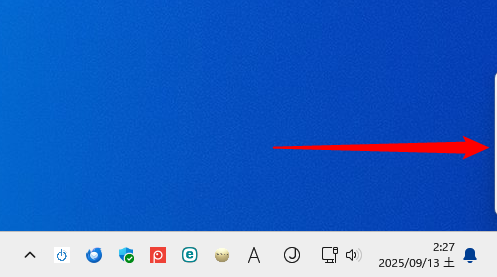
- A smart UI that doesn't get in the way of your work The tool window is always displayed on top, but it can be automatically hidden by dragging it to the right or top edge of the screen. This means you can quickly display it only when you need it, and it won't get in the way of your work.
How to download and install the tool
All software distributed on this site has been virus-checked with ESET Internet Security, but because it is a personal development project, it does not have a genuine Microsoft digital signature. Therefore, the following warning may be displayed in some environments when running it for the first time.
- Windows warning: "Windows protected your PCIf you see the message, please click "More Information" and then select "Run".
- Security software warning: After updating definition files for ESET and other programs, it may be mistakenly detected as a "Suspicious Object," but it is not a dangerous program.
Please be sure to check the following page before use for information on how to verify the authenticity of a file using its hash value (SHA256), as well as for disclaimers and terms of use.
- Download the tool from the link below.
- Download "SwitchPowerPlan.zip"Unzip international success.
- The executable file "SwitchPowerPlan.exe" is located in the extracted folder. No installation is required; simply run this file to launch the tool.
Target file: "SwitchPowerPlan.exe" (Ver 1.0.0.0)
ハッシュ値(SHA256):253fb19b1727c1a6960709fa5926d12658f434aaa78ea272ddb3dfeafc91a6bd
Basic usage of "Power Plan Manager"
The tool is very simple to use, let's take a closer look at each feature.
Main Window Features
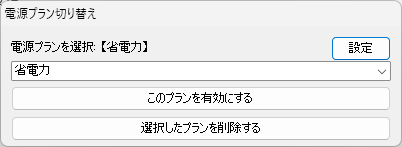
When you start the tool, a small window consisting of the following elements will be displayed for about 2 seconds and then hidden in the bottom right corner of the screen. (Smart UI that hides at the edge of the screen)
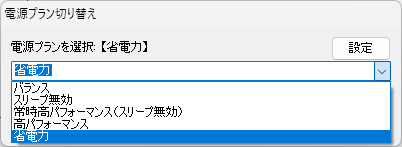
- Power Plan Selection Menu (drop-down):Clicking this will display a list of all power plans currently registered on your PC.
- "Activate this plan" button:Sets the plan selected in the drop-down menu as the currently active plan.
- "Delete selected plan" button:Removes the plan selected in the drop-down menu from your PC.
Steps to switch (enable) power plans
- Click the drop-down menu and select the power plan you want to enable.
- Click the "Activate this plan" button.
- Your selected plan will be activated immediately.
【point】 If the selected plan is already active, a message saying "This plan is already active" will be displayed in the center of the screen for a few seconds to prevent unnecessary operations.
Steps to remove unnecessary power plans
- Click the drop-down menu and select the power plan you want to delete.
- Click the "Delete selected plans" button.
- A confirmation message will appear. Click "Yes" to delete the plan.
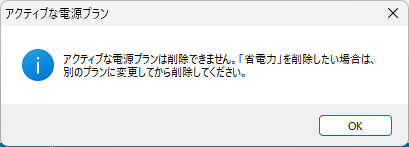
【Show me the truth】 The currently enabled (active) power plan cannot be deleted for system protection. If you try to delete it, you will see the message "The active power plan cannot be deleted. If you want to delete 'Plan Name', change it to another plan and then delete it."
How to close the tool
To close the tool, right-click on the tool's icon in the task tray (notification area) and click "Close."
If the icon is not displayed, try clicking the upward arrow "∧" on the left side of the task tray (notification area). Hidden icons will be displayed.
Unique features of this tool
In addition to basic usage, this tool is equipped with unique features to improve work efficiency.
Smart UI that hides at the edge of the screen
This tool allows you to drag a window to the right or top edge of the screen and it will disappear, leaving only the width you specify.
This allows you to keep it running without taking up too much space in your main workspace. Just hover your mouse over it when you need it and the entire window will appear.
The overhang width can be set from 1 to 5 pixels (default is 3 pixels).
How to set the width that will be displayed overflowing
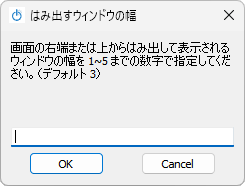
- Click the "Settings" button in the top right corner of the main screen.
- A window will appear where you can enter the width of the overhanging window. Enter a number between 1 and 5 and click OK.
Fully linked with the OS! Automatically obtain plans in real time
This tool not only loads your power plan at startup, but also constantly monitors any changes made on the Windows side.
For example, the control panel Create a new power plan using Windows standard featuresIf you change the name of an existing plan, the changes will be reflected immediately in the drop-down menu without restarting the tool, allowing you to always manage your PC's power state with accurate information.
Summary
This time, we introduced a homemade, resident tool that dramatically improves the efficiency of Windows power plan management.
Finally, let's summarize the main points of this article.
- Managing your power plan is important: Organizing and switching plans is an effective way to balance your PC's performance and power consumption.
- Intuitive GUI for easy operation: With this tool, you can activate and delete plans using an easy-to-understand screen.
- Safety features and OS integration: It's packed with features that give you peace of mind, including protection for your active plan and real-time updates.
- Smart resident features: The UI hides at the edge of the screen, so you can access it anytime without getting in the way of your work.
This tool eliminates the "little hassles" of daily PC work and allows you to more actively manage your PC's performance. We hope it will help make your Windows life more comfortable and productive.
Download it now and experience easy and smart power plan management.


Comment: