Win10/Win11 Solved! Unable to select "Zoom in/out" after changing custom scaling

This time, we will introduce a solution for when you can no longer select "Zoom in/out" after changing custom scaling.

If you manually change the size of custom scaling, you may find that you can no longer select "Zoom in/out" even if you want to revert to the original size.

When configuring custom scaling, you may see the following warning, but don't worry.

Even if you accidentally set it to a large number such as "500", you can restore it.

Configuring Custom Scaling - Warning
Configuring Custom Scaling – Warning
table of contents

1. How to undo "Zoom in/out"

1. Right-click on an empty area of ​​the desktop and click "Display settings".

Desktop right-click menu

You can no longer select it as shown below. (Windows 11 screen)

Settings - System - Display
Settings – System – Display

2. Above "Scaling," click "Disable custom scaling settings and sign out."

Windows 11 screen

Settings - System - Display
Settings – System – Display

Windows 10 screen

Settings - Display
Settings – Display

3. You will be signed out immediately, so once you sign in, try opening "Display Settings."

Settings - System - Display
Settings – System – Display

The settings will be restored and you will be able to select them.

2. If you set custom scaling to a large value such as "500" and are unable to restore it

Even if you set custom scaling to a large value such as "500", you can always revert it back, so there's no need to worry.

It's a little tricky to operate, but please try following the steps below.

1. Right-click on an empty area of ​​the desktop, scroll down the menu that appears as shown in the image below, and click "Display settings."

If the menu does not appear when you right-click on the desktop, or if you cannot perform any operations

Desktop right-click menu

2. For Windows 11, move the mouse cursor over the arrow in the image below and up and down arrows will appear, so just scroll down slowly.

*In Windows 10, the arrows will not appear, but you can scroll by rolling the middle mouse button (mouse wheel) down.

Settings - System - Display
Settings – System – Display

3. When you see the words "Set custom zoom...", click it.

Windows 11 screen

Settings - System - Display
Settings – System – Display

Windows 10 screen

Settings - Display
Settings – Display

Clicking the text "Disable custom scaling settings and sign out" will sign you out immediately.

Once you sign in, the custom scaling setting will return to 100%.

If the menu does not appear when you right-click on the desktop, or if you cannot perform any operations

1. If the menu does not appear when you right-click on the desktop, press and hold the Shift key and right-click just above the taskbar.

desktop
desktop

aboveStep 2If you are using Windows 11 and you do not see the up and down arrows when you move the mouse cursor over the arrow in the image below, click the button to restore maximized windows, which is outlined in red in the image below.

Settings - System - Display
Settings – System – Display

The image below will then appear. Click and hold the red frame and move the window to the left until you can see the × button.

Settings - System - Display
Settings – System – Display

At this point, move the window all the way to the top of the screen.

Settings - System - Display
Settings – System – Display

In this state, if you move the mouse cursor over the red frame in the lower right corner, an arrow will appear.

If the arrows are not displayed and you cannot operate the device

Settings - System - Display
Settings – System – Display

Then, slowly roll the middle mouse button (mouse wheel) down to scroll.

Then, for a moment, the blue text "Sign out" will flash by.

Stop scrolling just past the blue text "Sign out" and move the mouse cursor over the arrow in the image below. The cursor will change into a hand and a slightly gray area will appear.

Clicking on that will automatically sign you out and take you to the sign-in screen.

Settings - System - Display
Settings – System – Display

Once you sign in, the custom scaling setting will return to 100%.

What to do if the arrows don't appear and everything is too big to navigate

For example, if you are using a resolution of say 800 x 600 and you set custom scaling to "500", everything on the screen will be too big and very difficult to navigate.

Icons and other items are too large to operate

In this case, you can restore it by following the steps below, so please follow the steps slowly.

1. Press Windows key + R to open "Run" and type "cmd" Hold down Shift and Ctrl Press Enter.

Run
Run

2. The "User Account Control" screen will appear, so press the "← (left)" key on your keyboard once and press Enter.

ユーザーアカウント制御
ユーザーアカウント制御

3. The command prompt will open, so click the maximize button.

command prompt
command prompt

4.Currently, it should look like the image below.

Then, hold down the Ctrl key on your keyboard and click the middle button of your mouse down.

command prompt
command prompt

5. This will make the text smaller and easier to read. (Please change the size to your liking.)

command prompt
command prompt

In the image above, there is a line break in the middle (in a strange place), but if you click the maximize button you clicked earlier twice more, it will return to normal display.

6. Enter the following command and press Enter (all in half-width characters, don't forget to include spaces):

reg add "hkey_current_user\control panel\desktop" /v win8dpiscaling /t reg_sz /d 0 /f

The "\" in the above command will be displayed as "¥" on the command prompt.

To change the "_ (underscore)" in hkey_current_user, press the Shift key and the "ro" key.

Keyboard - How to type an underscore
Keyboard – How to type an underscore

To create a double quotation mark ("), press the Shift key and the "fu" key.

Keyboard - How to type double quotes
Keyboard – How to type double quotes
command prompt
command prompt

7. When the message "This operation was completed successfully" appears, press Ctrl + Alt + Delete on your keyboard simultaneously.

command prompt
command prompt

8. Then, "Change Password" and an icon will appear on a black screen.

Ctrl + Alt + Delete menu

*This is the screen when using a resolution of 800 x 600 and custom scaling is set to "500".

9. Click the person icon (Accessibility) once and the following screen will appear. Press the Esc key on your keyboard once to close it.

Person icon Screen when you click the person icon (accessibility) once

10. Press the Tab key on your keyboard once and then press Enter.

11.Then, "Shutdown" and "Restart (only half of the text is visible)" will be displayed, so press the "↓ (down)" key on your keyboard once and then press Enter.

Shutdown and Restart buttons

12. Your PC will then restart and when you sign in, the custom scaling setting will return to 100%.

If you found this article helpful, please share it on social media.

Person who wrote this article

Driven by questions arising from my daily PC use and the desire to "do more," I have been pursuing self-study in Windows since around 2008. I am sharing the "aha!" techniques and solutions I discovered through trial and error with the sole purpose of helping you in your PC life.

View profile

Comment:

Comment list (10)

  • I changed the custom scaling and then changed it back, but the desktop icon size has become too large and won't go back. The icon size changes when I adjust the icon size, but the display area of ​​the icon itself remains large. Is there a solution?

    • Thank you for your comment, Mr. Ishikawa.
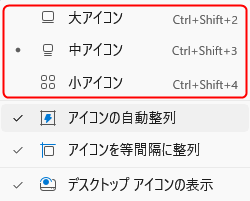
      If your desktop icons are still large after you've reverted to custom scaling, try holding down the Ctrl key on your keyboard and then clicking the middle mouse button down on your desktop.
      Alternatively, right-click on an empty area of ​​your desktop, select "View," and then select the icon size you want.
      Icon display size

  • Resolution fixed!
    However, you should be careful when doing this, as the WiFi settings item itself may disappear, desktop information may be missing, or errors may occur even if you try to initialize the device.

    • Thank you for your comment, Kaito.
      I'm glad it was useful.

      The following three issues are unrelated to custom scaling settings and are issues with Windows itself:

      • The Wi-Fi settings item itself disappears
      • Desktop information disappears
      • I get an error when I try to initialize

      I don't know what version of Windows you are using, but currently the above problem is occurring in many environments with Windows 10 and Windows 11 versions 23H2 and 24H2, and the root cause is almost always an update.

  • I was able to restore it safely.
    I'm really thankful to you.

    I thought I had broken it.
    I'm glad I was able to ask someone who knows more about it.
    Calm down. I tried it.

    Thank you!

    山 本

  • While I was playing around with the custom scale, I accidentally clicked "Sign out now," and now all I can see on the screen is the taskbar, the trash can, and one other icon.

    I can see the system and display in settings, but I don't know how to get to the display.

    I thought, "I've done it!", but is there anything I can do?

    • Thank you for your comment, Yoshiko Yamamoto.

      Is it correct that you set the custom scaling to a large value such as "500", causing everything to be displayed larger?
      We have added a solution to the problem of accidentally setting custom scaling to a large value such as "500" to this article, so please follow the steps while checking on your smartphone or other device.

To comment

[About submissions]
We welcome any questions or information regarding the content of the article.
However, please note that content unrelated to the purpose of the article, criticism of specific individuals or organizations, offensive language,Inappropriate wordsComments containing the above may be deleted or made private without notice at the discretion of the administrator.
Please note that spam may be automatically deleted by anti-spam measures.

CAPTCHA


table of contents