What to do if Windows 11 displays 0x000000A0 when resuming from hibernation

This page explains how to deal with the blue screen error "0x000000A0" that appears when resuming from hibernation in Windows 11.

*If the same error message appears when you resume from sleep mode, it may be that the computer is in hibernation mode rather than sleep mode.

table of contents

What does the blue screen error "0x000000A0" mean?

The blue screen error "0x000000A0 (INTERNAL_POWER_ERROR)" indicates that a fatal error occurred in the Power Policy Manager.

This error generally prevents the system from properly handling power management functions.hardwareor sending us a message ondriverThis may be caused by a problem with

It can also occur if you are infected with a virus or malware.

approach

1. Virus Check

Scan your entire PC with your security software to remove viruses and malware.

2. Repair system files

There may be a problem with the system files for some reason, so please try repairing the system files by referring to the following page.

I want to read it together
Repairing system files in Win10/Win11 with "System File Checker" This article explains how to repair system files using the System File Checker (SFC), which is pre-installed in Windows 10/11.

3. Change the size of the hibernation file

If hibernation is enabled, a file named "hiberfil.sys" will be created directly under the C: drive.

"hiberfil.sys" is a hidden file (a protected operating system file) and is not normally visible.

How to view hidden files

In Windows 11, the size of "hiberfil.sys" is allocated 40% of the physical memory, and the larger the physical memory, the larger the size of "hiberfil.sys".

For example, if you have 32GB of physical memory, the size of "hiberfil.sys" will be approximately 12.8GB.

32 * 40% = 12.8

If you are experiencing the blue screen error "0x000000A0", it may be that the size of "hiberfil.sys" is insufficient. Increasing the size may solve the problem.

1. Open Command Prompt as administrator, type the following command and press Enter:

Learn how to open a command prompt

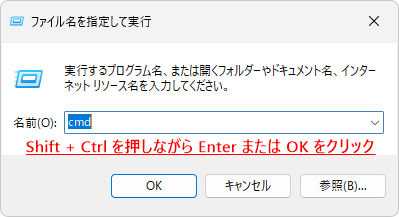
1. Press Windows key + R to open Run.

2. Type "cmd".

Run

3.Shift + Ctrl + Enter Please press.

Keyboard

If you do not need administrator privileges, just press Enter.

4. When the "User Account Control" message appears, click "Yes".

ユーザーアカウント制御

powercfg /hibernate /size 50
command prompt
command prompt

After running the above command, "hiberfil.sys" will be resized to 50% of physical memory.

The size of "hiberfil.sys" cannot be set below 40%.

For example, powercfg /hibernate /size 39For example, if you specify a value less than 40 (0 to 39), it will be set to the default of 40%.

You can specify a maximum size up to 100%, so try setting it to a lower value such as 41% to 50% at first while checking the free space on your C drive.

4. Disable Hibernation

The blue screen error "0x000000A0" is most likely to occur when resuming from hibernation, so if the above methods don't work, try disabling hibernation.

How to disable hibernation without disabling it (hide it from "Shut down or sign out")

This method does not delete the "hiberfil.sys" file.

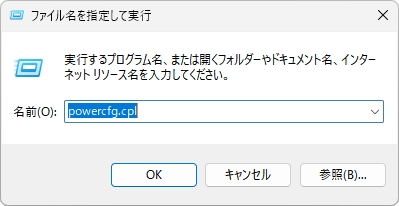
1. Press Windows Key + R to open Run, type the following command and press Enter:

powercfg.cpl
Run
Run

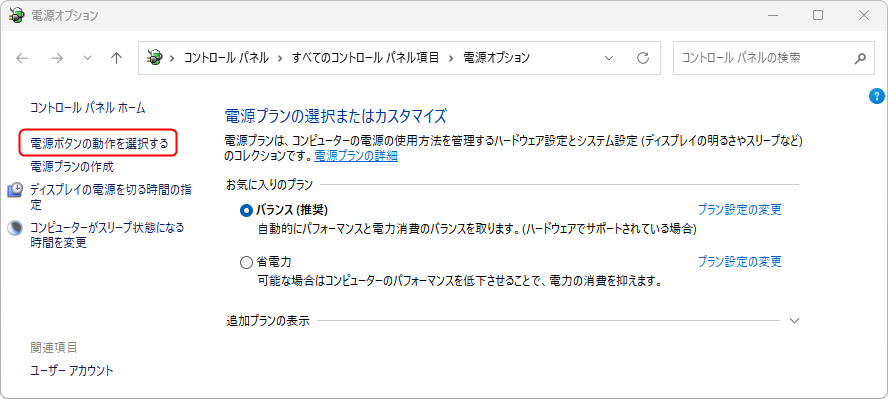
2. "Power Options" will open, so click "Choose what the power buttons do."

電源オプション
電源オプション

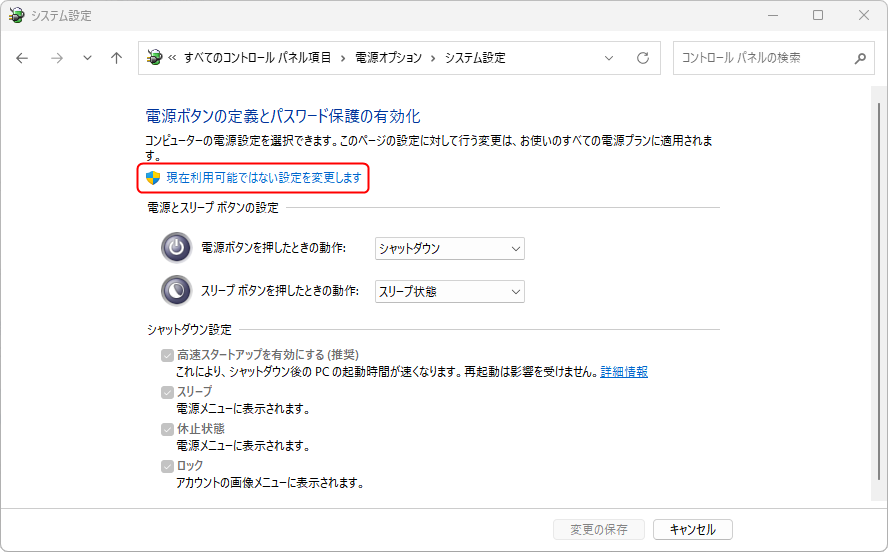
3. Click "Change settings that are currently unavailable."

Power Options > System Settings

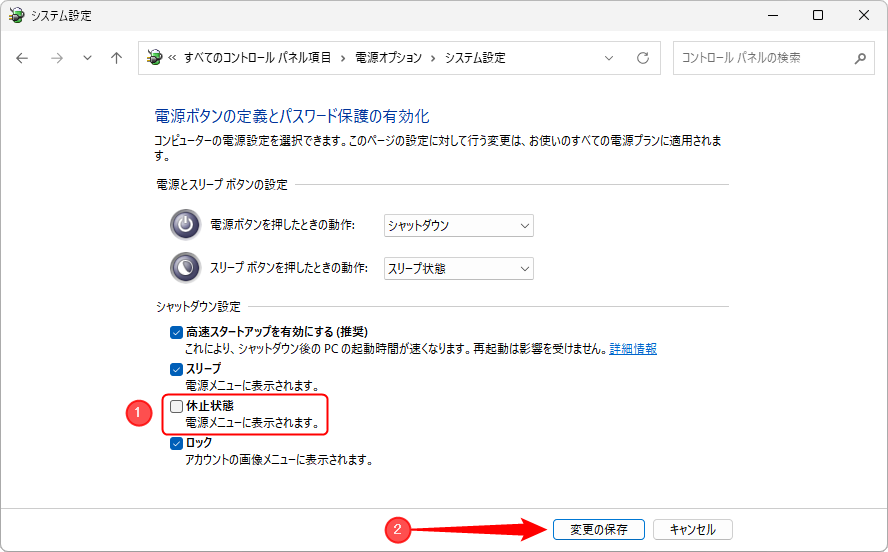
4. You will then be able to change the "Shutdown settings", so uncheck "Hibernate" and click "Save changes".

Power Options > System Settings

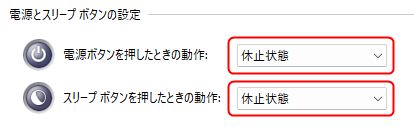
Also, if each action in "Power and sleep button settings" is set to "Hibernate," change it and click "Save changes."

Power and sleep button settings

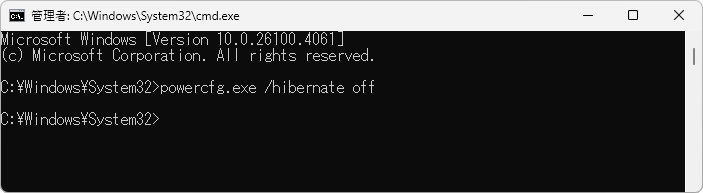
1. Open Command Prompt as administrator, type the following command and press Enter:

Learn how to open a command prompt

1. Press Windows key + R to open Run.

2. Type "cmd".

Run

3.Shift + Ctrl + Enter Please press.

Keyboard

If you do not need administrator privileges, just press Enter.

4. When the "User Account Control" message appears, click "Yes".

ユーザーアカウント制御

powercfg.exe /hibernate off
command prompt
command prompt

This will delete the "hiberfil.sys" file directly under the C drive, making hibernation unavailable.

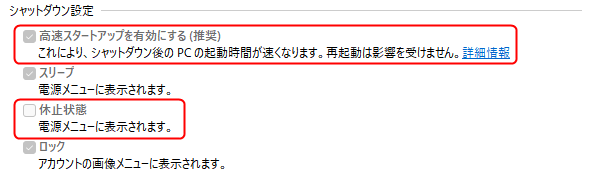
Disabling hibernation removes "Turn on fast startup (recommended)" and "Hibernate" from the "Shutdown settings" in Power Options.

"Shutdown Settings" in Power Options

If you want to revert, type the following command and press Enter:

powercfg.exe /hibernate on
If you found this article helpful, please share it on social media.

Person who wrote this article

Driven by questions arising from my daily PC use and the desire to "do more," I have been pursuing self-study in Windows since around 2008. I am sharing the "aha!" techniques and solutions I discovered through trial and error with the sole purpose of helping you in your PC life.

View profile

Comment:

To comment

[About submissions]
We welcome any questions or information regarding the content of the article.
However, please note that content unrelated to the purpose of the article, criticism of specific individuals or organizations, offensive language,Inappropriate wordsComments containing the above may be deleted or made private without notice at the discretion of the administrator.
Please note that spam may be automatically deleted by anti-spam measures.

CAPTCHA


table of contents