
今回は、サードパーティ製のソフトを使わずに Windows 10 と Windows 11 のシステムを診断する方法を紹介します。
PC の使用中に不具合が出て困ったことはありませんか?
Windows には、システムを診断する機能がデフォルトで実装されていますので、PC に問題が起きた場合は診断をしてみましょう。
システム診断ツールの実行方法
1.Windowsキー+Rを押して、「ファイル名を指定して実行」を開きます。
2.「control」と入力して Enter を押します。
3.すべてのコントロールパネル項目で表示方法を「大きいアイコン」に切り替えます。
4.「Windowsツール」をダブルクリックして開きます。

5.「パフォーマンスモニター」をダブルクリックして開きます。

6.「パフォーマンスモニター」の左側にある「データコレクターセット」をダブルクリック>「システム」をダブルクリックします。
7.「System Diagnostics」が表示されていますので、「System Diagnostics」の上で右クリック>「開始」をクリックします。

8.システムの診断が開始されますので、1分間待ちます。
※「perfmon /report」というコマンドでもレポートを作成できますが、60秒経ってもデータの収集が終わらないことがあります。この記事の方法で行えば問題なく行なえます。
左側のメニューのレポート>システム>System Diagnostics>「ユーザー名_日付-連番」(日付の一番新しいもの、連番の大きいもの)が現在作成しているレポートなので、クリックすると次の画面になります。
以前にレポートを作成したことがある場合など、レポートファイルが複数存在することがあります。
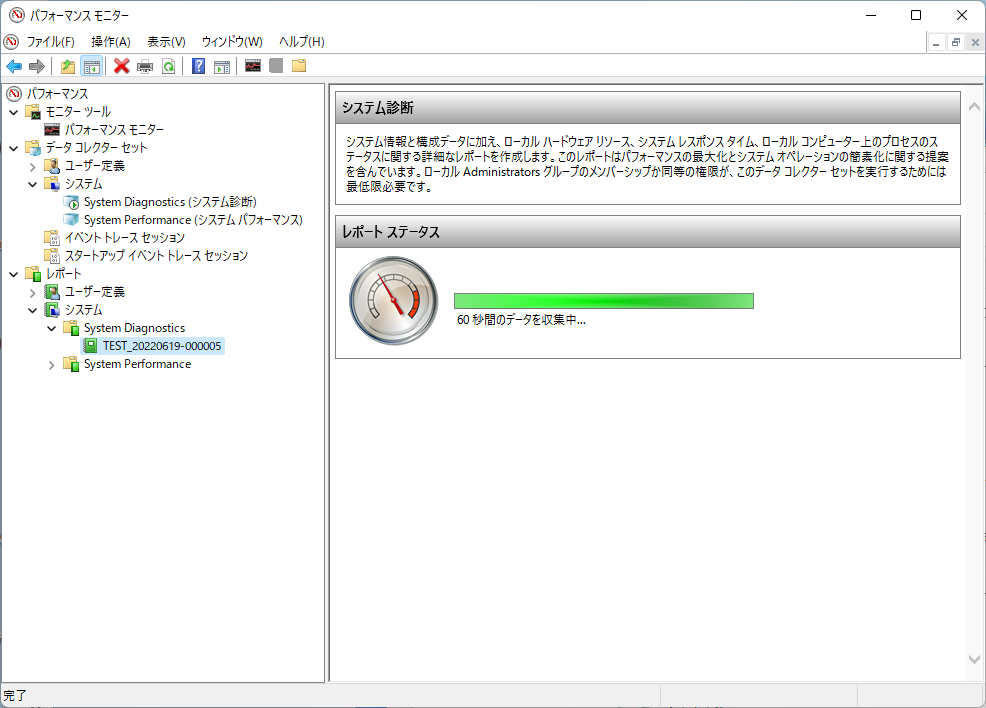
9.1分経つと自動でレポートの作成を開始しますのでしばらく待ちます。

10.レポートの作成が終わると、右側にシステム診断レポートが表示されます。
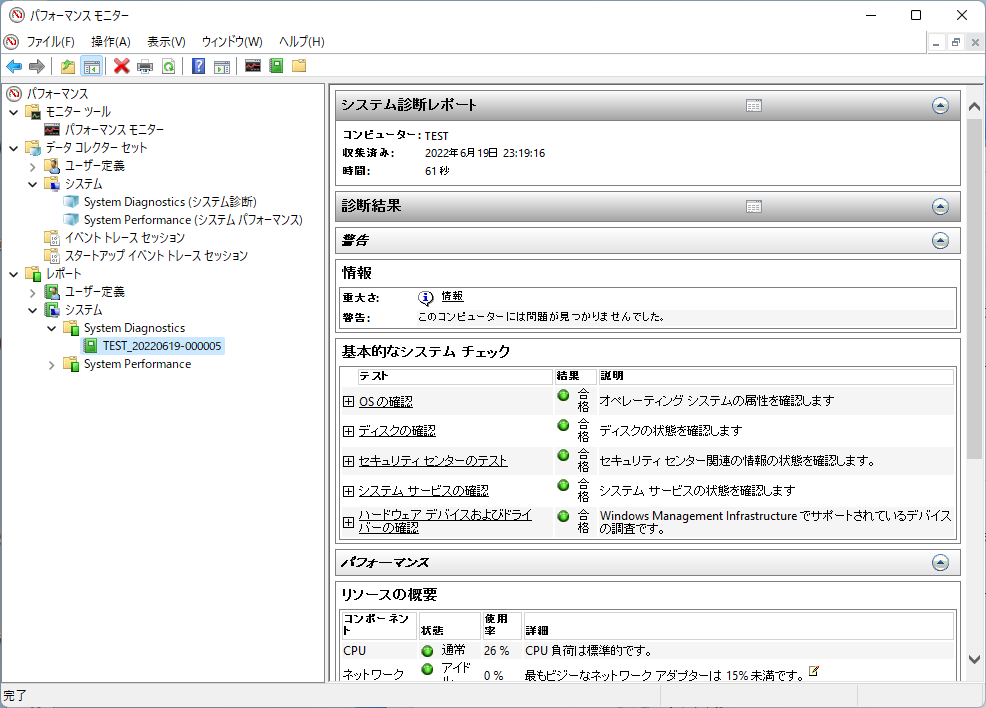
不具合がある場合、次のように警告が表示されます。

現象、原因、詳細、解決方法などが表示されていますので、確認してみてください。
※上の画像ではドライバーに問題があることが分かります。
システム診断レポートの内容をよく読み、不具合の原因を探してみてください。
