Preparing to use Microsoft Edge with Autoit

I have created sample code to operate Microsoft Edge using Autoit, so this time I would like to show you how to prepare to operate Microsoft Edge.

The official website is in English and it's difficult to understand how to prepare, so I'd like to explain it here in a way that's as easy to understand as possible.

The following files are required to operate Microsoft Edge, so please download them.

  • WebDriver UDF
  • JSON UDF
  • WinHTTP UDF
  • Edge WebDriver
table of contents

Preparing to use Microsoft Edge with Autoit

WebDriver UDF official website

WebDriver UDF (W3C compliant version) – 2022/10/03

https://www.autoitscript.com/forum/topic/208633-webdriver-udf-w3c-compliant-version-20221003/

Here you can find questions and answers about WebDriver UDFs.

WebDriver UDF

https://github.com/Danp2/au3WebDriver

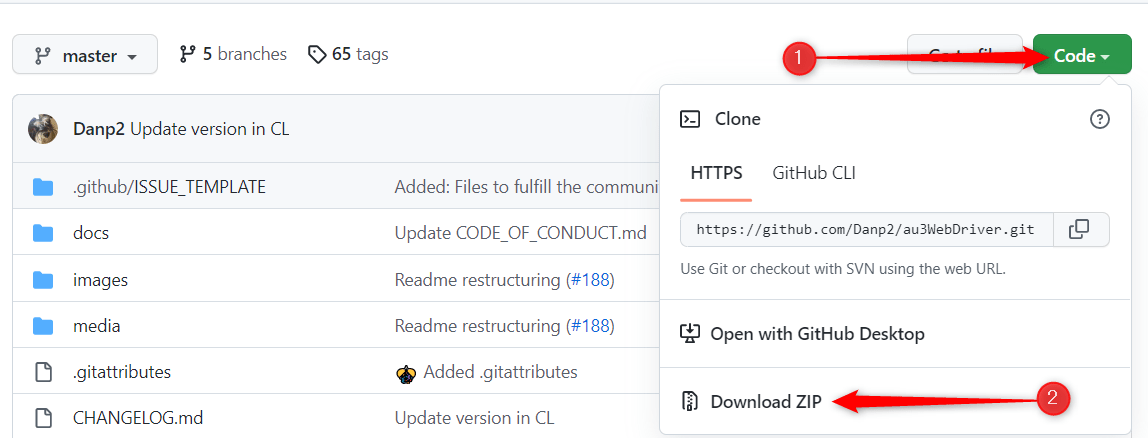
Open the page above and click on "Code" on the right side. A menu will appear, and you can download it by clicking on "Download ZIP" at the bottom.

WebDriver UDF download page

Unzip the downloaded "au3WebDriver-master.zip" and copy the "wd_core.au3" file inside to the folder containing the Autoit include files.

Autoit include files are typically found in the following folder:

C:\Program Files (x86)\autoit3\Include

JSON UDF

https://www.autoitscript.com/forum/topic/148114-a-non-strict-json-udf-jsmn

Open the page above and scroll down a little to find "_Json(2021.11.20).zip". Click on it to download it.

JSON UDF download page

Unzip the downloaded "_Json(2021.11.20).zip" and copy all four files inside to the folder containing the Autoit include files.

Folder where Autoit include files are located

WinHTTP UDF

https://github.com/dragana-r/autoit-winhttp/releases

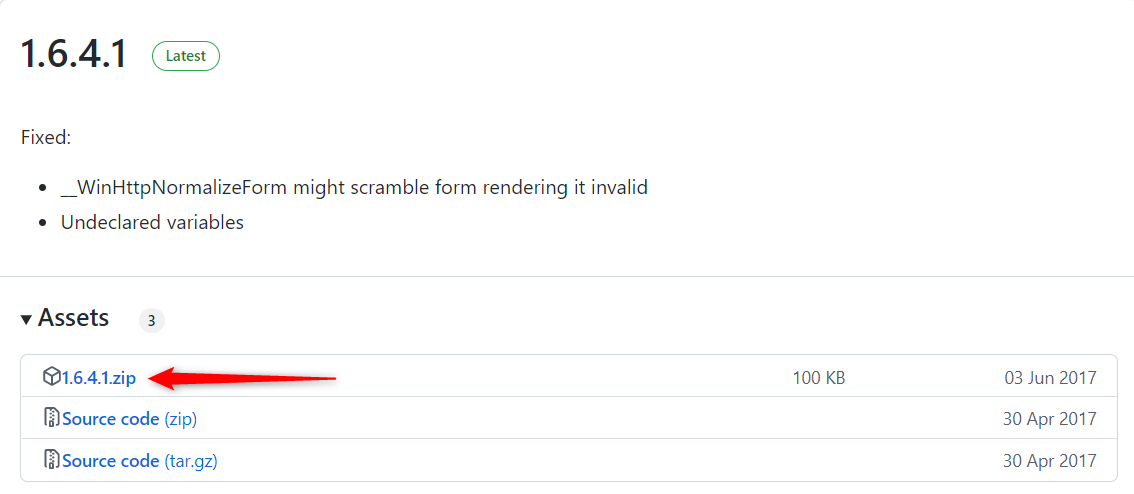
Open the page above and click "1.6.4.1.zip" to download.

WinHTTP UDF download page

Unzip the downloaded "1.6.4.1.zip" and copy the two files in the "1.6.4.1" folder to the folder containing the Autoit include files.

Folder where Autoit include files are located

Edge WebDriver

First, open the settings of your Edge browser and check the version.

To open the settings, type "edge://settings/help" into the address bar of Edge and press Enter.

version information
version information

https://developer.microsoft.com/en-us/microsoft-edge/tools/webdriver/

Open the Edge WebDriver page above and download the same version of WebDriver as the Edge version you just checked.

My OS is Windows 10 x64 and the Edge version is "106.0.1370.47", so I clicked on "x64" next to "Version: 106.0.1370.47" to download it.

Recent versions
Recent versions

Unzip the downloaded "edgedriver_win64.zip" and copy the "msedgedriver.exe" file contained within to the following folder.

C:\Program Files (x86)\autoit3\WebDriver

Please create a new WebDriver folder.

You can place "msedgedriver.exe" anywhere, but the sample code introduced next time specifies the above folder.

If you update your version of Microsoft Edge, older versions of "msedgedriver.exe" may no longer work.

In this case, you will need to download the new version of "msedgedriver.exe" again.

Editing wd_core.au3

When you start WebDriver, a command prompt window will appear, so you will need to edit the code a bit to hide this window.

Open wd_core.au3 and find the following code on line 1216:

$iPID = Run($sCommand, "", ($_WD_DEBUG >= $_WD_DEBUG_Info) ? @SW_SHOW : @SW_HIDE)

Change this code to the following and save it:

$iPID = Run($sCommand, "", @SW_HIDE)

Now when you start WebDriver, the command prompt window will not appear.

Now that we are ready to operate Microsoft Edge, next time I would like to introduce some sample code for operating Microsoft Edge with Autoit.

Sample code for operating Microsoft Edge with Autoit

If you found this article helpful, please share it on social media.

Person who wrote this article

Driven by questions arising from my daily PC use and the desire to "do more," I have been pursuing self-study in Windows since around 2008. I am sharing the "aha!" techniques and solutions I discovered through trial and error with the sole purpose of helping you in your PC life.

View profile

Comment:

To comment

[About submissions]
We welcome any questions or information regarding the content of the article.
However, please note that content unrelated to the purpose of the article, criticism of specific individuals or organizations, offensive language,Inappropriate wordsComments containing the above may be deleted or made private without notice at the discretion of the administrator.
Please note that spam may be automatically deleted by anti-spam measures.

CAPTCHA


table of contents