
Windows 11 で Windows Update を適用した後、「Bluetooth が突然使えなくなる」「設定画面から Bluetooth の項目自体が消えてしまう」という不具合が確認されています。
この問題は 2026年2月の更新(KB5077181 やプレビュー版 KB5074105)から報告されていますが、2026年8月27日に配信された最新のセキュリティ更新プログラム「KB5120998(OSビルド26200.9278 および 26100.9278)」を適用した環境でも、引き続き発生する(解決されていない)ことを確認済みです。
私の環境でも発生しましたが、ドライバーの再インストールなどは不要で、比較的簡単な手順で復旧できました。同様の症状でお困りの方は、以下の手順を試してみてください。
不具合の症状
- タスクバーやクイック設定から Bluetooth アイコンが消える。
- 表示されていたとしても、無効状態(オフ)から有効状態(オン)に切り替えると項目が消えてしまう。
- 「設定」>「Bluetooth とデバイス」を開いても、Bluetooth のオン/オフ切り替えスイッチが表示されない。
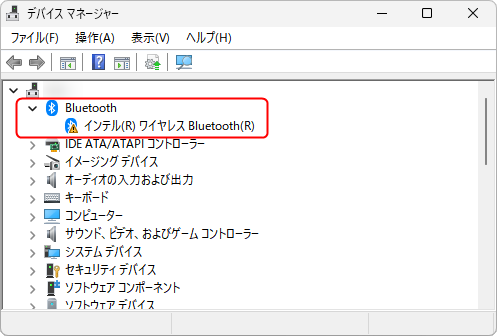
- デバイスマネージャーを見ると、Bluetooth デバイスにエラーが出ている。
- プロパティでデバイスの状態を見ると、以下のエラーが表示されています。
- このデバイスを開始できません。 (コード 10)
STATUS_DEVICE_POWER_FAILURE 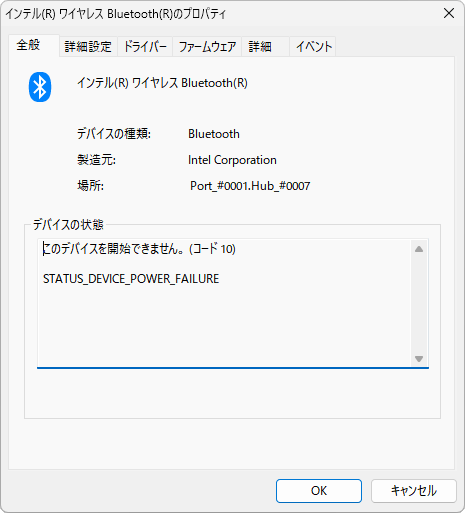
- このデバイスを開始できません。 (コード 10)
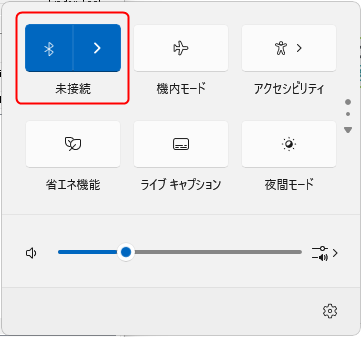

※画像は正常な状態の例です。不具合が発生すると、ここにあるはずのスイッチやアイコンが消えてしまいます。
不具合発生のタイミング
この不具合は、主に以下のタイミングで発生することが確認されています。
- スリープや休止状態からの復帰後
- PC の再起動後
【解決法】デバイスの「無効化」→「有効化」を行う
私の検証では、ドライバーのアンインストールや再インストールは効果がありませんでした。 代わりに、デバイスマネージャー上で「一度無効にしてから、再度有効にする」ことで復旧しました。
手順:
- スタートボタンを右クリック し、メニューから「デバイス マネージャー」を選択します。
- 「Bluetooth」の項目を展開します。
- お使いの Bluetooth アダプター(例:
インテル(R) ワイヤレス Bluetooth(R)やRealtek Bluetooth Adapterなど)を探します。 - そのデバイスを右クリックし、「デバイスを無効にする」を選択します。
- ※「このデバイスを無効にすると機能しなくなります」という警告が出ますが、「はい」を押します。
- 数秒待ってから、再度同じデバイスを右クリックし、今度は「デバイスを有効にする」を選択します。
ポイント: もし 1回で直らない場合でも、諦めずに 2~3回この「無効化→有効化」を繰り返してみてください。 私の環境ではこれで正常に Bluetooth 機能が復活し、アイコンも再表示されました。
原因の推測:USB関連ドライバの更新とInput修正
今回の更新(KB5077181 / KB5074105)では、以下の 2点が不具合に影響している可能性が高いと考えられます。
1. USB 関連システムファイルの更新
調査の結果、今回の更新で USBHUB3.SYS(USB ハブ制御)や UsbPmApi.sys(USB 電源管理)といった、USB 機能の根幹に関わる重要なシステムファイルが更新されていることが確認されています。 多くのデスクトップ PC 用 Bluetooth アダプタは、マザーボードの内部 USB ヘッダーに接続して通信を行っています。そのため、USB ドライバや電源管理の挙動変更により、一時的にデバイスを見失ったり、正しく初期化できなくなったりしている可能性があります。
2. 入力(Input)関連の修正
また、公式リリースノートには以下の修正も記載されています。
[Input] Fixed: This update addresses an issue where the keyboard character repeat delay labels in Settings > Bluetooth & Devices > Keyboard were reversed. (設定 > Bluetooth とデバイス > キーボード の文字の繰り返し遅延のラベルが逆になっていた問題を修正)
「Bluetooth とデバイス」設定内の UI や挙動に手が入っていることも、複合的な要因の一つかもしれません。
【重要】セキュアブート関連の深刻な問題について
今回の更新プログラム(KB5074105 以降)には、もう一つ、環境によっては PC が起動しなくなる恐れがある 重要な変更(セキュアブート DB の更新)が含まれています。
特に古い PC や特定の環境を使用されている方は影響を受ける可能性がありますので、念のため以下の記事で詳細と対策ツールをご確認ください。


コメント