
Windows 11 バージョン 24H2/25H2 向けに 202510/28 にリリースされたオプションのプレビュー更新プログラム「KB5067036」の公式リリースノートには、「[タスク マネージャー]修正: 一部のアプリが予期せずプロセスとグループ化されない場合があります。」と記載されています。
Microsoft はタスクマネージャーのプロセス表示(グループ化)を修正しようとしたようですが、筆者の検証や読者様からのご報告によると、この KB5067036 を適用した後、副作用として「タスクマネージャーを閉じてもプロセス(Taskmgr.exe)が残り続ける」という、別の新たな不具合が発生していることが確認されました。
検証:閉じてもプロセスが残り、「存在」と認識され続ける
この不具合を検証するため、まずタスクマネージャーを 3回開き(1つ開いてから ×ボタンで閉じるを繰り返す)、プロセスが 3つ起動していることを確認します。
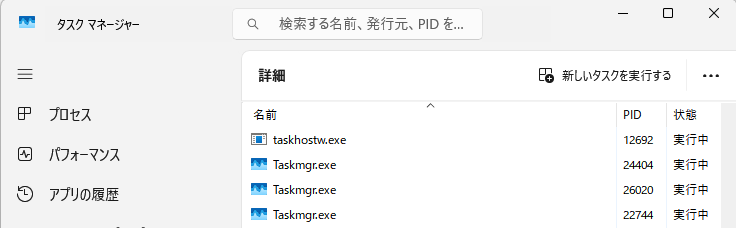
その後、タスクマネージャーのウィンドウを「×」ボタンで閉じます。 通常であれば、これで 3つの「Taskmgr.exe」プロセスはすべて終了するはずです。
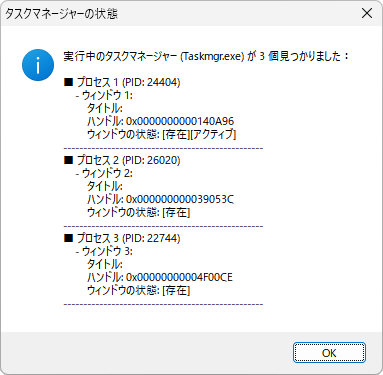
しかし、この状態で筆者が作成した検証プログラム(実行中の全「Taskmgr.exe」プロセスの状態を取得する AutoIt スクリプト)で確認してみたところ、驚くべき結果が確認されました。
▼ 検証プログラムの実行結果
「Taskmgr.exe」のプロセスが終了せずに残り続けているだけでなく、OS はそれらのウィンドウを「存在」として認識し続けていることがわかりました。 (※ログの詳細:3つのプロセスのうち 1つが「アクティブ」で、3つとも「存在」として OS に認識されていました)
これはつまり、ユーザーが「×」ボタンをクリックしてタスクマネージャーを閉じても、プロセスはバックグラウンドで実行され続けている(いわゆる「ゾンビプロセス」化している)ことを意味します。
この不具合による影響(危険性)
「ただプロセスが残るだけ」と侮ってはいけません。これはメモリリークを引き起こす可能性があります。
タスクマネージャーは、PC の動作状況を監視するために、それ自体が一定量のメモリや CPU リソースを消費します。 もし、この不具合に気づかずにタスクマネージャーを開閉するたびにプロセスが残り続けると、メモリの使用量がどんどん蓄積していき、最終的に PC 全体の動作が遅くなったり、不安定になったりする可能性があります。
対処法
この不具合は、「KB5067036」というオプションのプレビュー更新プログラムによって引き起こされています。プレビュー更新は、新機能をいち早く試したい上級者向けのテスト版であり、一般ユーザーが無理にインストールする必要はありません。
1. これからインストールする場合
- インストールしないでください。
- Windows Update の画面で「オプションの更新プログラム」として表示されても、Microsoft がこの問題を修正した次のバージョンの更新プログラム(おそらく 11月の月例更新)がリリースされるまで、「KB5067036」は無視する(インストールしない)ことを強くおすすめします。
2. 既にインストールしてしまった場合
- 「KB5067036」をアンインストールする:
- 「設定」>「Windows Update」>「更新の履歴」を開きます。
- 「更新プログラムをアンインストールする」をクリックします。
- リストから「KB5067036」を探し、「アンインストール」を実行します。
- PC を再起動します。
この問題が、次の月例更新プログラムで修正されることを期待しましょう。 皆様の環境でも同様の現象が発生しているか、ぜひコメント欄で情報共有をお願いいたします。
追記:追加検証
さらに追加の検証をしてみました。
1. タスクマネージャーから「Taskmgr.exe」をすべて強制終了してもプロセスが必ず 1つ残る
タスクマネージャーの詳細タブからすべての「Taskmgr.exe」の「タスクの終了」を実行しても、なぜか必ず 1つのプロセスが終了せずに残ってしまうという、非常に奇妙な挙動が確認されました。これはリソースモニターから確認できます。
しかも、これは旧バージョンでも確認できました。
「Taskmgr.exe」(タスクマネージャー)は、自分自身を終了させようとする操作(「Taskmgr.exe」の中から「Taskmgr.exe」を終了させる)を検知すると、意図的に 1つのプロセスを残すように設計されているようです。
これは、タスクマネージャー自体がクラッシュするのを防ぐための、一種の自己防衛機能なのかもしれません。
2. 根本原因は「Taskmgr.exe」自体ではなかった
この挙動から、不具合の原因は 「Taskmgr.exe」のファイル自体にあるのではないかと考え、筆者は「KB5067036」適用前の旧バージョンの「Taskmgr.exe」と入れ替えてテストしてみました。
しかし、症状は改善しませんでした。
このことから、根本的な原因は「Taskmgr.exe」のプログラム自体ではなく、「KB5067036」の更新によって、OS がタスクマネージャーのプロセスを管理・終了する仕組み(おそらくカーネルや関連サービス)に何らかの不具合が持ち込まれたためであると、筆者は推測しています。
ゾンビプロセスを完全に終了させる方法
ちなみに、このタスクマネージャー自身からは終了できない「ゾンビプロセス」ですが、以下の方法であれば強制的に終了させることが可能です。
- taskkill コマンド
- タスクバーのアイコンを右クリック>「タスクの終了」
- この機能を使うには、「設定」>「システム」>「詳細設定」にある「タスクの終了」をオンにする必要があります。
- リソースモニターからプロセスを終了
- サードパーティ製のプロセス管理ツール
3.エクスプローラーにも副作用(不具合)を発見
さらに検証を進めたところ、この「KB5067036」は、タスクマネージャーだけでなくエクスプローラーにも不具合を発生させることが判明しました。
エクスプローラーの表示設定で「ファイル名の拡張子」を非表示にしていても、.dllや.cpl、.bakといった一部のファイルの拡張子が表示され続けてしまうという現象です。
この現象も、「KB5067036」をアンインストールすると正常に戻ることを確認しました。
「KB5067036」にはエクスプローラー関連の修正も含まれていたため、タスクマネージャーと同様に、OS の根本的な部分に副作用(不具合)を引き起こしてしまっているようです。
【結論として】
この「KB5067036」は、システムに複数の不具合を引き起こす可能性がある「問題のある更新」です。 Microsoft の新機能を試験的にテストしたいという目的がない限り、全ての一般ユーザーは「アンインストール」一択であると、筆者は強く考えます。
