If you enter the wrong password a specified number of times when logging in to Win10/Win11, your account will be locked.

Setting a password is essential for computer security.

However, with the default settings, accounts are not locked even if an incorrect password is entered multiple times, which creates the risk of malicious users logging in illegally.

This time, we will introduce how to set up account lockout in Windows 10 and Windows 11 to strengthen security when logging in (signing in).

By setting up account lockout, if an incorrect password is entered a certain number of times in succession, the account will be automatically locked, preventing unauthorized logins.

table of contents

How to lock your account after entering the wrong password a specified number of times

System requirements

  • Requires the Pro version of Windows 10 or Windows 11
  • You must log in with an account that has administrative privileges.

Setting method

1. Press Windows key + R to open Run, type "gpedit.msc" and press Enter.

2. The Local Group Policy Editor will open, so open Computer Configuration > Windows Settings > Security Settings > Account Policies > Account Lockout Policy.

Local Group Policy Editor - Account Lockout Policy
Local Group Policy Editor – Account Lockout Policy

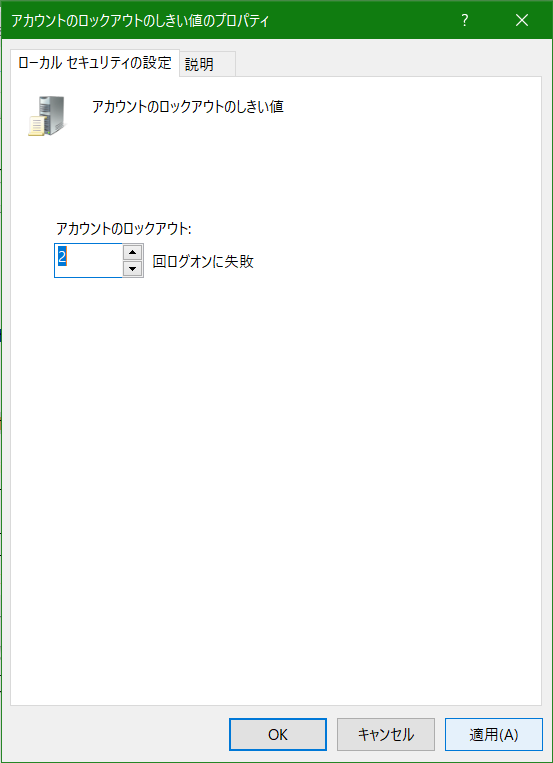
3. Double-click "Account Lockout Threshold" to open it.

Account Lockout Threshold Properties

4. Change the "Account lockout" count on the Local Security Settings tab and click OK.

5.The following screen will appear, so click OK.

Change the suggested value

Time until unlock

By default, the unlock time is set to 30 minutes.

To change the unlock time, you must change the "Reset Lockout Counter" and "Lockout Duration" times.

1. Double-click "Reset lockout counter after" and "Lockout duration" under the "Account lockout threshold" you just changed to open them and change the times.

Local Group Policy Editor - Account Lockout Policy
Local Group Policy Editor – Account Lockout Policy

2. Once you have completed the settings, close the Local Group Policy Editor.

Details of each item

Account Lockout Threshold

This security setting determines the number of failed logon attempts that will cause a user account to be locked out. A locked-out account cannot be used until it is reset by an administrator or until the account's lockout duration expires. You can set the number of failed logon attempts to a value between 0 and 999. If you set this value to 0, the account will never be locked out.

For workstations or member servers that are locked using CTRL+ALT+DEL or a password-protected screen saver, password failures count as logon failures.

Default value: 0

MicroSoft

Reset Lockout Counter

This security setting specifies the number of minutes that must pass after a failed logon attempt before the counter for failed logons is reset to 0 (bad logon attempts). The time can be set between 1 and 99,999 minutes.

If an account lockout threshold is defined, this reset time should be equal to or less than the lockout duration.

Default: None. This policy setting only takes effect if an account lockout threshold is specified.

MicroSoft

Lockout Period

This security setting specifies the lockout duration, in minutes, that a locked-out account remains locked out before it is automatically unlocked. The setting can be from 0 to 99,999 minutes. If the lockout duration is set to 0, the account will be locked out until an administrator explicitly unlocks it.

If an account lockout threshold is defined, make sure the account lockout duration is equal to or greater than the reset time.

Default: None. This policy setting only takes effect if the Account Lockout Threshold is set.

MicroSoft
Locked after entering the wrong password multiple times during logon
The password was entered incorrectly a number of times during login and the account was locked.

Notes and recommended settings

  • The "Lockout Counter Reset" and "Lockout Duration" times should be the same.
  • If you set it to too long, users will have to wait for the lock to be released if they make a mistake.
  • Too many account lockout thresholds are pointless.
  • It does not affect the Administrator account (the account with the highest administrative privileges on the computer).

Microsoft strengthens defenses against brute force attacks(2022/10/12. Added support for Administrator)

Microsoft is

  • "Account lockout threshold" set to "10 failed logon attempts"
  • "Lockout counter reset" to "After 10 minutes"
  • "Lockout period" to "10 minutes"

It is recommended to set it to .

If you found this article helpful, please share it on social media.

Person who wrote this article

Driven by questions arising from my daily PC use and the desire to "do more," I have been pursuing self-study in Windows since around 2008. I am sharing the "aha!" techniques and solutions I discovered through trial and error with the sole purpose of helping you in your PC life.

View profile

Comment:

To comment

[About submissions]
We welcome any questions or information regarding the content of the article.
However, please note that content unrelated to the purpose of the article, criticism of specific individuals or organizations, offensive language,Inappropriate wordsComments containing the above may be deleted or made private without notice at the discretion of the administrator.
Please note that spam may be automatically deleted by anti-spam measures.

CAPTCHA


table of contents