What to do if you can't connect to the Internet in Windows 10/11

This time, we will introduce what to do if you cannot connect to the Internet on Windows 10/11.

There are various reasons why you may not be able to connect to the Internet, but please try this if you have been able to connect without any problems until now but suddenly are no longer able to connect, or if you are no longer able to connect after a clean install of Windows.

table of contents

What to do if you can't connect to the Internet

Check your modem or router

If you are unable to connect to the internet, first check your modem or router.

Are the lights on your modem or router lit up correctly? Check the manual to see if there's a problem with the way the lights are lit up.

If there are no problems, try powering off (unplugging) your modem and router, waiting a few minutes, and then powering on your modem.

Wait another minute or so before powering on your router.

If there are no other issues, you should be able to connect to the Internet after a while.

Internet connection service provider

Even if there is no problem with Windows, you may be temporarily unable to connect to the Internet if your Internet connection service provider is experiencing an issue or is performing unscheduled maintenance.

Check your provider's website or call them to find out.

Installing the network driver

If you perform a clean install of Windows for any reason, the network drivers you were using will be deleted.

*Drivers are software that runs on Windows and varioushardwareIt is software for connecting

If the network drivers are not installed, you will not be able to connect to the Internet.

In this case, it would be best if the computer came with a CD or something containing the driver when you purchased it, but if not, you may be able to find the driver if you know the computer's model number.

Search for it on your smartphone or at an internet cafe, download it from your manufacturer's website, save it on a USB memory stick or similar, connect it to your computer and install it.

If you can't find it yourself,ContactAlternatively, if you leave a comment and tell us your computer model number and the version of Windows (10 or 11), we can search for it here.

*Please be sure to download drivers from the official website. Drivers downloaded from unofficial sites may contain viruses, so be careful.

ネットワークドライバーの再インストール

If you have been able to connect to the Internet without any problems until now but suddenly are unable to do so, it is possible that the network driver has become corrupted for some reason.

If there is an issue with the network driver, you may not be able to connect to the Internet or your connection may be unstable.

If so, try reinstalling the network driver.

This method may delete your Wi-Fi and other internet connection information (passwords), so you will need to enter them again when connecting.

1. Press Windows Key + R to open Run, type the following command and press Enter:

explorer ::{7007ACC7-3202-11D1-AAD2-00805FC1270E}

2. If you are using a wired connection, double-click "Ethernet."

*If you are connected wirelessly, double-click "Wi-Fi" and click Properties at the bottom.

Control Panel\Network and Internet\Network Connections
Network connection

3. Click "Configure" to the right of Connection Method:

Ethernet Properties
Ethernet Properties

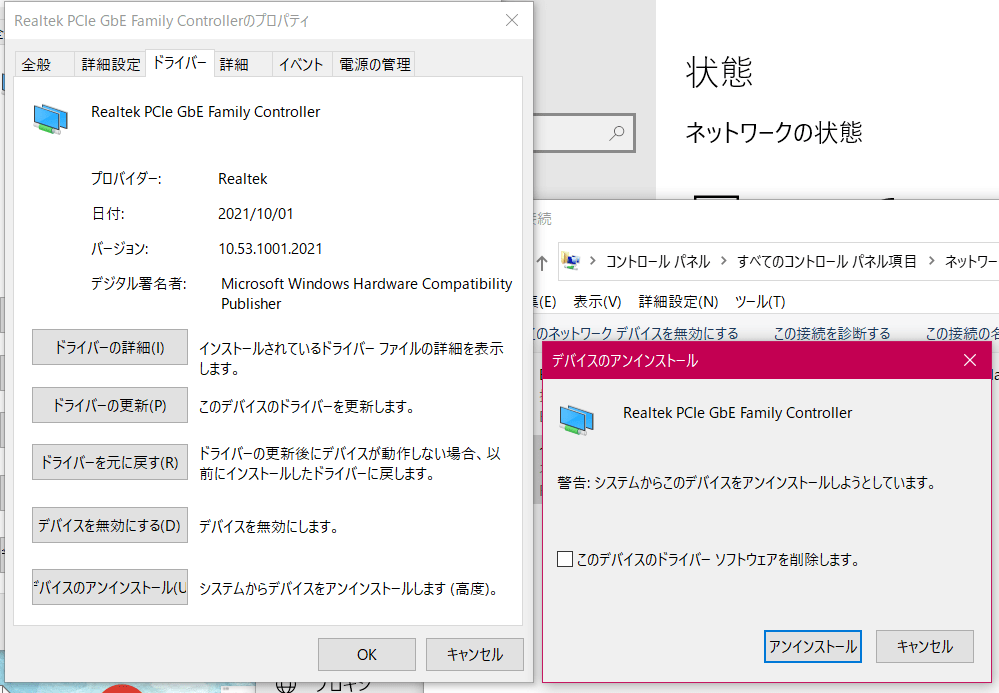
4. Open the "Driver" tab and click the "Uninstall Device" button at the bottom.

5. "Uninstall device" will be displayed, so just click "Uninstall".

Uninstall device
Uninstall device

6. Once the uninstallation is complete, click the OK button under the Driver tab.

7.Start buttonRight-click > Device Manager.

8. The Device Manager will open, so click on the icon with the magnifying glass on the monitor.

Device manager
Device manager

The network adapter will then be automatically reinstalled, so check to see if you can now connect to the Internet.

If the problem persists, try resetting your network by referring to the following page.

How to reset your network in Windows 10/11

If you found this article helpful, please share it on social media.

Person who wrote this article

Driven by questions arising from my daily PC use and the desire to "do more," I have been pursuing self-study in Windows since around 2008. I am sharing the "aha!" techniques and solutions I discovered through trial and error with the sole purpose of helping you in your PC life.

View profile

Comment:

To comment

[About submissions]
We welcome any questions or information regarding the content of the article.
However, please note that content unrelated to the purpose of the article, criticism of specific individuals or organizations, offensive language,Inappropriate wordsComments containing the above may be deleted or made private without notice at the discretion of the administrator.
Please note that spam may be automatically deleted by anti-spam measures.

CAPTCHA


table of contents