
Windows 11 でコマンドプロンプトや PowerShell を統合的に扱える Windows Terminal は非常に便利なツールですが、時には突然起動しなくなることがあります。
開発者やシステム管理者にとって、ターミナルが使えないのは作業効率に直結する深刻な問題です。
このページでは、Windows 11 のスタートボタンの右クリックメニューにある「ターミナル」または「ターミナル(管理者)」をクリックしても、反応しなかったりエラーが表示される場合の対処法を紹介します。
Windows Terminal が起動しない原因と対処法
Windows Terminal が起動しない原因は多岐にわたりますが、多くの場合、設定ファイルの破損、アプリ本体の破損、またはシステム的な問題に起因しています。
ここでは、一般的な原因とその効果的な対処法を紹介します。
1.Windows Terminal がフリーズしている
例えば、Windows Terminal がバックグラウンドで起動していて、何らかの原因によりフリーズしている場合、何度起動を試しても反応しない可能性があります。
タスクマネージャーを開いて一度確認してみましょう。
1.スタートボタンの上で右クリック>「タスクマネージャー」を開きます。
2.「詳細」タブを開き、「WindowsTerminal.exe」を探してみてください。
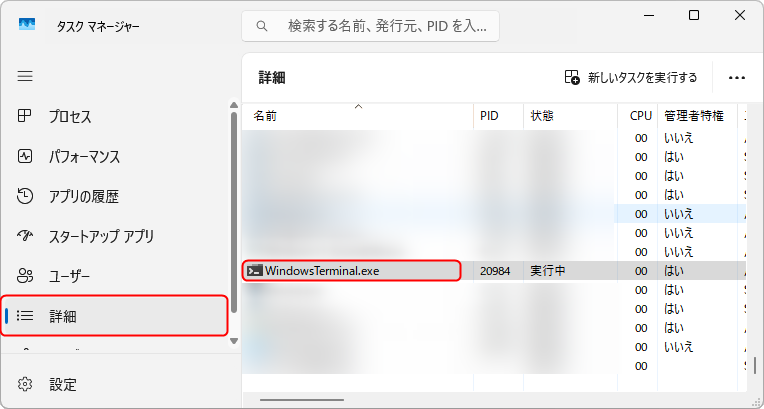
3.「WindowsTerminal.exe」が存在すれば、「WindowsTerminal.exe」の上で右クリック>「タスクの終了」をクリックします。
4.「WindowsTerminal.exe を終了しますか?」と聞かれますので、「プロセスの終了」をクリックします。
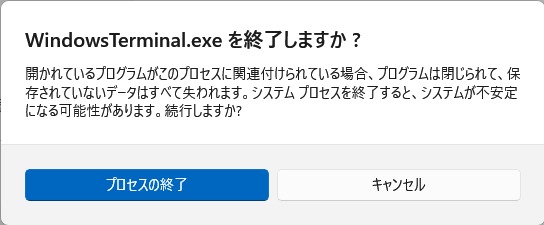
5.タスクマネージャーに「WindowsTerminal.exe」が存在しなくなったことを確認したら、スタートボタンの右クリックメニューからターミナルを起動してみましょう。
2.設定ファイル、およびアプリ本体の破損
設定ファイル、およびアプリ本体の破損している場合、何らかのエラーが表示されて起動できなくなります。
このときのエラーは、直接表示される場合もありますが、イベントビューアーや信頼性モニターに記録されている場合があります。
設定ファイル、またはアプリ本体の破損が原因で起動できない場合、リセットや修復を実行することで解決できる場合があります。
1.スタートボタンの上で右クリック>「インストールされているアプリ」をクリックします。
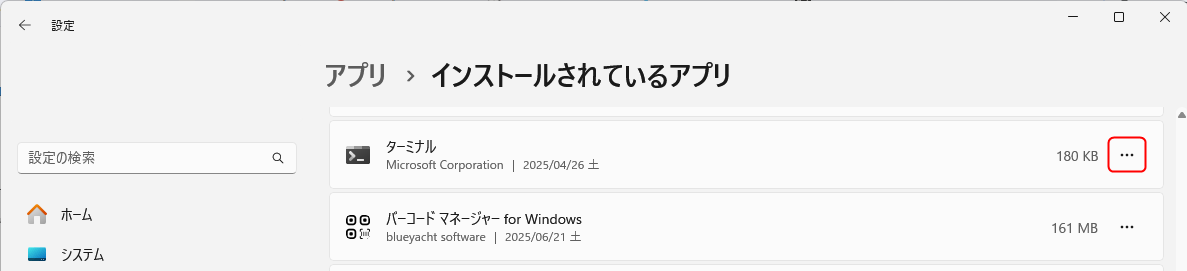
2.「設定」>「アプリ」>「インストールされているアプリ」が開きますので、右側を下にスクロールして「ターミナル」を探し、「ターミナル」の右側の「・・・(その他のオプション)」をクリック>「詳細オプション」をクリックします。
3.下にスクロールし、「修復」と「リセット」をクリックして実行してください。
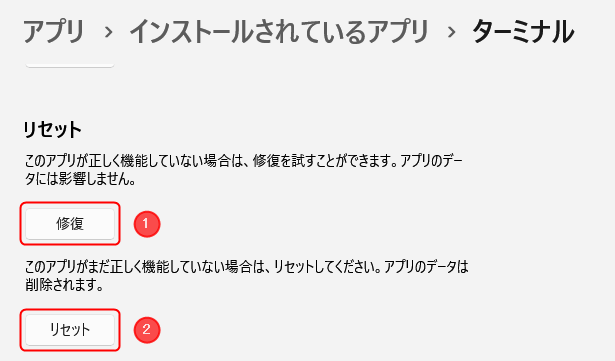
4.「修復」と「リセット」が完了したら、スタートボタンの右クリックメニューからターミナルを起動してみましょう。
3.ターミナルの再インストール
通常は「修復」と「リセット」で解決できることが多いのですが、解決できない場合はターミナルの再インストールを試してみてください。
1.スタートボタンの上で右クリック>「インストールされているアプリ」をクリックします。
2.「設定」>「アプリ」>「インストールされているアプリ」が開きますので、右側を下にスクロールして「ターミナル」を探し、「ターミナル」の右側の「・・・(その他のオプション)」をクリック>「アンインストール」をクリックします。
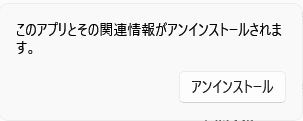
3.アンインストールの確認画面が表示されますので、「アンインストール」をクリックします。
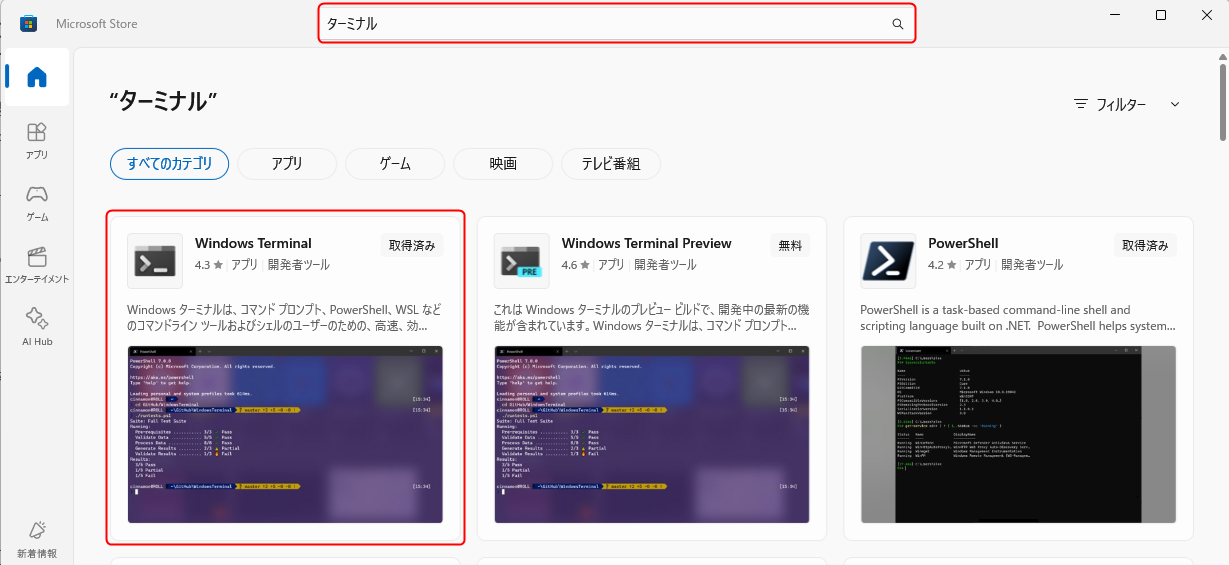
4.スタートメニューから「Microsoft Store」アプリを開き、検索ボックスに「ターミナル」と入力して検索し、表示された「WindowsTerminal」を開いてください。
5.「インストール(または「入手」)」ボタンをクリックしてターミナルをインストールします。
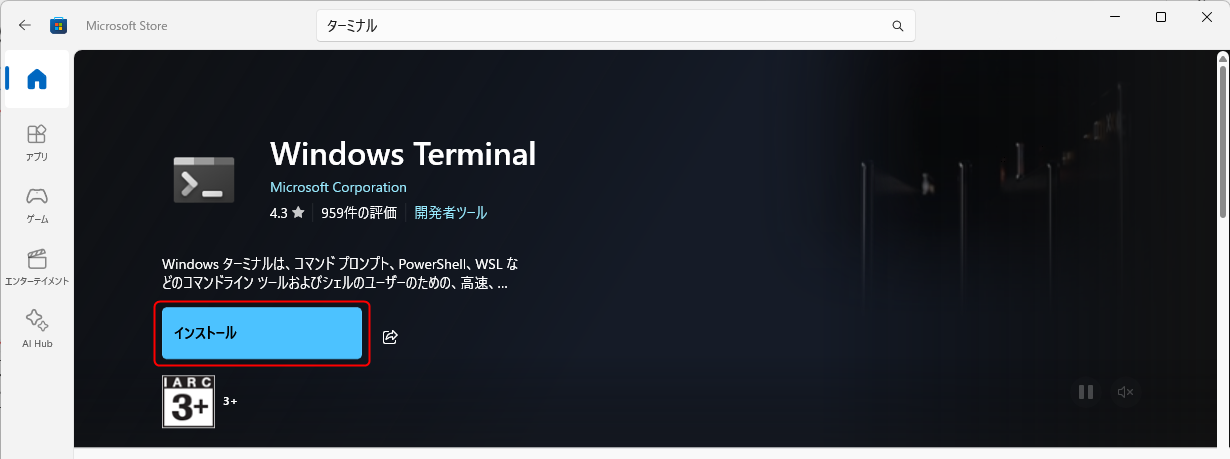
6.インストールが完了すると、「インストール(または「入手」)」ボタンは「開く」に変わりますので、クリックしてみましょう。

コメント