How to change your Win11 administrator account back to a standard user

This time, we will show you how to revert to the original administrator account if you have changed the administrator account to a standard user in the Windows 11 user account settings.

"Run” and press Enter to display the User Account Settings, where you can change your account type.

Run
Run
User Account Settings

You will be asked if you want to sign out immediately after changing to a standard user, but you can switch back to an administrator account before signing out.

However, once you sign out, you will no longer be able to run "netplwiz," and the "User Account Control" screen will only show "No," preventing you from doing anything.

ユーザーアカウント制御
ユーザーアカウント制御

Please note that if you change your only administrator account to a standard user, you will no longer be able to perform operations that require administrator privileges.

However, there is no need to worry as you can restore it using the method we will introduce here.

table of contents

How to change your administrator account back to a standard user

1.Start buttonWhen right-clicking and selecting "Restart," hold down the Shift key while clicking "Restart."

2.Windows Recovery Environment (WinRE)will open, click "Troubleshooting".

Windows Recovery Environment (WinRE)

3. Click "Advanced options".

Windows Recovery Environment (WinRE) - Troubleshooting
Windows Recovery Environment (WinRE) – Troubleshooting

4. Click Startup Settings.

Windows Recovery Environment (WinRE) - Troubleshooting - Advanced Options
Windows Recovery Environment (WinRE) – Troubleshooting – Advanced Options

5. Click "Restart" at the bottom right.

Windows Recovery Environment (WinRE) - Troubleshooting - Advanced Options - Startup Settings
Windows Recovery Environment (WinRE) – Troubleshoot – Advanced Options – Startup Settings

6. Press the F4 key on your keyboard.

Windows Recovery Environment (WinRE) - Troubleshooting - Advanced Options - Startup Settings
Windows Recovery Environment (WinRE) – Troubleshoot – Advanced Options – Startup Settings

7. Windows 11 will start in Safe Mode, so type "netplwiz" in the Run box and press Enter.

Run
Run

8.Then, the "User Account Control" screen will appear, allowing you to enter the Administrator password. If you have never set a password, simply click "Yes."

ユーザーアカウント制御
ユーザーアカウント制御

* There is no need to enable the Administrator account.

9. Open the properties of the account that you changed to a standard user, change it to "Administrator," and click OK.

User account settings

10. If "Group" has changed to "Administrator" as shown below, the settings are complete. Click OK and restart your PC from the Start button.

User account settings

When your PC starts up, you will be back to your administrator account, so try opening the settings.

User account settings

[Urgent] Last resort when you lose administrator privileges and cannot operate WinRE

2025/10/25: From a userComment: I received this and added the solution steps.

First, to get out of the current WinRE screen:

If your PC is currently stuck on a blue screen (Windows Recovery Environment) such as "Choose an option" and you cannot operate the mouse or keyboard,Press and hold the power button on the PC for at least 10 seconds to force it to power off.

Typically, if you change your administrator account to a standard user, you can restore administrator privileges using the command prompt from the Windows Recovery Environment (WinRE), as explained in this article.

But,Impact of the October 2025 Windows Update (KB5067039 installed together with KB5066835)so,Mouse and keyboard become unresponsive in Recovery Environment (WinRE)There may be another problem occurring at the same time.

For more information on this issue, see this article

[Solved] Mouse and keyboard not working issue in WinRE fixed with KB5070773

If these two problems, "no administrator privileges" and "WinRE inoperable," occur simultaneously, you will not be able to restore administrator privileges on the PC alone, and you will be in a dead end.

To get out of this worst case scenarioThe only wayHowever, if you use an external Windows 11 installation media (USB memory),System restoreThe key is to carry out the following.

Things necessary

  • Windows 11 installation media (USB memory)

If you do not have the installation media, please refer to the following page.Another PC with administrator privileges Create the installation media.

How to Use the Windows 11 Media Creation Tool | Error Troubleshooting

To create installation media, you need administrator privileges to run the "Media Creation Tool."It cannot be created on your current PC.Please borrow a friend or family member's PC to create it.

Resolution Steps

Step 1.Boot the problem PC from the USB stick:

1. Connect the USB memory stick you created to the problem PC.

2. Turn on your PC and immediately press a specific key (e.g. F12, ESC, F2, etc., depending on the manufacturer) to bring up the boot menu, then select "USB Drive" or "UEFI: (USB memory name)" to boot from USB.

reference:Boot your PC from the installation media

Step 2.Select "Repair your PC":

1. When the Windows 11 setup screen (language selection) appears, click "Next".

Windows 11 Setup
Windows 11 Setup

2. Click "Next" on the keyboard selection screen in the same way.

Windows 11 Setup
Windows 11 Setup

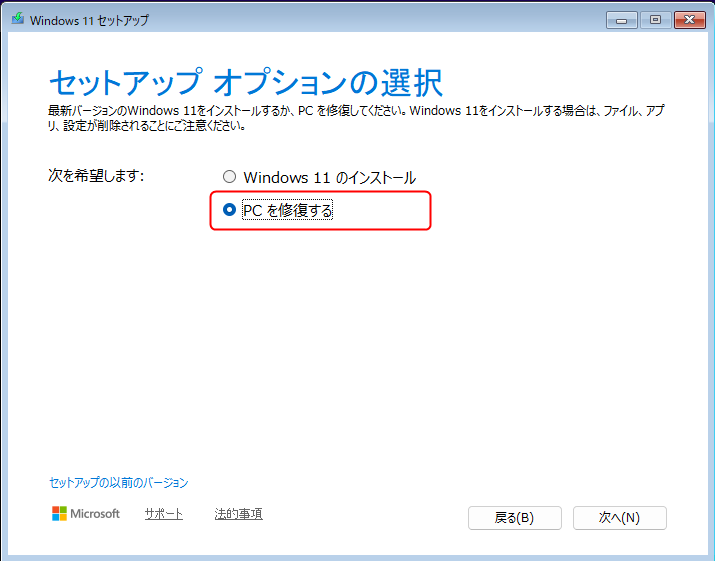
3. On the Setup Options screen, click Repair your PC.

Windows 11 Setup
Windows 11 Setup

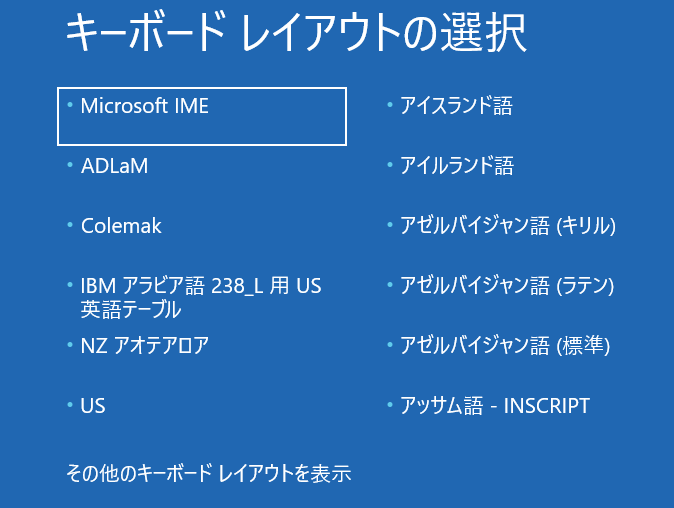
4. Select "Microsoft IME" as the keyboard layout.

キーボードレイアウトの選択
キーボードレイアウトの選択

Step 3.Launch System Restore:

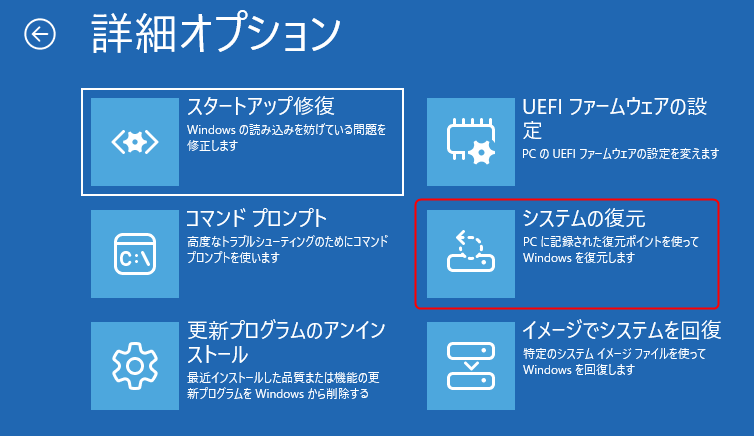
1. When the blue "Choose an option" screen appears, select "Troubleshoot" > "System Restore." (Since you're in a normal recovery environment on the USB media, you should be able to use the keyboard.)

Advanced options
Advanced options

Step 4.System Restore:

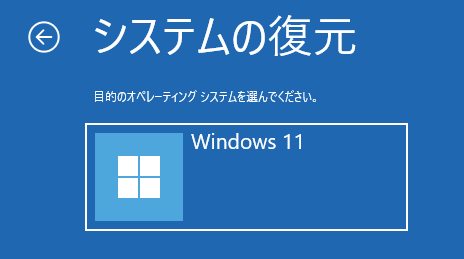
1. You will be prompted to "Select the desired operating system." Select the OS you want to restore (usually "Windows 11").

System restore
System restore

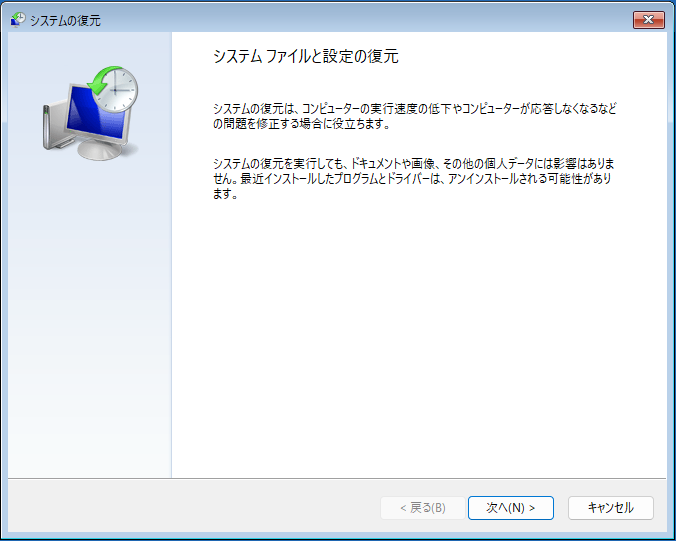
2. System Restore will start, so click "Next".

System restore
System restore

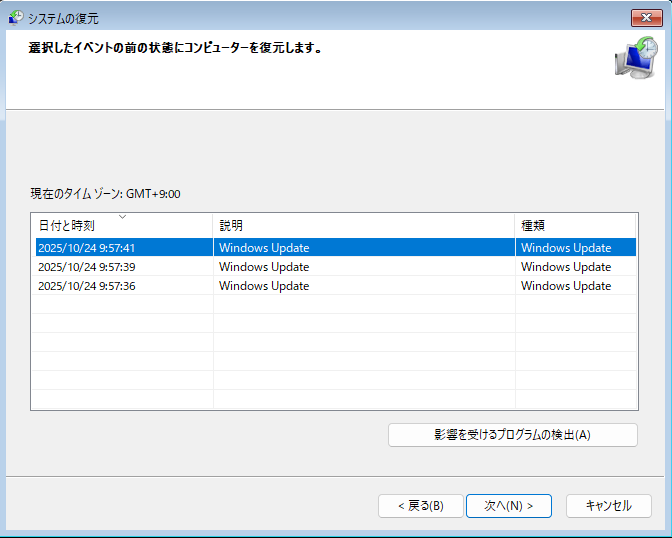
3. Check the date and time, select a point before the problem occurred, and click "Next."

Restores the computer to the state before the selected event.

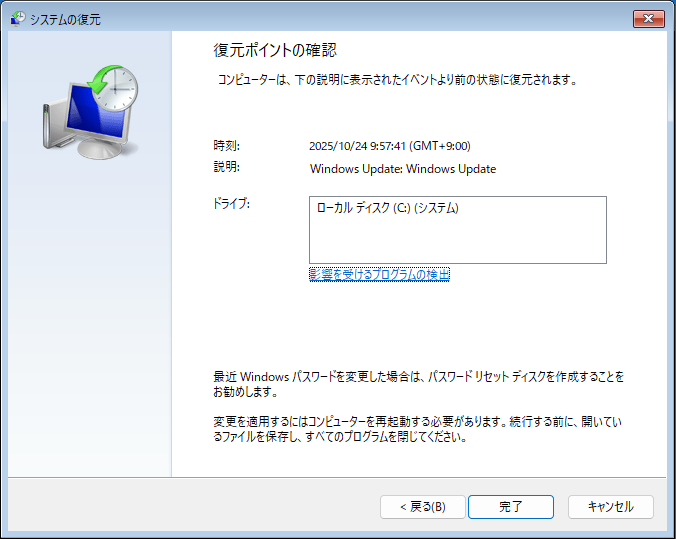
4. Check the contents and click "Finish".

Checking for restore points

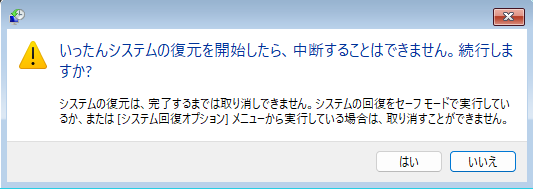
5. You will be asked, "Once System Restore begins, it cannot be interrupted. Do you want to continue?" Check the message and click "Yes."

Once System Restore begins, it cannot be interrupted. Do you want to continue?

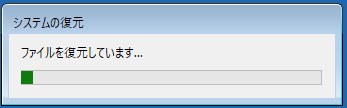
6. This will start the system restore.

System Restore in progress

At this point, remove the USB memory stick.

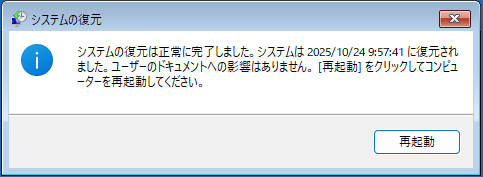
7. Once the system restore is completed successfully, the following screen will appear. Click "Restart".

System restore complete

System restore complete

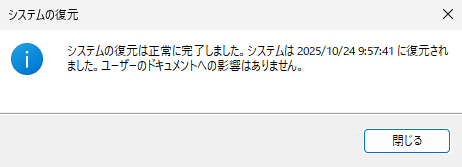
8. Once Windows starts normally, sign in with the problematic account. You will see a message that says "System Restore completed successfully." Click "Close."

System restore
System restore

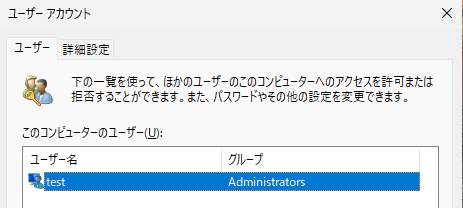
9. Press the Windows key + R to open the Run box, type "netplwiz" and press Enter to see if you are back to the administrator account.

User account
User account
If you found this article helpful, please share it on social media.

Person who wrote this article

Driven by questions arising from my daily PC use and the desire to "do more," I have been pursuing self-study in Windows since around 2008. I am sharing the "aha!" techniques and solutions I discovered through trial and error with the sole purpose of helping you in your PC life.

View profile

Comment:

Comment list (18)

  • I'm a 73-year-old former robotics engineer.
    After updating to 25H2, I switched from a local account to a Microsoft account, but when I tried to bypass the password and PIN input required at startup, I got lost in my thoughts while fiddling around, and in a panic, I changed the local account's "Administrator" to a "Standard User," which left me in a bind.

    By following Wenbang's detailed and easy-to-understand explanations, I was able to solve the problem in one go.
    I'm really thankful to you.
    I will continue to use this as a reference in many ways.

    • Thank you for your comment, Mecha Dragon.

      I also heard that you are a former robotics engineer, so I am very honored to receive such praise from someone with such specialized experience.

      It's really frustrating when you accidentally change the permissions of a local account to "Standard User" and lose administrative privileges, and it can be very frustrating when you can't see a solution. I completely understand how you feel, "my thoughts are lost in a maze."

      I was so happy and relieved to hear that our articles were helpful in such a difficult situation and that they solved the problem in one go. Having someone with such a deep understanding of technology as Mecha Dragon rate our articles as "detailed and easy to understand" gives me great confidence in my future article writing.

      We will continue to strive to provide various information about Windows in an easy-to-understand manner, so we hope you will find it useful.
      Thank you so much for your very encouraging and warm comments.

  • Dear Wenbang, Thanks to your guidance, I was able to restore my administrator privileges. Thank you very much.
    1. After uninstalling Expresss Zip, the "User Account Control" message appeared and a "Yes" button was displayed.
    2. I started over from the beginning of the process, and the "Command Prompt" screen looked a little different during the process, but in the end, my administrator privileges were restored.
    3. I messed around with it to eliminate the need to enter a password when starting the PC, and the sleep mode hasn't improved, but it doesn't affect my use so I'll leave it as is.
    I really appreciate your guidance in such a short space of time.

  • Thank you for your reply, even though it was early in the morning. I think I may have messed up the PC itself (although I'm an amateur and haven't tinkered with it).
    1. I found Netplwiz.exe in C:Windows System32, so I clicked on it, but it only displayed "No" and no "Yes" option.
    2. So I typed "Command Proton" in the search box and clicked "Run as administrator," but the strange message "Express-Zip Free Edition" appeared and I couldn't proceed, and the "User Account Control" screen did not appear.
    3. So, if you enter "sfc /scannow" in the search box, a screen titled "User Account Control: Check and Repair System Integration" will appear, but here too, only "No" is displayed, and no "Yes" is displayed.
    4. After I removed the administrator privileges, if I start up the PC and leave it as is, it goes into sleep mode after 1-2 minutes, so I may have done something wrong. Thank you for your trouble.
    5. As a last resort, would reinstalling Windows 11 be enough to restore the system?

    • Dear Condor,

      First, let me confirm if you can start the computer in "Safe Mode." In Safe Mode, the background of the screen will be black and "Safe Mode" will be displayed in the four corners.

      If the message "Express-Zip Free Edition" appears, it means that you have "Express-Zip" installed. If you uninstall it, it should no longer appear.

      1. Right-click the Start button and click "All Apps."
      2. Search for "Express-Zip" and uninstall it. It should be listed as "Express Zip file compression software."
      Express Zip

      After uninstalling "Express-Zip," try running "Command Prompt" as an administrator. If the "User Account Control" message appears and you can click "Yes," it means that "Express-Zip" is causing "Netplwiz.exe" to fail to start.

      If the above does not resolve the issue, we recommend that you select "System Restore" on the screen after clicking "Advanced options" in step 3 of this article, and return to a restore point before the problem occurred.

      How to create, restore, and delete system restore points

      If you don't have a system restore point, your only option is to reinstall Windows 11.

    • Dear Condor,

      Please check if "Netplwiz.exe" exists in the C:\Windows\System32 folder.
      If it exists, try double-clicking "Netplwiz.exe" to run it.

      If it's not there, or if double-clicking it doesn't open it,
      1. Type "Command Prompt" in the search box of the Start menu.
      2. Then, "Command Prompt" will appear on the right side, so click "Run as administrator".
      3. When the User Account Control message appears, click "Yes".
      4. Type "sfc /scannow" (with a half-width space) and press Enter.システムファイルチェッカーの実行
      5. Once the system scan is complete, right-click the Start button, hold down the Shift key, and click Restart.
      6. Please proceed from step 2 of this article "How to revert an administrator account to a standard user if you have changed it."

  • Dear Wenbang, 2025.4.6 I accidentally messed around with it to eliminate the need for a password when starting my PC, and now I'm having trouble. Maybe I switched to Windows 11 24H2, but when I type in the 7.netplwiz command as instructed, the 8.0 screen doesn't appear. I'd appreciate any advice. (Condor)

    • Thank you Condor for your comment.

      Screen 8 may not be displayed depending on your account or account settings. Is screen 9 open? If so, please continue with the steps.

  • I accidentally set myself to a standard user and was having trouble uninstalling everything, but thanks to this article I was able to successfully return to administrator mode! Thank you!

  • I'm really thankful to you.
    The top part didn't work, but I was able to fix it by writing the instructions at the bottom.
    After step 4, I was asked for the recovery key, but fortunately I had it on hand so nothing happened.
    No matter which site I looked at, all I found were hopeless stories, so I was at a loss.
    I still haven't achieved my goal of changing my Microsoft account, but this was helpful for now.
    I really thank you.

To comment

[About submissions]
We welcome any questions or information regarding the content of the article.
However, please note that content unrelated to the purpose of the article, criticism of specific individuals or organizations, offensive language,Inappropriate wordsComments containing the above may be deleted or made private without notice at the discretion of the administrator.
Please note that spam may be automatically deleted by anti-spam measures.

CAPTCHA


table of contents