
今回は、Google Chrome の「メモリセーバー」設定を変更してパフォーマンスをアップする方法を紹介します。
Google Chrome を長時間使用していると、PC 全体の動作が遅く(重く)なってしまうことがありませんか?
例えば、Youtube などの動画を見ながら別のタブをたくさん開いて WEBページを閲覧していると、あらゆる操作の反応が遅くなってしまう場合があります。
Google Chrome の「メモリセーバー」
メモリセーバーとは
「メモリセーバー」を有効にすることで、アクティブでないタブのメモリーは自動的に解放され、タブの切り替えがスムーズに行えるようになり、PC 全体の速度低下を抑えることが出来ます。
アクティブでないタブ(しばらく使用しないタブ)は、アクティブなタブをスムーズに動作させるために、一定の時間が経つと無効になります。
このときにアクティブでないタブのメモリーが解放され、PC のメモリーを節約し、速度低下を防ぎます。
アクティブでないタブは閉じられるわけではなく、一時的に無効になるだけで、再度タブを開くとアクティブな状態に戻ります。
お使いの PC に搭載されているメモリー容量が少ない場合や、特に動画をよく見る方は、「メモリセーバー」有効にしておくことをおすすめします。
「メモリセーバー」の設定
1.Google Chrome のアドレスバーに次のコマンドを入力して Enter を押します。
chrome://settings/performance2.右側に「メモリセーバー」が表示されますので、下の画像の①のトグルで有効、無効を切り替えができます。
②でメモリをどのように節約するかを選択すことができます。
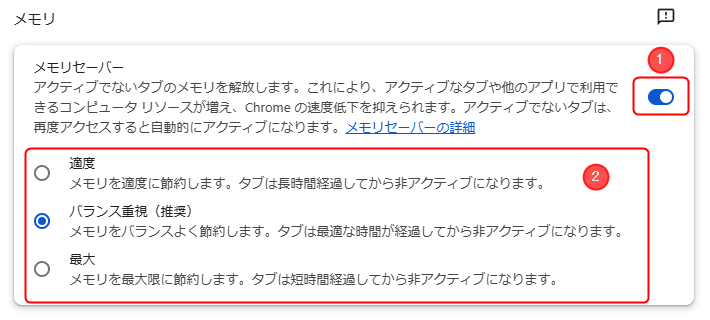
「メモリセーバー」が有効である場合、Google Chrome のタブの切り替えがスムーズに行えるようになり、速度低下を抑えることが出来ます。
Windows 11 を使用していて PC に搭載しているメモリー容量が 8GB など少ない場合は、「最大」を選択することをおすすめします。
一般的には「バランス(推奨)」のままでも良いのですが、PC に搭載されているメモリー容量が多く、余裕がある場合は、「適度」または「メモリセーバー」を無効化した方がパフォーマンスは上がります。※「最大」を選択すると Google Chrome 全体のパフォーマンスが落ちる可能性があります。
メモリセーバーを有効にするメリットとデメリット
メリット
Google Chrome で使用するメモリー容量を節約し、PC が使用できるメモリー容量を確保することで、PC のメモリー不足による速度低下を防ぎます。
わかりやすく言うと、例えば PC に搭載しているメモリー容量が 8GB だとします。
あなたはたくさんのタブを開いていて、Chrome の使用しているメモリー容量が 4GB になったとします。
すると、PC が使用できるメモリー容量は 4GB になりますね?
もしも他にもアプリを開いていて 4.1GB のメモリーを使ったらどうでしょう?メモリー容量が足りなくなりますよね。
使えるメモリー容量が足りなくなると、頻繁にスワップが発生して PC 全体の動作が極端に遅くなります。
このときにメモリセーバーが有効であると、Chrome は現在使用していない(一定の時間使用していない)タブを非アクティブ化(一時的に使用不能な状態)し、そのタブで使用していたメモリー容量を解放します。
例えば 500MB 解放されれば、PC が使用できるメモリー容量は 4.5GB になり、メモリー不足による速度低下を防いでくれます。
デメリット
メモリセーバーが有効であると、Chrome は現在使用していないタブを非アクティブ化すると上記で説明しました。
しかし、非アクティブなタブは一時的に使用不能な状態になっているため、再度アクセスした際にページの内容を自動的に再読み込みします。
例えばあるタブでページA を開いていて、半分ぐらい閲覧してから別のタブでページB を見たとします。
このときにメモリセーバーの機能が発動し、ページA が開かれているタブが非アクティブ化されたとします。
あなたはページB の閲覧を終え、ページA の続きを見に行きますが、ページA は再読み込みされるので、ページの先頭に戻ってしまいます。
続きを見たかったのにページの先頭に戻ってしまうのはとても不便ですね。
このように、メモリセーバーにはデメリットもありますので、お使いの環境に合わせて設定してみてください。


コメント